> ## Documentation Index
> Fetch the complete documentation index at: https://help.askfunnel.com/llms.txt
> Use this file to discover all available pages before exploring further.
# Change your email address
> Confirm it is you, enter your new email address and click the link we send to it, to sign in to AskFunnel with a new address.
You can change the email address you use to sign in to AskFunnel, for example when you leave a company or start using a new inbox. Changing it takes a few steps on purpose, because your email address is the key to your account. First you confirm that it is you, then you enter the new address, then you click a link we send to that new address.
With this change, you can:
* **Keep everything.** Your organization, your workspaces, your role and your leads stay with your account.
* **Sign in with the new address.** After you confirm, you use the new address from then on.
* **Stay safe.** A link sent to the new address proves that you own it.
**Before you start**, you need:
* To be signed in to AskFunnel.
* Access to the inbox of your **new** address, because that is where the confirmation link goes.
* Access to how you signed in now: your Google account, or the inbox of your current address.
## Important to note
* You need a recent sign in. After you click **"Verify it's you"**, you have five minutes to save the change.
* Your current address keeps working until you click the link in the confirmation email. The link works for one hour, and only the newest link works. If you ask for another change, the earlier link stops working.
* The new address cannot belong to another AskFunnel account.
* When the change is done, AskFunnel signs you out everywhere, including your other browsers and devices. Sign in again with your new address.
* You change the address of your own account, from your own profile.
## Change your email address
Click your profile picture in the top right corner. Under **Account**, click **"Profile"**.
Next to **Email**, replace your address with the new one. A note appears under the box: **A verification link will be sent to this address to confirm the change.** Below it, a button says **Verify it's you**.
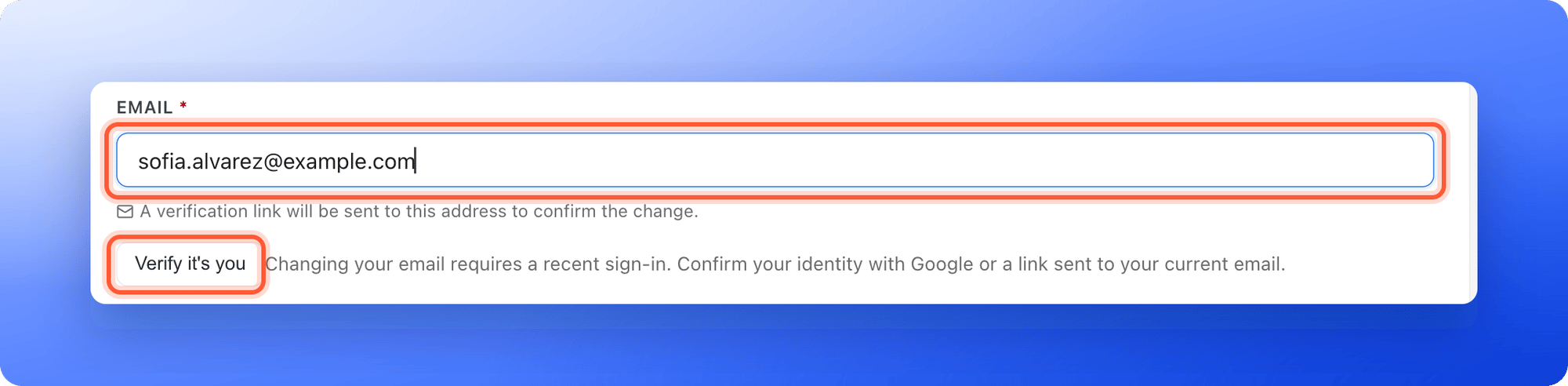 Click **"Verify it's you"**.
* **If you sign in with Google,** a Google window opens. Choose your account. You see **Identity confirmed. Save your email change within five minutes.**
* **If you sign in with an email link,** we send a sign in link to your current address. You see **Check your current email for a sign-in link.** Open the email and click the link. It brings you back to your profile. Type your new address again if the box is empty, then continue within five minutes.
Click **"Save changes"** in the bar at the top. A message says **A verification link has been sent to** your new address, and that your email will be updated after you click the link. Any other changes you made on the page, such as your name, are saved too.
1. Open the inbox of your **new** address. Look for the email with the subject **Confirm your new email address**.
2. Click **Confirm email change**. The link works for one hour.
3. A page says **Email updated** and shows your new address. Click **"Sign in"** and sign in with the new address.
## How do I know it is working?
* After you save, a message shows the new address and says a verification link was sent.
* The email arrives in the inbox of the new address.
* After you click the link, the page says **Email updated**. When you sign in again, **Profile** shows your new address.
## Troubleshooting
Your last sign in is too old. Click **"Verify it's you"** below the **Email** box, then click **"Save changes"** within five minutes.
The new address already has its own AskFunnel account. Use a different address, or sign in to that account instead.
Check the spam or junk folder of the **new** address, and check that you typed it correctly. If it still does not come, go back to **Profile**, confirm that it is you again and save the change again. A new request replaces the old link.
The link works for one hour. Go to **Profile** and start again. A message says **This verification link has expired. Please request a new one from your profile settings.**
The link was already used, or you asked for a newer one that replaced it. Open the newest email, or start again from **Profile**.
Click **"Save changes"** again. If it keeps failing, email support.
An earlier change is still finishing. Open the confirmation email you received for it and click its link again.
Allow pop-ups for dash.askfunnel.com in your browser and click **"Verify it's you"** again.
Sign in again. AskFunnel signs you out when the change is done, so an old page can still show the old address.
## What to do next
How signing in works, with Google or an email link.
Give your team access to your workspace.
Ask us for help with your account.
Need help? Email [support@askfunnel.com](mailto:support@askfunnel.com).
Click **"Verify it's you"**.
* **If you sign in with Google,** a Google window opens. Choose your account. You see **Identity confirmed. Save your email change within five minutes.**
* **If you sign in with an email link,** we send a sign in link to your current address. You see **Check your current email for a sign-in link.** Open the email and click the link. It brings you back to your profile. Type your new address again if the box is empty, then continue within five minutes.
Click **"Save changes"** in the bar at the top. A message says **A verification link has been sent to** your new address, and that your email will be updated after you click the link. Any other changes you made on the page, such as your name, are saved too.
1. Open the inbox of your **new** address. Look for the email with the subject **Confirm your new email address**.
2. Click **Confirm email change**. The link works for one hour.
3. A page says **Email updated** and shows your new address. Click **"Sign in"** and sign in with the new address.
## How do I know it is working?
* After you save, a message shows the new address and says a verification link was sent.
* The email arrives in the inbox of the new address.
* After you click the link, the page says **Email updated**. When you sign in again, **Profile** shows your new address.
## Troubleshooting
Your last sign in is too old. Click **"Verify it's you"** below the **Email** box, then click **"Save changes"** within five minutes.
The new address already has its own AskFunnel account. Use a different address, or sign in to that account instead.
Check the spam or junk folder of the **new** address, and check that you typed it correctly. If it still does not come, go back to **Profile**, confirm that it is you again and save the change again. A new request replaces the old link.
The link works for one hour. Go to **Profile** and start again. A message says **This verification link has expired. Please request a new one from your profile settings.**
The link was already used, or you asked for a newer one that replaced it. Open the newest email, or start again from **Profile**.
Click **"Save changes"** again. If it keeps failing, email support.
An earlier change is still finishing. Open the confirmation email you received for it and click its link again.
Allow pop-ups for dash.askfunnel.com in your browser and click **"Verify it's you"** again.
Sign in again. AskFunnel signs you out when the change is done, so an old page can still show the old address.
## What to do next
How signing in works, with Google or an email link.
Give your team access to your workspace.
Ask us for help with your account.
Need help? Email [support@askfunnel.com](mailto:support@askfunnel.com).