> ## Documentation Index
> Fetch the complete documentation index at: https://help.askfunnel.com/llms.txt
> Use this file to discover all available pages before exploring further.
# Customize your thank you screen
> Edit the screen visitors see after they submit your form, and add more results for different outcomes.
Edit the last screen people see after they submit your form. It confirms that you received their details and tells them what happens next. In the builder it is a **result**. Every funnel has at least one, and you can edit it like any other page.
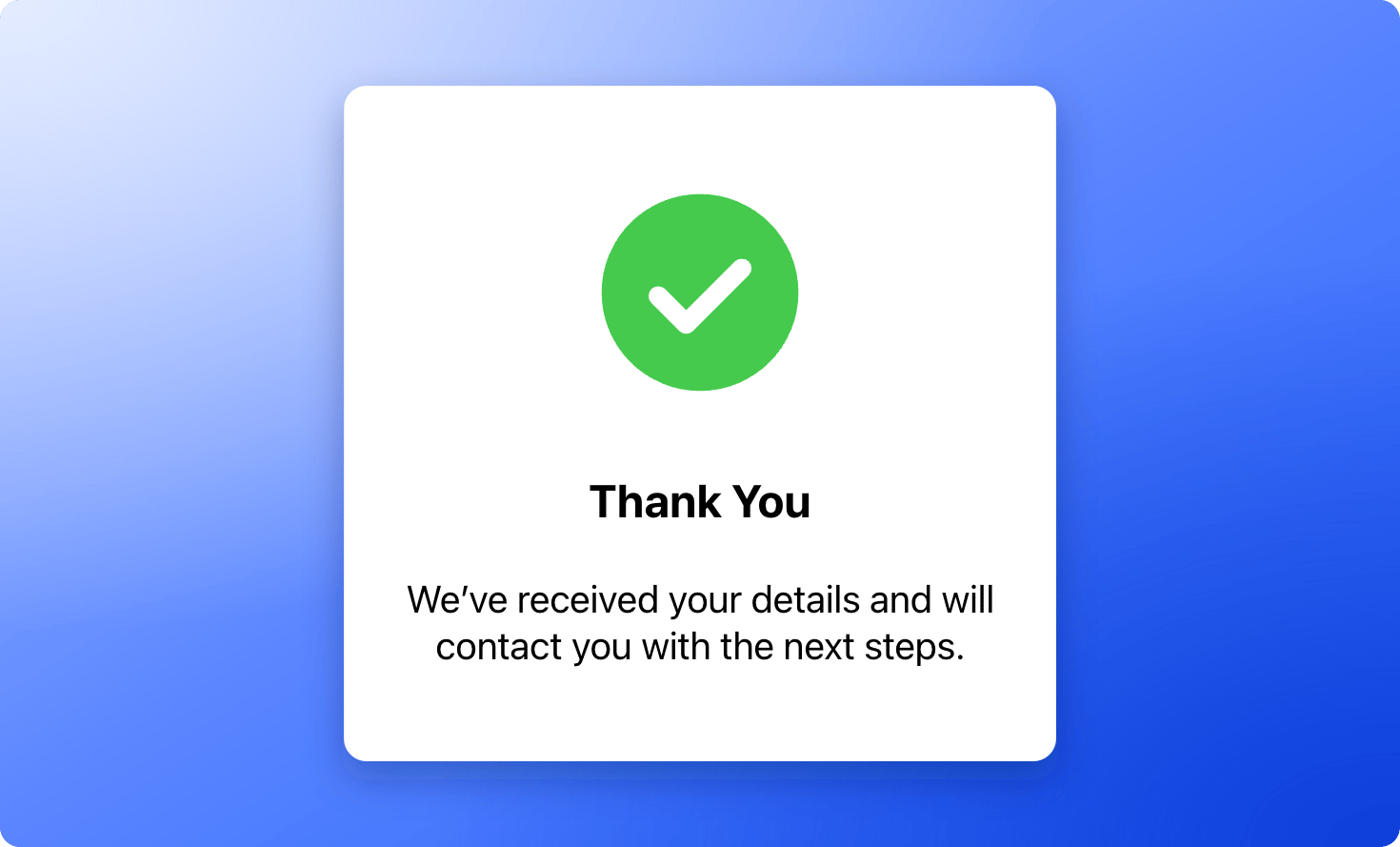
A new funnel comes with a **Thank you** result that has a green check mark, the heading **Thank You** and the text **We've received your details and will contact you with the next steps.**
 **Before you start**, you need:
* A funnel open in the builder. See [Launch your first funnel](/getting-started/launch-your-first-funnel).
## Edit your thank you screen
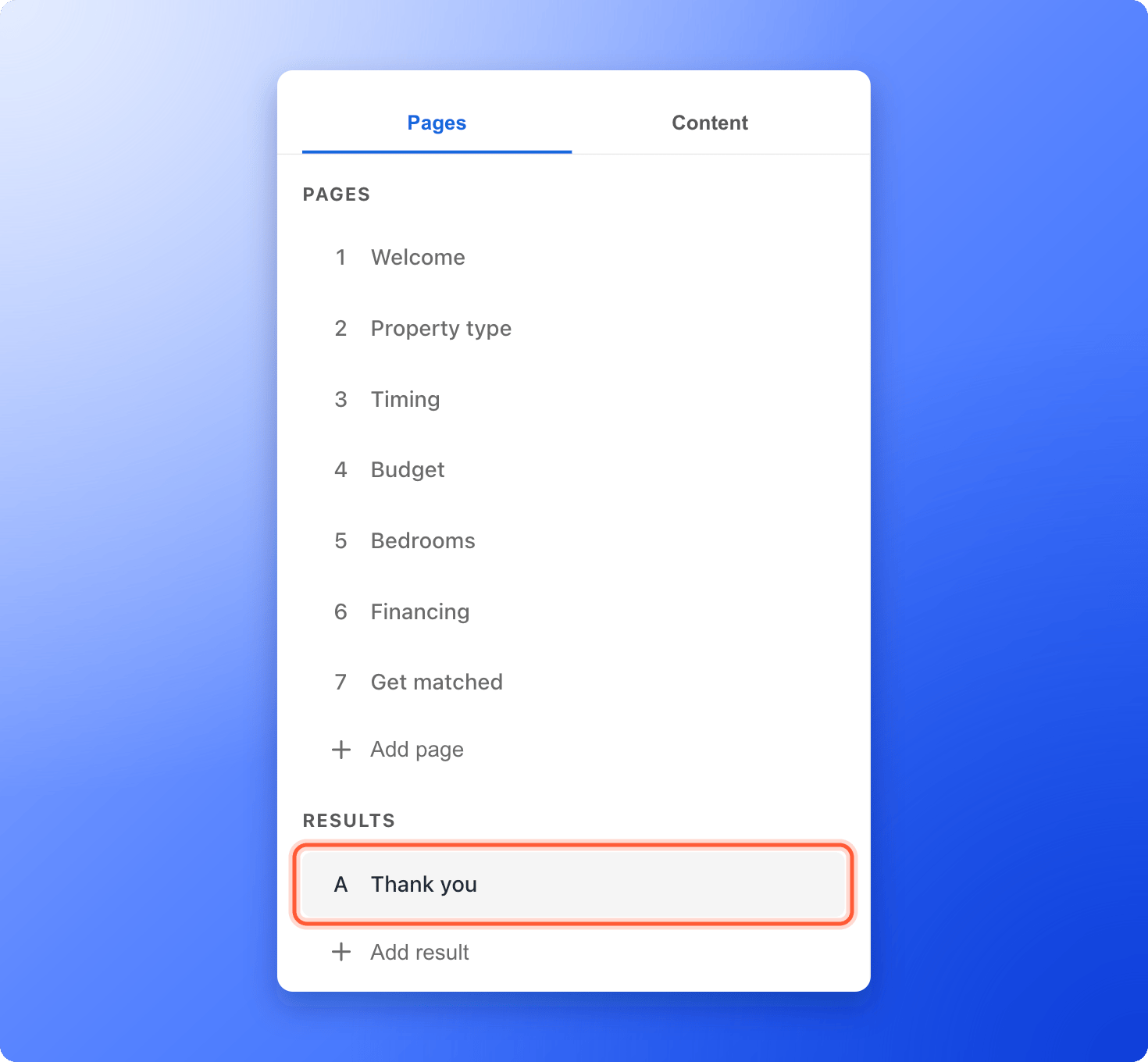
1. In the builder, click the **"Pages"** tab on the left side menu.
2. Scroll to **Results** and click **"Thank you"**. It opens on the canvas.
**Before you start**, you need:
* A funnel open in the builder. See [Launch your first funnel](/getting-started/launch-your-first-funnel).
## Edit your thank you screen
1. In the builder, click the **"Pages"** tab on the left side menu.
2. Scroll to **Results** and click **"Thank you"**. It opens on the canvas.
 1. Click the heading and type your own, for example "You are all set!" or "Request received".
2. Click the text under it and say what happens next, for example "We will call you within 24 hours to book your visit. Check your email for a confirmation."
A good thank you message answers three questions: Was my request received? When will I hear back? Who will contact me? Keep it to two short sentences.
* Click the green check mark to select it and change how it looks in the left panel.
* To add a button, a video, your logo or anything else, click the **"Content"** tab and click the block you want. It is added below the section at the top of your view. See [Add and arrange blocks](/funnels/layout-blocks).
* To send people to your own website or a booking page, add a **Button** and select it. Turn on **Action Flow** (the setting that decides where a click leads), click the line under it, choose **External URL** under **Always goes to**, paste your link and click **"Save"**.
Click **"Publish Funnel"** at the top right. AskFunnel saves your edits as you work, but people only see them after you publish. Open your live funnel, submit the form with a test email, and check that your new message appears.
## Add more results for different outcomes
You can have several results. For example, you can show one screen to qualified leads and another to people who are not a fit.
Visitors reach your first result after your last page, following the order of your page list. If you have more than one result, the first one in the list is shown unless a quiz or form sends visitors to another one.
1. Under **Results**, click **"Add result"**. The new result is called **Thank you**.
2. Hover over it, click the three dots (**...**) and click **"Rename"** to give it a clear name, for example "Booked a call" or "Not a fit". Click **"Duplicate"** to copy a result you have already designed.
3. Send people there. In a quiz, use **Advanced Branching** and choose the result under **Go to**. In a form, turn on **Action Flow** and choose the result under **Always goes to**. See [Build quiz questions](/funnels/quiz-questions) and [Set up your lead capture form](/funnels/lead-capture-forms).
## How do I know it is working?
Open your live funnel, go through it and submit the form. The last screen shows your message. To get your link, see [Share your funnel](/funnels/share-your-funnel).
## Troubleshooting
Click **"Publish Funnel"** after editing. Your changes stay in your draft until you publish.
If you have more than one result, the first one in the list is shown by default. Drag the result you want to the top of the **Results** list, or choose it in the **Action Flow** of your form or quiz.
Check the **Action Flow** of your form. If it sends people to a page that is not your thank you result, they never reach it. Set it to **Next Page**, or choose your thank you result.
A funnel always keeps at least one result. Add another result first, then delete the one you do not want.
## What to do next
Get your funnel link and send people to it.
See every lead with its answers.
Send a welcome email the moment someone submits.
Need help? Email [support@askfunnel.com](mailto:support@askfunnel.com).
1. Click the heading and type your own, for example "You are all set!" or "Request received".
2. Click the text under it and say what happens next, for example "We will call you within 24 hours to book your visit. Check your email for a confirmation."
A good thank you message answers three questions: Was my request received? When will I hear back? Who will contact me? Keep it to two short sentences.
* Click the green check mark to select it and change how it looks in the left panel.
* To add a button, a video, your logo or anything else, click the **"Content"** tab and click the block you want. It is added below the section at the top of your view. See [Add and arrange blocks](/funnels/layout-blocks).
* To send people to your own website or a booking page, add a **Button** and select it. Turn on **Action Flow** (the setting that decides where a click leads), click the line under it, choose **External URL** under **Always goes to**, paste your link and click **"Save"**.
Click **"Publish Funnel"** at the top right. AskFunnel saves your edits as you work, but people only see them after you publish. Open your live funnel, submit the form with a test email, and check that your new message appears.
## Add more results for different outcomes
You can have several results. For example, you can show one screen to qualified leads and another to people who are not a fit.
Visitors reach your first result after your last page, following the order of your page list. If you have more than one result, the first one in the list is shown unless a quiz or form sends visitors to another one.
1. Under **Results**, click **"Add result"**. The new result is called **Thank you**.
2. Hover over it, click the three dots (**...**) and click **"Rename"** to give it a clear name, for example "Booked a call" or "Not a fit". Click **"Duplicate"** to copy a result you have already designed.
3. Send people there. In a quiz, use **Advanced Branching** and choose the result under **Go to**. In a form, turn on **Action Flow** and choose the result under **Always goes to**. See [Build quiz questions](/funnels/quiz-questions) and [Set up your lead capture form](/funnels/lead-capture-forms).
## How do I know it is working?
Open your live funnel, go through it and submit the form. The last screen shows your message. To get your link, see [Share your funnel](/funnels/share-your-funnel).
## Troubleshooting
Click **"Publish Funnel"** after editing. Your changes stay in your draft until you publish.
If you have more than one result, the first one in the list is shown by default. Drag the result you want to the top of the **Results** list, or choose it in the **Action Flow** of your form or quiz.
Check the **Action Flow** of your form. If it sends people to a page that is not your thank you result, they never reach it. Set it to **Next Page**, or choose your thank you result.
A funnel always keeps at least one result. Add another result first, then delete the one you do not want.
## What to do next
Get your funnel link and send people to it.
See every lead with its answers.
Send a welcome email the moment someone submits.
Need help? Email [support@askfunnel.com](mailto:support@askfunnel.com).