> ## Documentation Index
> Fetch the complete documentation index at: https://help.askfunnel.com/llms.txt
> Use this file to discover all available pages before exploring further.
# Start a funnel from a template
> Preview ready-made funnels for different businesses, then use one as your starting point and make it your own.
Available on: **all plans** (Starter, Growth, Scale and Enterprise).
A template is a ready-made funnel for a type of business, for example a dental clinic, a real estate agency or a cleaning company. It already has an opening page, questions, a contact form and a thank you page, with example words and pictures. You preview it, click one button and AskFunnel gives you your own copy to edit. It is the quickest way to see what a finished funnel looks like.
With a template, you can:
* **Preview before you choose.** A phone screen shows the funnel the way visitors see it, with the number of pages and about how long it takes to answer.
* **Start from a full funnel.** Every template has a landing page, questions and a lead form.
* **Change everything.** Your copy is a normal funnel in the builder, not a locked design.
* **Use as many templates as you like.** Each time you click **"Use this template"**, you get a new funnel. The original template never changes.
**Before you start**, you need:
* A role that can create funnels: Global Admin, Workspace Admin or Content Editor.
* An active plan or free trial.
## Important to note
* Templates contain example claims, reviews, prices, pictures and business details. Replace every one with your own accurate content before you publish.
* Your new funnel is a draft. Nobody can see it until you publish it. See [Publish, unpublish and restore an earlier version](/funnels/publish-and-restore).
* The gallery only has full funnels (landing page, questions and form). There is no template for a landing page with only a form, or for only a quiz and a form. To get one of those shapes, use [Create a funnel with AI](/funnels/create-funnel-with-ai), which lets you choose the format, or delete the pages you do not need.
* The preview is a real, working sample funnel. If you fill in its form and submit it, your answers go to AskFunnel's sample workspace and not to your account, so do not type real personal details into the preview.
* The new funnel gets the template's name, for example "Real estate". You can rename it in the builder.
## Use a template
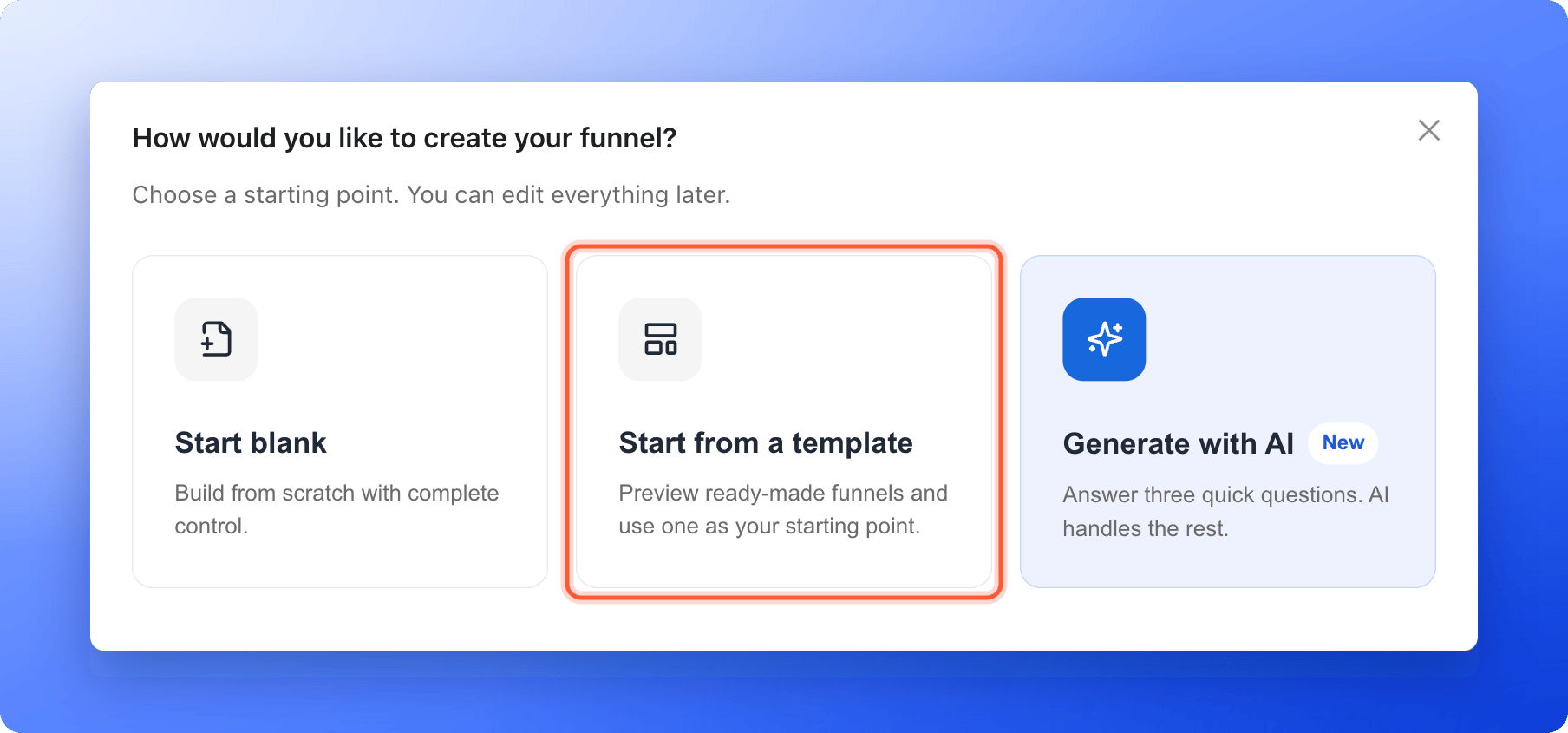
1. On the **Funnels** page of your workspace, click **"Create Funnel"** at the top right.
2. Click **"Start from a template"**. The **Start from a template** page opens.
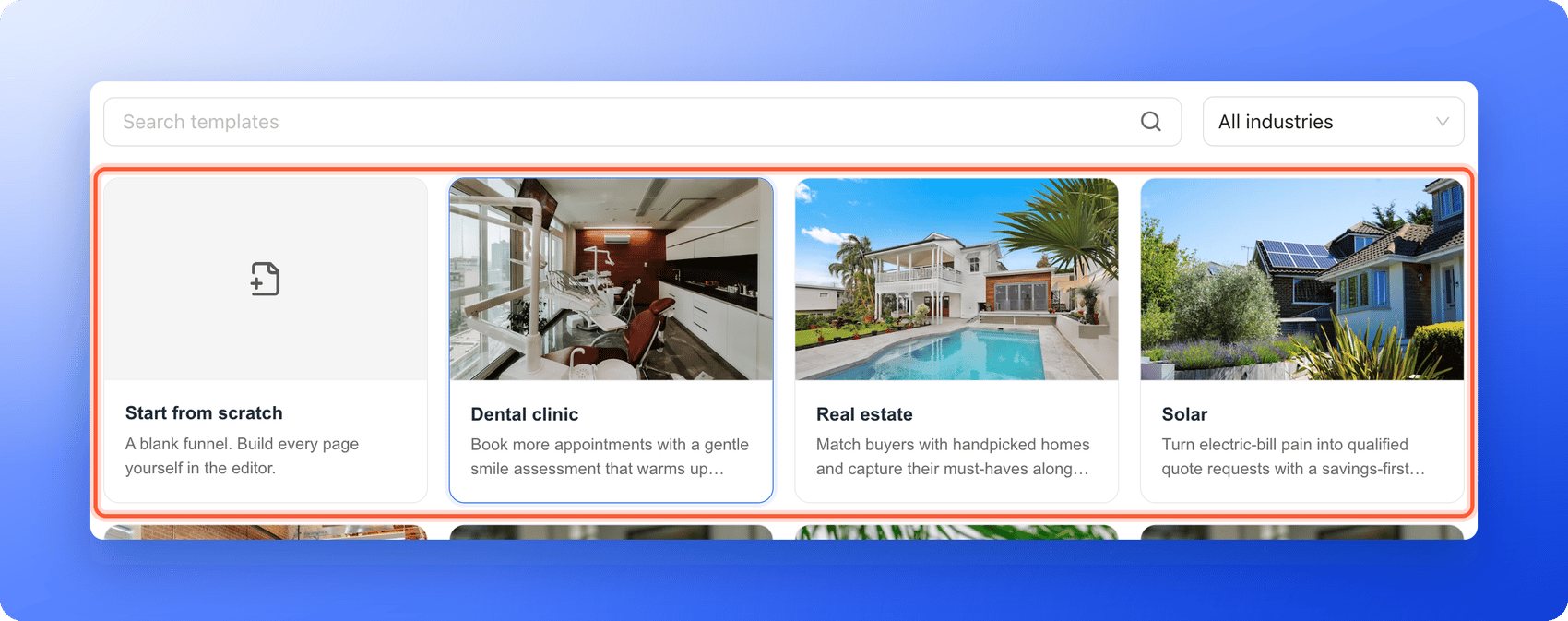
 The cards on the left start with **Start from scratch**, a blank funnel. After it come the templates, each with a name and one line about what it is for. If you see a **Search templates** box and an industry list above the cards, use them to narrow the list.
 The gallery opens with the first template already selected. Click any card to select another one. The phone screen on the right shows the funnel and you can scroll and click through it. Under the phone, three tags tell you how many pages it has, about how many minutes it takes to answer (for example **\~2 min**) and that it **Works on all devices**.
Check that the offer and the questions fit the conversation you want to have with your visitors. If the preview cannot load, you see **Preview unavailable.** and a picture of the first page. You can still use the template.
Click **"Use this template"** at the top right. The button says **Start from scratch** while the blank card is selected, so click a template card first.
AskFunnel makes your own copy and opens it in the funnel builder. The page list on the left shows the whole journey, from the first page through the questions and contact details to the thank you page.
Open each page and change what is not true for your business:
1. Click any text and type your own words.
2. Click a picture to replace it. See [Add images, video, icons and emojis](/funnels/images-video-icons).
3. Check each question and its answers. See [Build quiz questions](/funnels/quiz-questions).
4. Check your contact form. See [Set up your lead capture form](/funnels/lead-capture-forms).
5. Add your logo and colors. See [Make your funnel match your brand](/funnels/brand-your-funnel).
6. Click the device icon at the right edge of the canvas to switch between **Desktop**, **Tablet** and **Mobile**, and check each view.
Click **"Publish Funnel"** at the top right. Then open the arrow next to it, click **"View live"** and submit the form with details you will recognize. Open the funnel's **Leads** tab and check that your test lead is there with its answers.
## How do I know it is working?
* The builder opens with your pages already filled in.
* The new funnel is in your **Funnels** list with the status **Draft**.
* After you publish, the status changes to **Live** and your test lead shows up in the **Leads** tab.
## Troubleshooting
Your role in this workspace does not allow creating funnels. Contacts Managers cannot create or edit funnels. Ask a Workspace Admin or Global Admin to change your role.
Click **"Use this template"** again. If it keeps failing, check that your free trial or subscription is active on the **Plan** page, then email support.
The live preview did not load in time, so AskFunnel shows a picture of the template instead. You can still click **"Use this template"** and look at it in the builder.
The gallery only has full funnels. Start from a template and delete the pages you do not need (see [Manage your funnel pages](/funnels/manage-pages)), or use [Create a funnel with AI](/funnels/create-funnel-with-ai) and choose **Landing page and form** or **Quiz and form**.
Each click on **"Use this template"** creates a separate funnel, so you can go back and pick another one. A Workspace Admin or Global Admin can delete the one you do not need: click the three dots (**...**) on its row in the **Funnels** list, then **"Delete Funnel"**. Funnels that are not published do not count toward your live funnel limit.
No. You always get your own copy, and the template stays the same for everyone.
## What to do next
Edit the questions the template starts with.
Check what your form asks for.
Add your logo, colors and pictures.
Put it live and go back to an earlier version if you need to.
Need help? Email [support@askfunnel.com](mailto:support@askfunnel.com).
The gallery opens with the first template already selected. Click any card to select another one. The phone screen on the right shows the funnel and you can scroll and click through it. Under the phone, three tags tell you how many pages it has, about how many minutes it takes to answer (for example **\~2 min**) and that it **Works on all devices**.
Check that the offer and the questions fit the conversation you want to have with your visitors. If the preview cannot load, you see **Preview unavailable.** and a picture of the first page. You can still use the template.
Click **"Use this template"** at the top right. The button says **Start from scratch** while the blank card is selected, so click a template card first.
AskFunnel makes your own copy and opens it in the funnel builder. The page list on the left shows the whole journey, from the first page through the questions and contact details to the thank you page.
Open each page and change what is not true for your business:
1. Click any text and type your own words.
2. Click a picture to replace it. See [Add images, video, icons and emojis](/funnels/images-video-icons).
3. Check each question and its answers. See [Build quiz questions](/funnels/quiz-questions).
4. Check your contact form. See [Set up your lead capture form](/funnels/lead-capture-forms).
5. Add your logo and colors. See [Make your funnel match your brand](/funnels/brand-your-funnel).
6. Click the device icon at the right edge of the canvas to switch between **Desktop**, **Tablet** and **Mobile**, and check each view.
Click **"Publish Funnel"** at the top right. Then open the arrow next to it, click **"View live"** and submit the form with details you will recognize. Open the funnel's **Leads** tab and check that your test lead is there with its answers.
## How do I know it is working?
* The builder opens with your pages already filled in.
* The new funnel is in your **Funnels** list with the status **Draft**.
* After you publish, the status changes to **Live** and your test lead shows up in the **Leads** tab.
## Troubleshooting
Your role in this workspace does not allow creating funnels. Contacts Managers cannot create or edit funnels. Ask a Workspace Admin or Global Admin to change your role.
Click **"Use this template"** again. If it keeps failing, check that your free trial or subscription is active on the **Plan** page, then email support.
The live preview did not load in time, so AskFunnel shows a picture of the template instead. You can still click **"Use this template"** and look at it in the builder.
The gallery only has full funnels. Start from a template and delete the pages you do not need (see [Manage your funnel pages](/funnels/manage-pages)), or use [Create a funnel with AI](/funnels/create-funnel-with-ai) and choose **Landing page and form** or **Quiz and form**.
Each click on **"Use this template"** creates a separate funnel, so you can go back and pick another one. A Workspace Admin or Global Admin can delete the one you do not need: click the three dots (**...**) on its row in the **Funnels** list, then **"Delete Funnel"**. Funnels that are not published do not count toward your live funnel limit.
No. You always get your own copy, and the template stays the same for everyone.
## What to do next
Edit the questions the template starts with.
Check what your form asks for.
Add your logo, colors and pictures.
Put it live and go back to an earlier version if you need to.
Need help? Email [support@askfunnel.com](mailto:support@askfunnel.com).