> ## Documentation Index
> Fetch the complete documentation index at: https://help.askfunnel.com/llms.txt
> Use this file to discover all available pages before exploring further.
# Build quiz questions
> Ask one question per page with text answers or picture answers, and choose where each answer leads.
Ask one question per page and show the answers as buttons people tap. It feels lighter than a long form, and the answers tell you who your best leads are. AskFunnel has two styles:
* **Quiz:** text answers. Good for yes or no questions and simple choices, for example "Buy", "Sell" or "Rent".
* **Media Quiz:** answers with a picture, an icon or an emoji above the text. Good for real estate, e-commerce or any choice people make by looking.
You can also start from a ready-made design: under **Content**, open the **Quiz** section in the **Sections** list.
**Before you start**, you need:
* A funnel open in the builder, with a page for your question. See [Launch your first funnel](/getting-started/launch-your-first-funnel) and [Manage your funnel pages](/funnels/manage-pages).
## Important to note
* Use one quiz per page.
* **Advanced Branching** and lead scoring work only in **Single** mode.
* Answers are saved with the lead when the visitor submits your form.
## Add a quiz
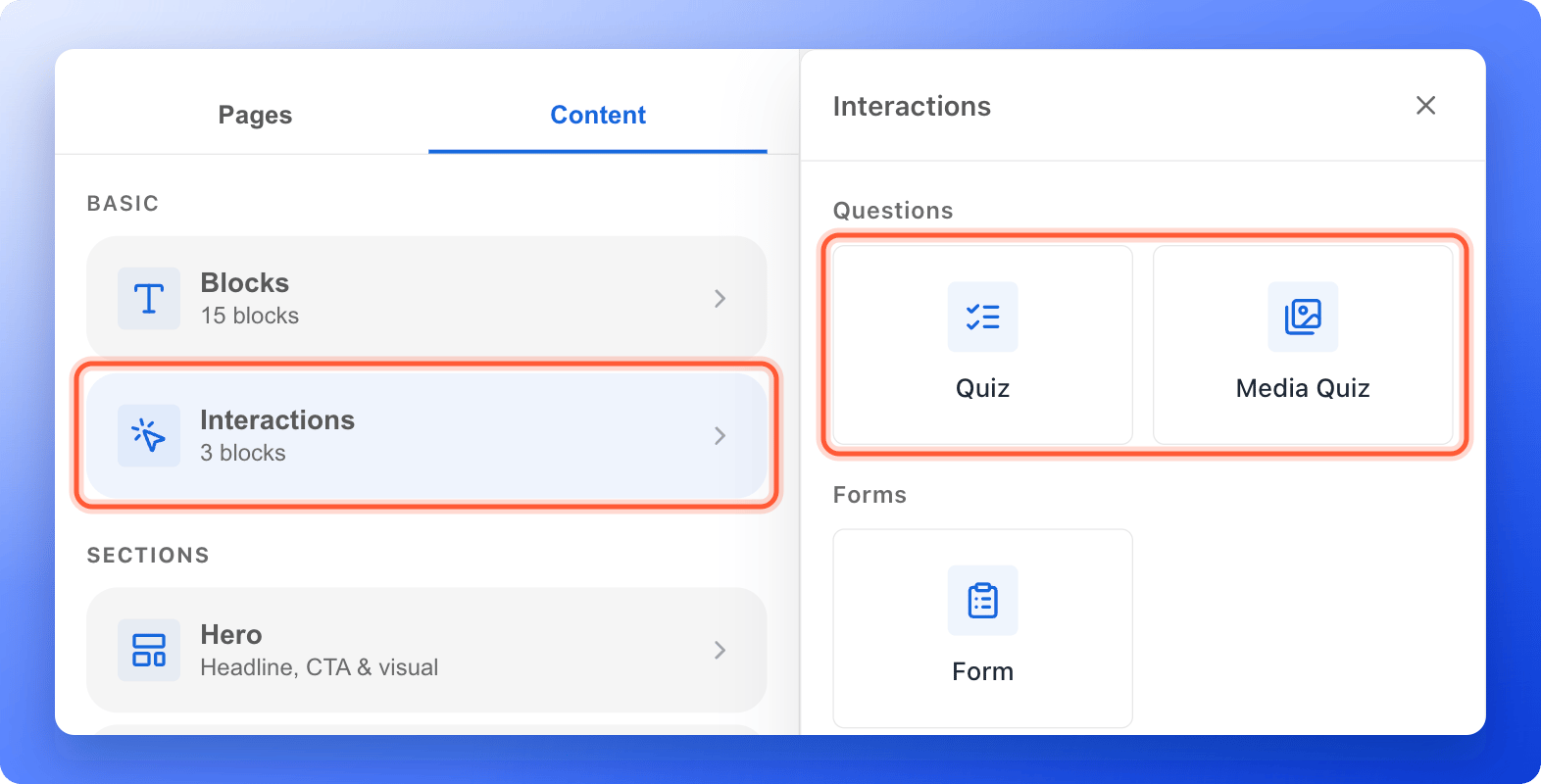
1. In the builder, open the page where you want the question.
2. Click the **"Content"** tab on the left side menu.
3. Click **"Interactions"**, then click **"Quiz"** or **"Media Quiz"**. It is added to your page with the question **Your question here?** and three answers.
 A quiz needs at least 2 answers and can have up to 12.
1. Click the question and type yours, for example "When do you plan to move?"
2. Click an answer and type its text, for example "Within one month".
3. To add an answer, click an answer to select it, then click the **Duplicate** icon on the small toolbar at its right. Change the text of the copy.
4. To remove an answer, select it and click the trash icon. To change the order, drag the **=** icon (**Drag to reorder**).
Select an answer to change its text size (**S**, **M**, **L**, **XL**) and to make it bold, italic or underlined. Under **Color**, **F** sets the text color and **B** sets the background color of that answer. Select the quiz itself and **F** sets the color of the question.
Skip this step if you use a text **Quiz**.
1. Click the picture of an answer to select it.
2. In the left panel, click the **Change** icon under the picture. A window opens.
3. Pick a tab: **Upload** for your own picture, **Image** to search free photos, **My gallery** for pictures you uploaded before, **Icon**, **Emoji** or **AI**.
4. For a photo, click **"Select image"**. Icons and emojis are added as soon as you click them.
Every answer in a Media Quiz needs a picture, an icon or an emoji. You can swap it but not remove it.
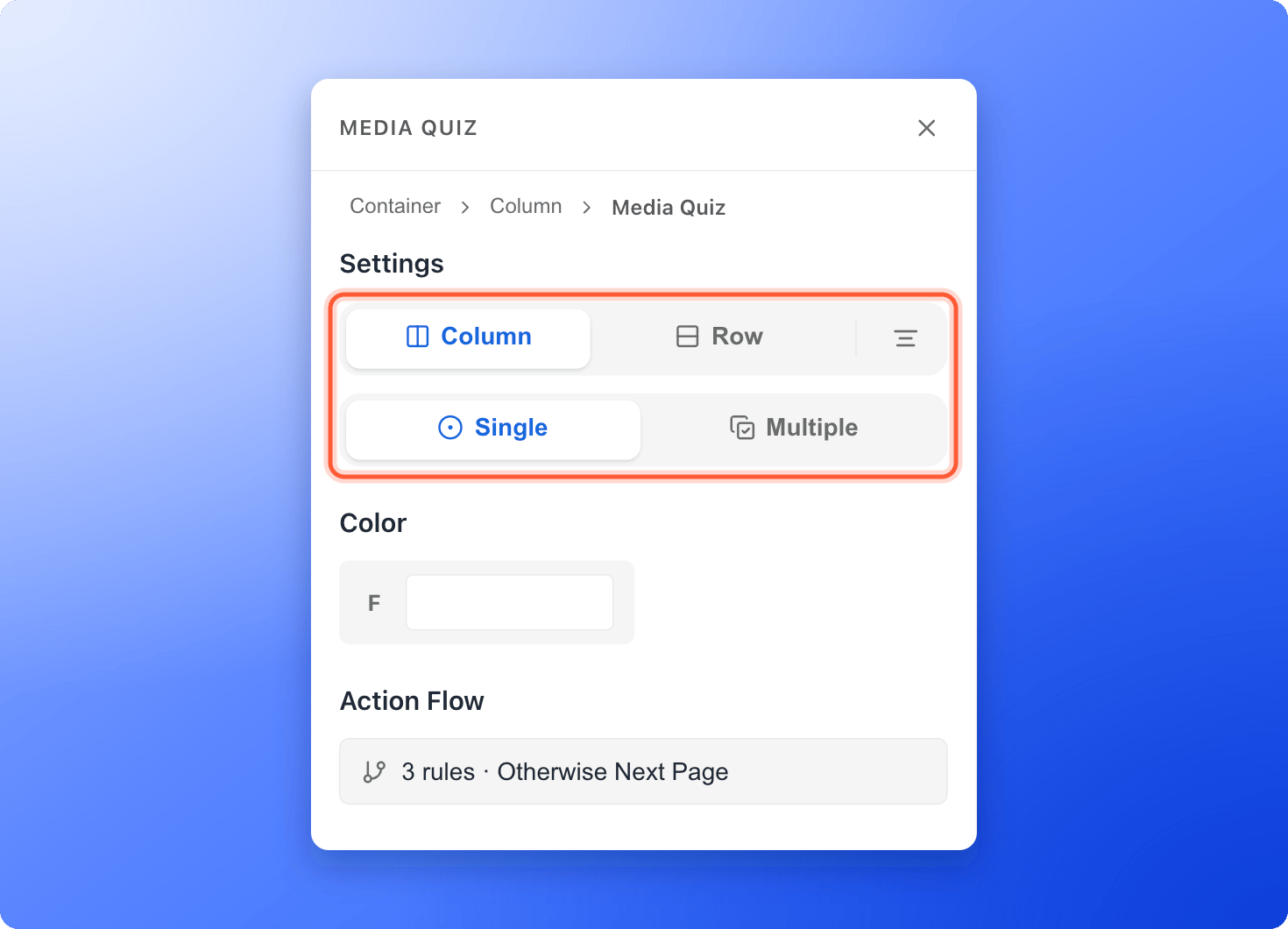
Select the quiz. At the top of the left panel, under **Settings**:
* **Column** puts answers side by side, up to 3 across on a computer and 2 on a tablet or phone.
* **Row** puts each answer on its own line, one under the other.
* **Single** lets the visitor pick one answer, and tapping it sends them to the next step right away. **Multiple** lets them pick several and tap **Next**.
* The small icon at the right of **Column** and **Row** changes whether the question is aligned left, center or right.
A quiz needs at least 2 answers and can have up to 12.
1. Click the question and type yours, for example "When do you plan to move?"
2. Click an answer and type its text, for example "Within one month".
3. To add an answer, click an answer to select it, then click the **Duplicate** icon on the small toolbar at its right. Change the text of the copy.
4. To remove an answer, select it and click the trash icon. To change the order, drag the **=** icon (**Drag to reorder**).
Select an answer to change its text size (**S**, **M**, **L**, **XL**) and to make it bold, italic or underlined. Under **Color**, **F** sets the text color and **B** sets the background color of that answer. Select the quiz itself and **F** sets the color of the question.
Skip this step if you use a text **Quiz**.
1. Click the picture of an answer to select it.
2. In the left panel, click the **Change** icon under the picture. A window opens.
3. Pick a tab: **Upload** for your own picture, **Image** to search free photos, **My gallery** for pictures you uploaded before, **Icon**, **Emoji** or **AI**.
4. For a photo, click **"Select image"**. Icons and emojis are added as soon as you click them.
Every answer in a Media Quiz needs a picture, an icon or an emoji. You can swap it but not remove it.
Select the quiz. At the top of the left panel, under **Settings**:
* **Column** puts answers side by side, up to 3 across on a computer and 2 on a tablet or phone.
* **Row** puts each answer on its own line, one under the other.
* **Single** lets the visitor pick one answer, and tapping it sends them to the next step right away. **Multiple** lets them pick several and tap **Next**.
* The small icon at the right of **Column** and **Row** changes whether the question is aligned left, center or right.
 1. Under **Action Flow**, a new quiz says **Always goes to Next Page**. Click it to open the **Action Flow** window.
2. Under **Always goes to**, choose any page or result of your funnel, then click **"Save"**.
To send people to different pages based on their answer, turn on **Advanced Branching** in the same window. You can also give each rule a **Score** to rank your leads. See [Set up lead scoring](/funnel-settings/lead-scoring).
Click **"Publish Funnel"** at the top right to make your changes live.
## How do I know it is working?
Open your live funnel and answer the question like a visitor. In **Single** mode, the funnel moves on as soon as you tap an answer. In **Multiple** mode, **Next** is grayed out until you pick an answer. To get your link, see [Share your funnel](/funnels/share-your-funnel).
## Troubleshooting
A quiz needs at least 2 answers, so the trash icon is grayed out at 2. Add another answer first, then delete the one you do not need.
A quiz can have up to 12 answers. Remove one before you add another, or split your question into two quizzes on two pages.
It is only available when the quiz is set to **Single**. Select the quiz, click **"Single"** under **Settings**, then open **Action Flow** again.
Check that **Column** is selected under **Settings**. Answers also stack on narrow screens, and a tablet or phone shows at most 2 answers across.
Open **Action Flow** on the quiz. **Always goes to** decides the next step, and a matching branching rule overrides it.
## What to do next
End your funnel with a form that collects contact details.
Give answers a score to rank your leads.
Plan the order of your questions.
Need help? Email [support@askfunnel.com](mailto:support@askfunnel.com).
1. Under **Action Flow**, a new quiz says **Always goes to Next Page**. Click it to open the **Action Flow** window.
2. Under **Always goes to**, choose any page or result of your funnel, then click **"Save"**.
To send people to different pages based on their answer, turn on **Advanced Branching** in the same window. You can also give each rule a **Score** to rank your leads. See [Set up lead scoring](/funnel-settings/lead-scoring).
Click **"Publish Funnel"** at the top right to make your changes live.
## How do I know it is working?
Open your live funnel and answer the question like a visitor. In **Single** mode, the funnel moves on as soon as you tap an answer. In **Multiple** mode, **Next** is grayed out until you pick an answer. To get your link, see [Share your funnel](/funnels/share-your-funnel).
## Troubleshooting
A quiz needs at least 2 answers, so the trash icon is grayed out at 2. Add another answer first, then delete the one you do not need.
A quiz can have up to 12 answers. Remove one before you add another, or split your question into two quizzes on two pages.
It is only available when the quiz is set to **Single**. Select the quiz, click **"Single"** under **Settings**, then open **Action Flow** again.
Check that **Column** is selected under **Settings**. Answers also stack on narrow screens, and a tablet or phone shows at most 2 answers across.
Open **Action Flow** on the quiz. **Always goes to** decides the next step, and a matching branching rule overrides it.
## What to do next
End your funnel with a form that collects contact details.
Give answers a score to rank your leads.
Plan the order of your questions.
Need help? Email [support@askfunnel.com](mailto:support@askfunnel.com).