> ## Documentation Index
> Fetch the complete documentation index at: https://help.askfunnel.com/llms.txt
> Use this file to discover all available pages before exploring further.
# Manage your funnel pages
> Add, rename, duplicate, reorder and delete the pages and results of your funnel.
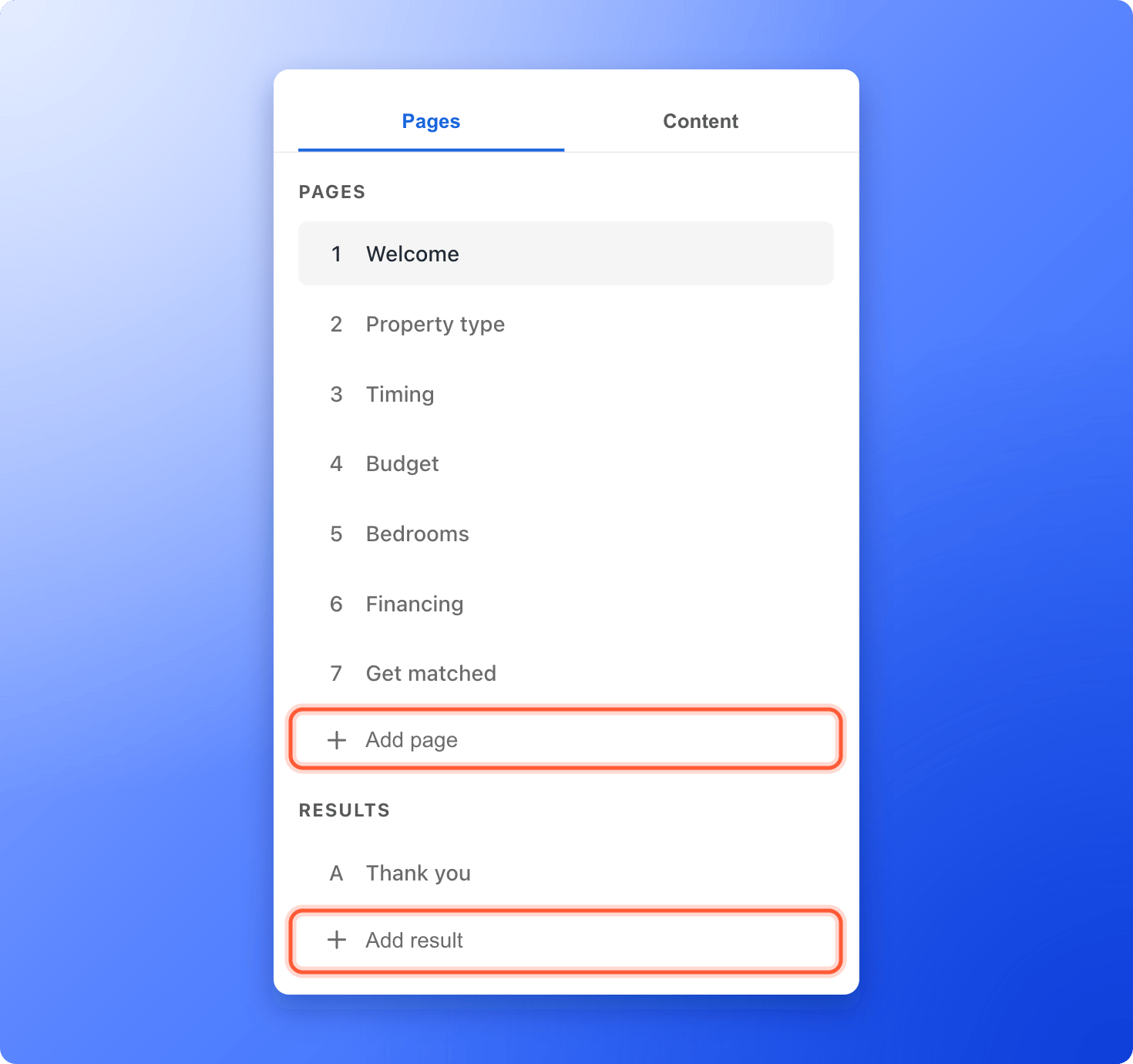
Plan the flow of your funnel by adding, renaming, duplicating, reordering and deleting its pages and results. In the builder, the **"Pages"** tab on the left side menu has two lists:
* **Pages** are the steps visitors go through, numbered **1**, **2**, **3** and so on. Use them for questions, your lead form or a landing page.
* **Results** are the final screens, lettered **A**, **B**, **C** and so on. Use them for your thank you screen or other endings.
Visitors move through your pages in the order you see in the list, then reach your first result.
 **Before you start**, you need:
* A funnel open in the builder. See [Launch your first funnel](/getting-started/launch-your-first-funnel).
* A role that can edit funnels: Global Admin, Workspace Admin or Content Editor.
## Add a page or a result
1. In the builder, click the **"Pages"** tab on the left side menu.
2. Click **"Add page"** under the list of pages. A new page called **Untitled page** appears at the bottom and opens on the canvas.
3. Click the **"Content"** tab to add blocks to it. See [Add and arrange blocks](/funnels/layout-blocks).
Click **"Add result"** under **Results** to add another ending. A new result is called **Thank you**. Use extra results when different visitors should end on different screens, for example one for qualified leads and one for everyone else. See [Customize your thank you screen](/funnels/thank-you-screen).
## Rename, duplicate or delete a page
Hover over a page or result in the list and click the three dots (**...**) that appear at the right of its name.
**Before you start**, you need:
* A funnel open in the builder. See [Launch your first funnel](/getting-started/launch-your-first-funnel).
* A role that can edit funnels: Global Admin, Workspace Admin or Content Editor.
## Add a page or a result
1. In the builder, click the **"Pages"** tab on the left side menu.
2. Click **"Add page"** under the list of pages. A new page called **Untitled page** appears at the bottom and opens on the canvas.
3. Click the **"Content"** tab to add blocks to it. See [Add and arrange blocks](/funnels/layout-blocks).
Click **"Add result"** under **Results** to add another ending. A new result is called **Thank you**. Use extra results when different visitors should end on different screens, for example one for qualified leads and one for everyone else. See [Customize your thank you screen](/funnels/thank-you-screen).
## Rename, duplicate or delete a page
Hover over a page or result in the list and click the three dots (**...**) that appear at the right of its name.
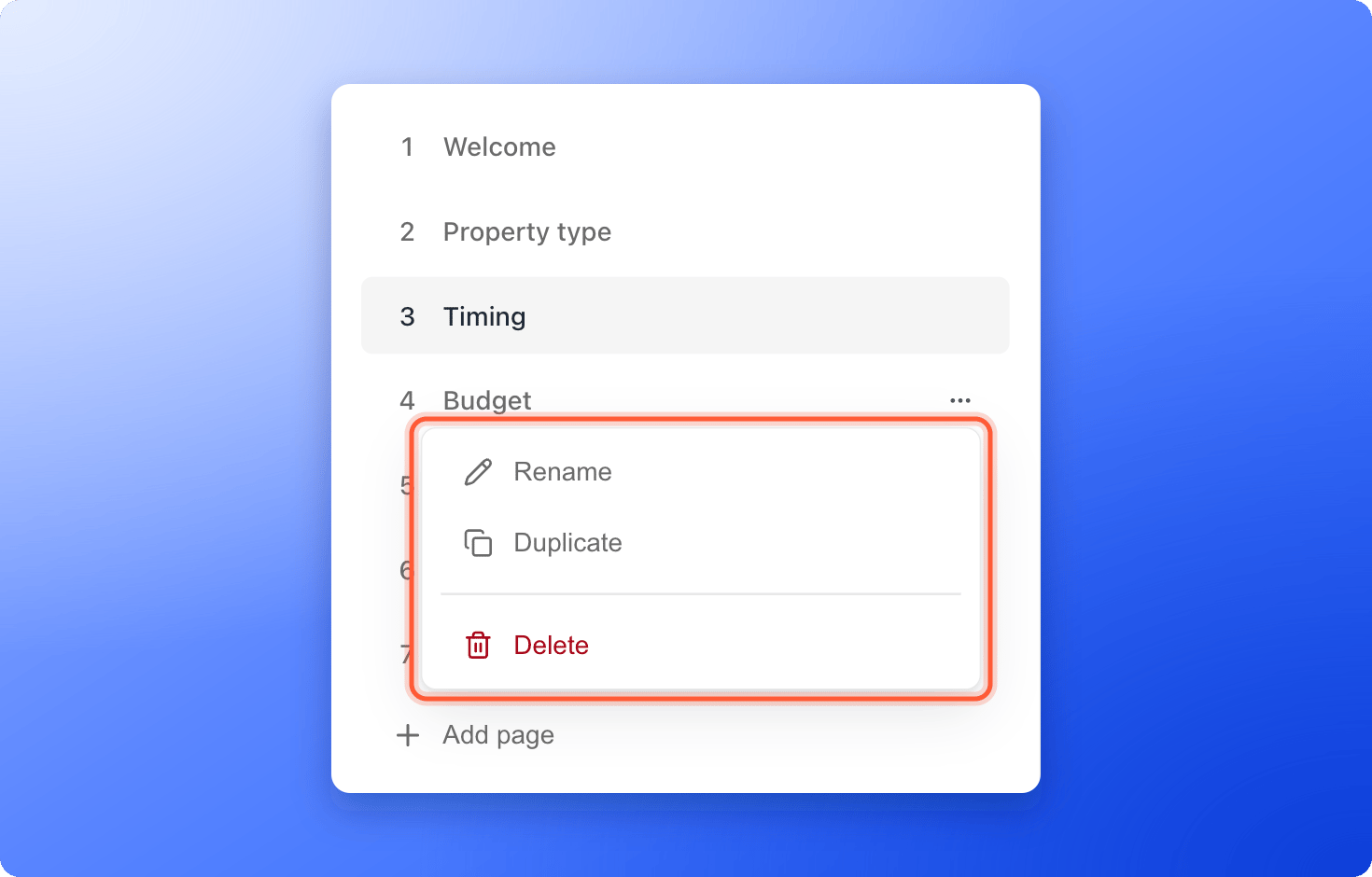 * **Rename:** click **"Rename"**, type the new name (for example "Budget question" or "Contact details") and press Enter. Clicking outside the box also saves it. Press Esc to cancel. Page names are for you. Visitors do not see them.
* **Duplicate:** click **"Duplicate"** to make a copy right below the original, with all its blocks. Quiz and form settings come with it. The copy is named after the original with **(copy)** added, for example **Funnel Page (copy)**.
* **Delete:** click **"Delete"**. If the page has blocks, a window asks you to confirm. Click **"Delete"** again. Every funnel keeps at least one page and one result, so **"Delete"** is grayed out for your last page or last result. Add another first.
Deleting a page that has content removes its blocks. Click **"Undo"** at the right side of the canvas right after a mistake to bring it back.
## Change the order of your pages
1. Click and hold a page in the list.
2. Drag it up or down to its new place, then let go.
Pages and results are ordered separately, so you cannot drag a page into the results list. The order sets where **Next Page** goes. It is the default destination of quizzes and forms, and a choice you can give to a button.
To send a visitor somewhere other than the next page, use the **Action Flow** of a quiz, a form or a button. It lets you choose any page or result. See [Build quiz questions](/funnels/quiz-questions).
## How do I know it is working?
The page appears in the **Pages** list and on the canvas, and the page you are editing is highlighted. After you publish, open your live funnel and click through it to check the order. See [Share your funnel](/funnels/share-your-funnel).
## Troubleshooting
Click **"Undo"** (the curved arrow at the right side of the canvas) straight away. If you already published a version that still had the page, you can open the arrow next to **Publish Funnel**, click **"Version history"** and click **"Publish"** on that older version. This replaces your current funnel and discards edits you have not published.
Start the drag from the page row itself, not from the three dots. You cannot drag while you are renaming a page. Finish the name first by pressing Enter.
Check the **Action Flow** of the quiz, form or button on the page before it. If it sends visitors to a specific page, they skip the pages in between. Set it to **Next Page** to follow the order in your list.
## What to do next
Put a question on your page and choose where each answer leads.
Add the page where people leave their contact details.
Decide what people see after they submit.
Need help? Email [support@askfunnel.com](mailto:support@askfunnel.com).
* **Rename:** click **"Rename"**, type the new name (for example "Budget question" or "Contact details") and press Enter. Clicking outside the box also saves it. Press Esc to cancel. Page names are for you. Visitors do not see them.
* **Duplicate:** click **"Duplicate"** to make a copy right below the original, with all its blocks. Quiz and form settings come with it. The copy is named after the original with **(copy)** added, for example **Funnel Page (copy)**.
* **Delete:** click **"Delete"**. If the page has blocks, a window asks you to confirm. Click **"Delete"** again. Every funnel keeps at least one page and one result, so **"Delete"** is grayed out for your last page or last result. Add another first.
Deleting a page that has content removes its blocks. Click **"Undo"** at the right side of the canvas right after a mistake to bring it back.
## Change the order of your pages
1. Click and hold a page in the list.
2. Drag it up or down to its new place, then let go.
Pages and results are ordered separately, so you cannot drag a page into the results list. The order sets where **Next Page** goes. It is the default destination of quizzes and forms, and a choice you can give to a button.
To send a visitor somewhere other than the next page, use the **Action Flow** of a quiz, a form or a button. It lets you choose any page or result. See [Build quiz questions](/funnels/quiz-questions).
## How do I know it is working?
The page appears in the **Pages** list and on the canvas, and the page you are editing is highlighted. After you publish, open your live funnel and click through it to check the order. See [Share your funnel](/funnels/share-your-funnel).
## Troubleshooting
Click **"Undo"** (the curved arrow at the right side of the canvas) straight away. If you already published a version that still had the page, you can open the arrow next to **Publish Funnel**, click **"Version history"** and click **"Publish"** on that older version. This replaces your current funnel and discards edits you have not published.
Start the drag from the page row itself, not from the three dots. You cannot drag while you are renaming a page. Finish the name first by pressing Enter.
Check the **Action Flow** of the quiz, form or button on the page before it. If it sends visitors to a specific page, they skip the pages in between. Set it to **Next Page** to follow the order in your list.
## What to do next
Put a question on your page and choose where each answer leads.
Add the page where people leave their contact details.
Decide what people see after they submit.
Need help? Email [support@askfunnel.com](mailto:support@askfunnel.com).