> ## Documentation Index
> Fetch the complete documentation index at: https://help.askfunnel.com/llms.txt
> Use this file to discover all available pages before exploring further.
# Show a loading screen and redirect automatically
> Add a loading screen with rotating messages that moves visitors to the next page or to a web address after a few seconds.
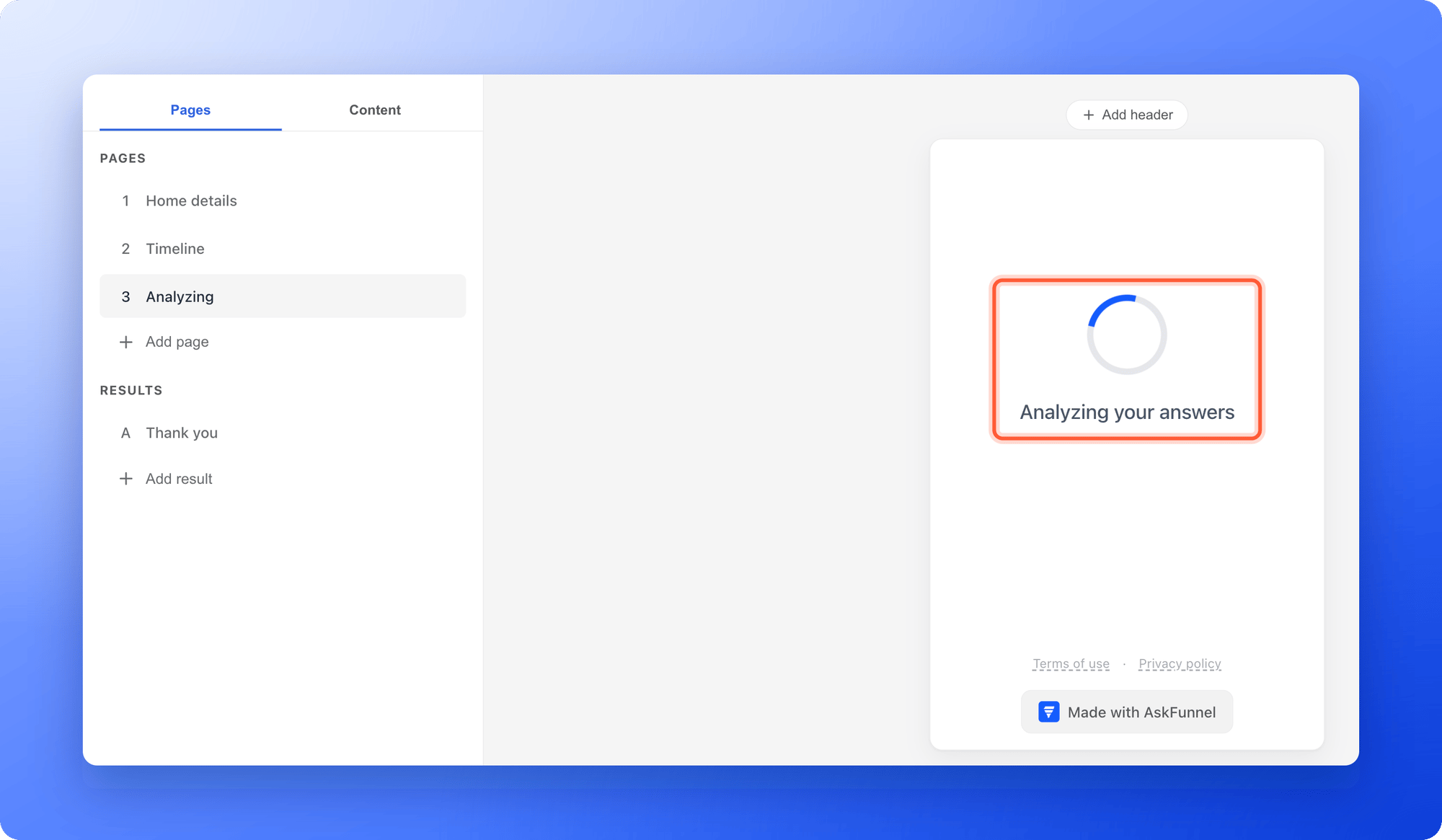
A loading screen is a full page with a spinning ring and a short message such as "Analyzing your answers". After a few seconds it moves the visitor on by itself, to the next page, to a page you choose or to a web address. Many funnels put one between the last question and the result, so the wait feels like something is happening and the result feels earned.
With the **Loader** block, you can:
* **Show rotating messages.** Write one line per message, for example "Analyzing your answers" and "Matching you with the best option".
* **Choose how long it shows.** From 2 to 30 seconds.
* **Move visitors on automatically.** To the next page, a page or result you pick, or an address on another website.
* **Match your look.** Pick the size and the color of the spinner.
**Before you start**, you need:
* A funnel open in the builder. See [Launch your first funnel](/getting-started/launch-your-first-funnel).
* A role that can edit funnels: Global Admin, Workspace Admin or Content Editor.
* A page for the loading screen, placed after the page that leads to it. See [Manage your funnel pages](/funnels/manage-pages).
## Important to note
* Give the loading screen its own page. It fills a tall area of the screen and moves on by itself, so visitors cannot read anything else on that page.
* Put the loader on a normal page, not on a result page. Visitors need a page after it to go to, unless you send them to a web address.
* The loader does not do any real work. It shows your messages for the time you choose and then moves on, so only write messages you are comfortable with.
* The loader never moves on while you edit in the builder. It only redirects on your live funnel.
## Add a loading screen
1. Open or add the page where the loading screen should appear. Place it in your page list after the page that leads to it, for example after your last question.
2. On the left side menu, click the **"Content"** tab, then **"Blocks"**.
3. Under **Core Components**, click **"Loader"**.
The spinner and its first message appear on the canvas and keep moving, so you can see how it will look.
 Click the loader. In the left panel:
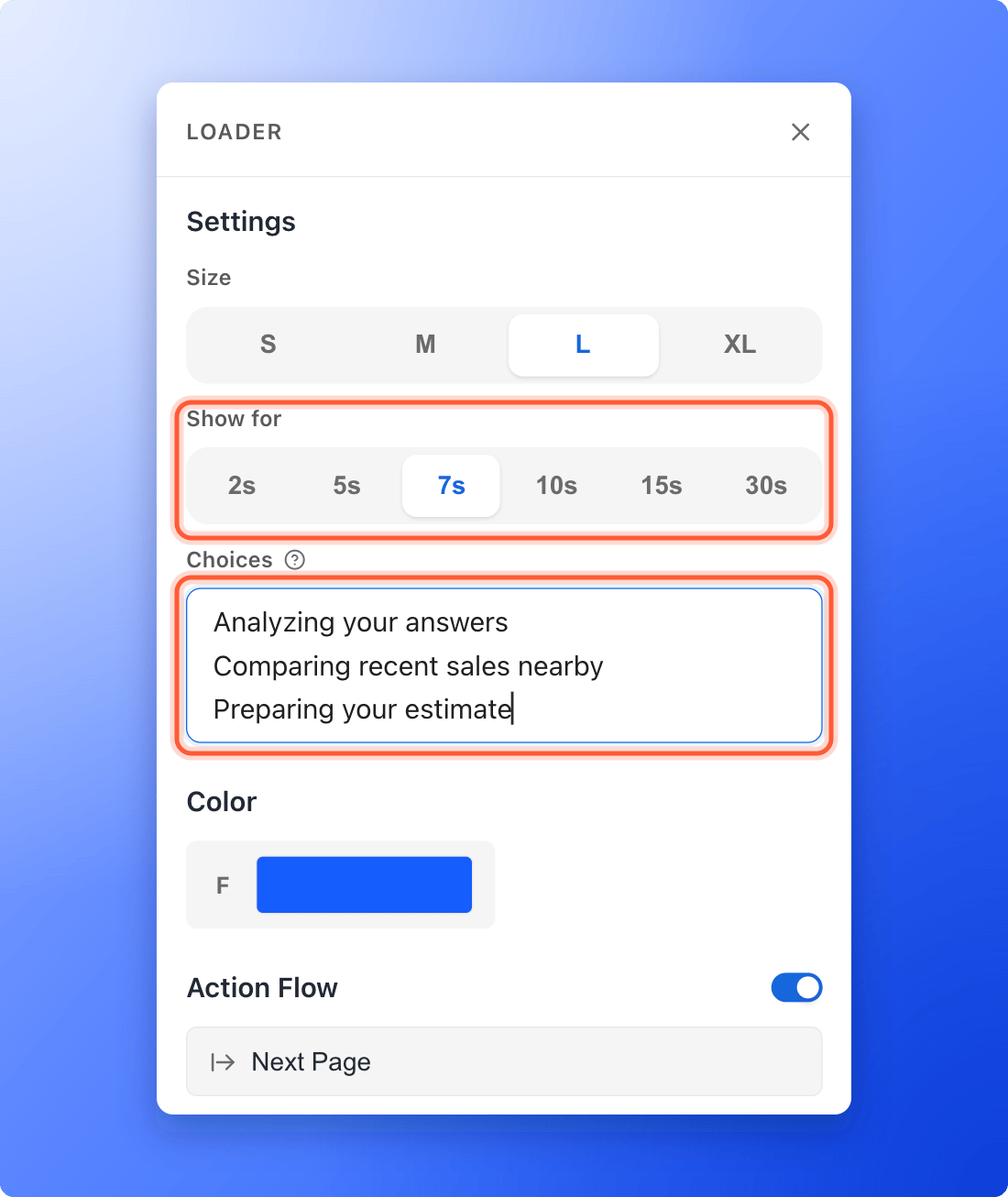
1. Under **Size**, choose **S**, **M**, **L** or **XL**. It changes the ring, the text and the height of the page area.
2. Under **Show for**, choose how long visitors wait: **2s**, **5s**, **7s**, **10s**, **15s** or **30s**.
3. Under **Choices**, type one message per line. They show one after the other, and each one gets an equal share of the time. For 3 messages over 6 seconds, each shows for 2 seconds. One message stays on screen the whole time.
4. Use the **F** swatch in the **Color** section to change the color of the spinner.
Click the loader. In the left panel:
1. Under **Size**, choose **S**, **M**, **L** or **XL**. It changes the ring, the text and the height of the page area.
2. Under **Show for**, choose how long visitors wait: **2s**, **5s**, **7s**, **10s**, **15s** or **30s**.
3. Under **Choices**, type one message per line. They show one after the other, and each one gets an equal share of the time. For 3 messages over 6 seconds, each shows for 2 seconds. One message stays on screen the whole time.
4. Use the **F** swatch in the **Color** section to change the color of the spinner.
 Under **Action Flow**, click the row to open the **Action Flow** window. A loader starts with **Next Page**. Open **Always goes to** to choose a different page or result, or **External URL** to send visitors to a web address. To keep your campaign tags in that address, see [Pass UTM and custom URL parameters on to another page](/funnels/forward-url-parameters). Click **"Save"**.
If you turn **Action Flow** off, the loader still moves on to the next page, so a visitor never gets stuck.
Click **"Publish Funnel"**, then open the arrow next to it and click **"View live"**. Go through your funnel until the loading screen. After the time you chose, you land on the right page. See [Publish, unpublish and restore an earlier version](/funnels/publish-and-restore).
## How do I know it is working?
* On your live funnel, the loading screen shows the spinner and your first message, then the next ones.
* When the time you chose is over, the visitor lands on the page or address you picked.
* In the builder, the spinner and messages keep moving but the page never changes. That is normal.
## Troubleshooting
This is on purpose, so you do not get thrown off the page while you edit. Open your live funnel with **"View live"** to test it.
Click the loader and open **Action Flow**. **Next Page** means the page after the loader in your page list, so reordering pages changes it. Choose the page you want under **Always goes to**. If the page you chose was deleted, visitors go to the next page instead.
The loader needs at least two lines in **Choices** to rotate. Each line is a separate message. With a short time and many messages, each one shows only briefly, so choose a longer time under **Show for**.
These are the starting messages, "Loading your content…" and "Loading your offer…". Replace them in **Choices**.
A loader only moves visitors to another page or address, so **Scroll to Block** is not offered.
Change **Size**. The loader reserves a block of space that grows from **S** to **XL**. Check **Mobile** with the device icon at the right edge of the canvas.
## What to do next
Route visitors before or after the loading screen.
Design the page visitors land on.
More ways to send visitors on.
Need help? Email [support@askfunnel.com](mailto:support@askfunnel.com).
Under **Action Flow**, click the row to open the **Action Flow** window. A loader starts with **Next Page**. Open **Always goes to** to choose a different page or result, or **External URL** to send visitors to a web address. To keep your campaign tags in that address, see [Pass UTM and custom URL parameters on to another page](/funnels/forward-url-parameters). Click **"Save"**.
If you turn **Action Flow** off, the loader still moves on to the next page, so a visitor never gets stuck.
Click **"Publish Funnel"**, then open the arrow next to it and click **"View live"**. Go through your funnel until the loading screen. After the time you chose, you land on the right page. See [Publish, unpublish and restore an earlier version](/funnels/publish-and-restore).
## How do I know it is working?
* On your live funnel, the loading screen shows the spinner and your first message, then the next ones.
* When the time you chose is over, the visitor lands on the page or address you picked.
* In the builder, the spinner and messages keep moving but the page never changes. That is normal.
## Troubleshooting
This is on purpose, so you do not get thrown off the page while you edit. Open your live funnel with **"View live"** to test it.
Click the loader and open **Action Flow**. **Next Page** means the page after the loader in your page list, so reordering pages changes it. Choose the page you want under **Always goes to**. If the page you chose was deleted, visitors go to the next page instead.
The loader needs at least two lines in **Choices** to rotate. Each line is a separate message. With a short time and many messages, each one shows only briefly, so choose a longer time under **Show for**.
These are the starting messages, "Loading your content…" and "Loading your offer…". Replace them in **Choices**.
A loader only moves visitors to another page or address, so **Scroll to Block** is not offered.
Change **Size**. The loader reserves a block of space that grows from **S** to **XL**. Check **Mobile** with the device icon at the right edge of the canvas.
## What to do next
Route visitors before or after the loading screen.
Design the page visitors land on.
More ways to send visitors on.
Need help? Email [support@askfunnel.com](mailto:support@askfunnel.com).