> ## Documentation Index
> Fetch the complete documentation index at: https://help.askfunnel.com/llms.txt
> Use this file to discover all available pages before exploring further.
# Add and arrange blocks
> Add text, buttons, images and more to a page, then drag blocks into the order you want.
Sections give you a ready-made start, and blocks let you add exactly what you need, one piece at a time. You can edit a block in place and drag it up or down to change what people see first.
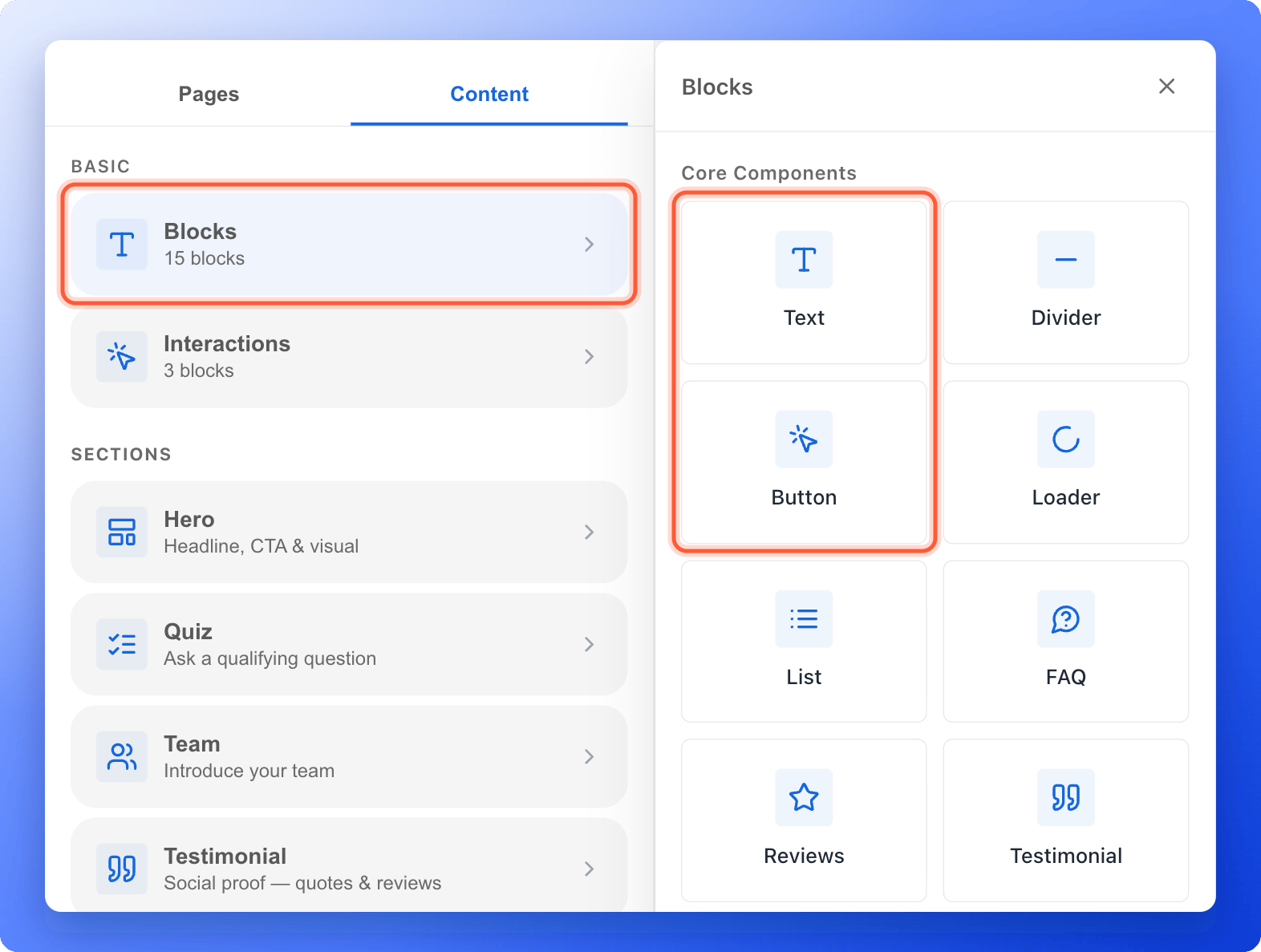
The **Blocks** group under the **"Content"** tab holds these blocks:
* **Core Components:** **Text**, **Divider**, **Button**, **Loader**, **List**, **FAQ**, **Reviews** and **Testimonial**.
* **Media Elements:** **Image**, **Video**, **Graphics**, **Media Block**, **Logo Bar**, **Slider** and **Slideshow**.
Answers and contact details come from the blocks under **Interactions**. See [Build quiz questions](/funnels/quiz-questions) and [Set up your lead capture form](/funnels/lead-capture-forms).
**Before you start**, you need:
* A funnel open in the builder, on the page you want to edit. See [Launch your first funnel](/getting-started/launch-your-first-funnel) and [Manage your funnel pages](/funnels/manage-pages).
## Important to note
* New blocks are added to the page, right after the first section you can see at the top of your screen. On an empty page, they go to the top.
* A **Button** does nothing until you turn on **Action Flow** (the setting that decides where a click leads) and choose where it goes.
* **Delete** removes a block right away, without asking. Click **"Undo"** at the right side of the canvas if you delete one by mistake.
## Add a block
1. In the builder, open the page you want to edit.
2. Click the **"Content"** tab on the left side menu.
3. Click **"Blocks"**. A panel opens next to the menu.
Click **"Text"**, **"Button"** or any other block. It appears on your page at once and is selected. The panel stays open, so you can add several blocks in a row. Close it with the **X**, or by clicking the canvas.
 * **Text:** click the text and type. A small toolbar appears above it for text size, bold, italic, underline, color, alignment and links. You can also set the size with **S**, **M**, **L** and **XL** in the left panel.
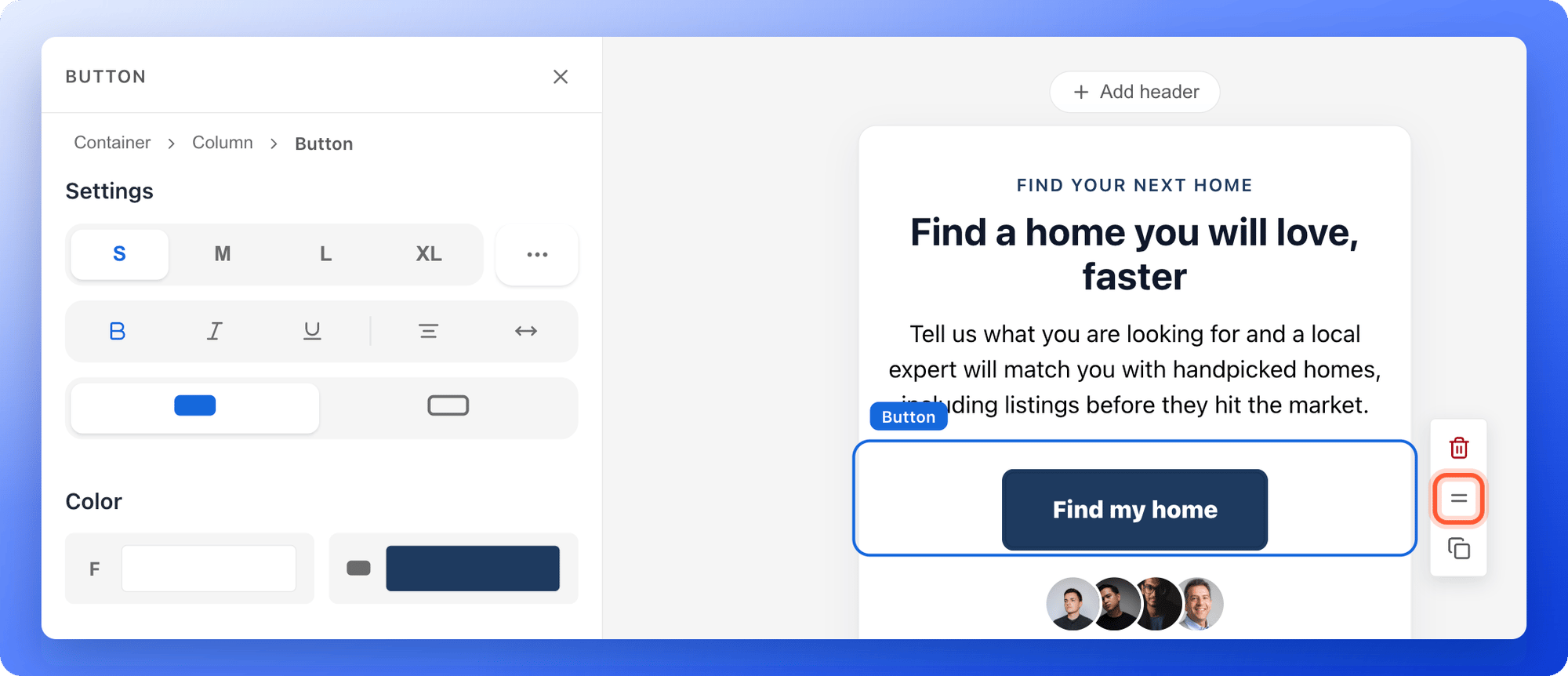
* **Button:** click the label and type. In the left panel, pick the size, **Filled** or **Outline** and the colors. Turn on **Action Flow**, click the line under it and choose where the button leads, for example **Next Page**, an **External URL** or a page of your funnel.
* **Other blocks:** select the block and use the left panel. It shows the settings for that block. **Color** has **F** for the text color and **B** for the background color, and **Spacing** sets the space above and below.
Click a block to select it. A small toolbar appears at its right with three icons:
* **Delete** (the trash icon) removes the block.
* **Drag to reorder** (the **=** icon): click and hold it, drag the block up or down and let go. A line shows where it will land. Drag a block only by this icon. Dragging anywhere else selects text instead of moving the block.
* **Duplicate** (the copy icon) adds a copy right after the block.
* **Text:** click the text and type. A small toolbar appears above it for text size, bold, italic, underline, color, alignment and links. You can also set the size with **S**, **M**, **L** and **XL** in the left panel.
* **Button:** click the label and type. In the left panel, pick the size, **Filled** or **Outline** and the colors. Turn on **Action Flow**, click the line under it and choose where the button leads, for example **Next Page**, an **External URL** or a page of your funnel.
* **Other blocks:** select the block and use the left panel. It shows the settings for that block. **Color** has **F** for the text color and **B** for the background color, and **Spacing** sets the space above and below.
Click a block to select it. A small toolbar appears at its right with three icons:
* **Delete** (the trash icon) removes the block.
* **Drag to reorder** (the **=** icon): click and hold it, drag the block up or down and let go. A line shows where it will land. Drag a block only by this icon. Dragging anywhere else selects text instead of moving the block.
* **Duplicate** (the copy icon) adds a copy right after the block.
 Use the device button at the right side of the canvas to switch between **Desktop**, **Tablet** and **Mobile**. When you are happy, click **"Publish Funnel"** at the top right.
Mix sections and blocks. Add a **Hero** section from the **Sections** list, then add a **Text** or **Button** block right below it. Keep the most important block, such as your headline or your first question, at the top so people see it first. To place blocks side by side, see [Build multi-column layouts](/funnels/grid-layouts).
## How do I know it is working?
The block shows on your canvas in the place you expect. After you publish, open your live funnel on your phone and on a computer to check that the order looks right. To get your link, see [Share your funnel](/funnels/share-your-funnel).
## Troubleshooting
Select the block, then drag its **=** icon to where you want it. Next time, scroll so the section you want to add after is at the top of your screen.
Select the block first, then drag the **=** icon on the toolbar at its right. Blocks inside a quiz or a list can only be moved within their own block.
Some blocks are part of a larger block. For example, a quiz needs at least 2 answers, so its answers cannot be deleted below that. Select the whole block instead, or add another item first.
## What to do next
Place blocks side by side.
Ask one question per page and choose where each answer leads.
Decide what people see after they submit.
Need help? Email [support@askfunnel.com](mailto:support@askfunnel.com).
Use the device button at the right side of the canvas to switch between **Desktop**, **Tablet** and **Mobile**. When you are happy, click **"Publish Funnel"** at the top right.
Mix sections and blocks. Add a **Hero** section from the **Sections** list, then add a **Text** or **Button** block right below it. Keep the most important block, such as your headline or your first question, at the top so people see it first. To place blocks side by side, see [Build multi-column layouts](/funnels/grid-layouts).
## How do I know it is working?
The block shows on your canvas in the place you expect. After you publish, open your live funnel on your phone and on a computer to check that the order looks right. To get your link, see [Share your funnel](/funnels/share-your-funnel).
## Troubleshooting
Select the block, then drag its **=** icon to where you want it. Next time, scroll so the section you want to add after is at the top of your screen.
Select the block first, then drag the **=** icon on the toolbar at its right. Blocks inside a quiz or a list can only be moved within their own block.
Some blocks are part of a larger block. For example, a quiz needs at least 2 answers, so its answers cannot be deleted below that. Select the whole block instead, or add another item first.
## What to do next
Place blocks side by side.
Ask one question per page and choose where each answer leads.
Decide what people see after they submit.
Need help? Email [support@askfunnel.com](mailto:support@askfunnel.com).