> ## Documentation Index
> Fetch the complete documentation index at: https://help.askfunnel.com/llms.txt
> Use this file to discover all available pages before exploring further.
# Read your funnels list
> Understand every column and menu on your Funnels page, from Status and CVR to the three dots menu.
The **Funnels** page is where you land when you open a workspace. It lists every funnel in the workspace with its status and its results, and it is the starting point for building, publishing and sharing. This page explains each column, each menu item and the numbers you see.
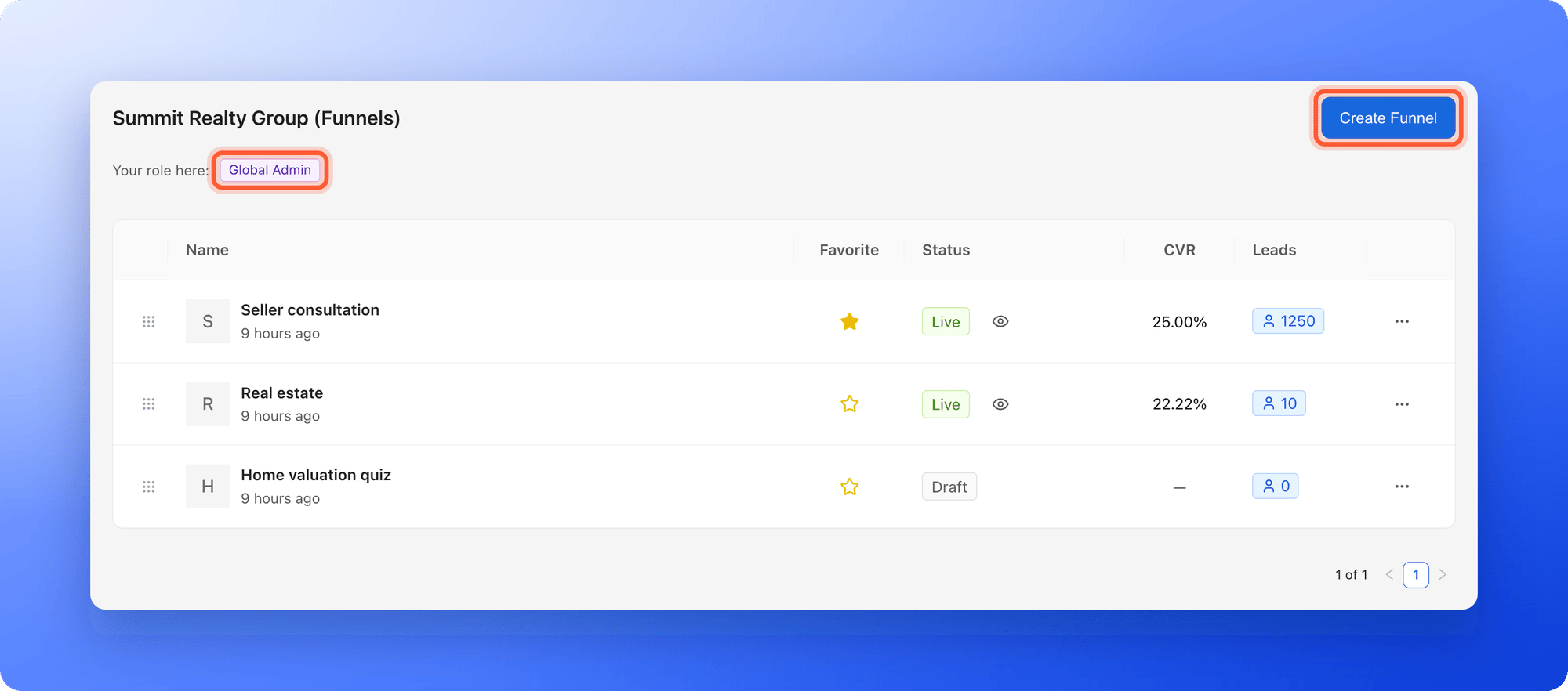
Above the list, the page is titled with your workspace name, for example **Summit Realty Group (Funnels)**. **"Create Funnel"** at the top right starts a new funnel. Under the title, **Your role here** shows your role in this workspace. Point at the badge to see what the role can do.
 **Before you start**, you need:
* Access to the workspace. Every role can open the list, but the menus and numbers depend on your role.
## Important to note
* **CVR** and **Leads** are totals since the funnel started. They are not for a date range. For a date range, open the funnel's **Analytics** tab. See [Read your funnel analytics](/analytics/funnel-analytics).
* These numbers can differ from your **Leads** tab and from Analytics, because each place counts slightly differently. See [Why your lead and analytics numbers differ](/analytics/why-numbers-differ).
* Content Editors design funnels but do not see lead data. They see a dash under **CVR** and **0** under **Leads**, even when the funnel has leads.
## The columns
**Before you start**, you need:
* Access to the workspace. Every role can open the list, but the menus and numbers depend on your role.
## Important to note
* **CVR** and **Leads** are totals since the funnel started. They are not for a date range. For a date range, open the funnel's **Analytics** tab. See [Read your funnel analytics](/analytics/funnel-analytics).
* These numbers can differ from your **Leads** tab and from Analytics, because each place counts slightly differently. See [Why your lead and analytics numbers differ](/analytics/why-numbers-differ).
* Content Editors design funnels but do not see lead data. They see a dash under **CVR** and **0** under **Leads**, even when the funnel has leads.
## The columns
 | Column | What it shows |
| - | - |
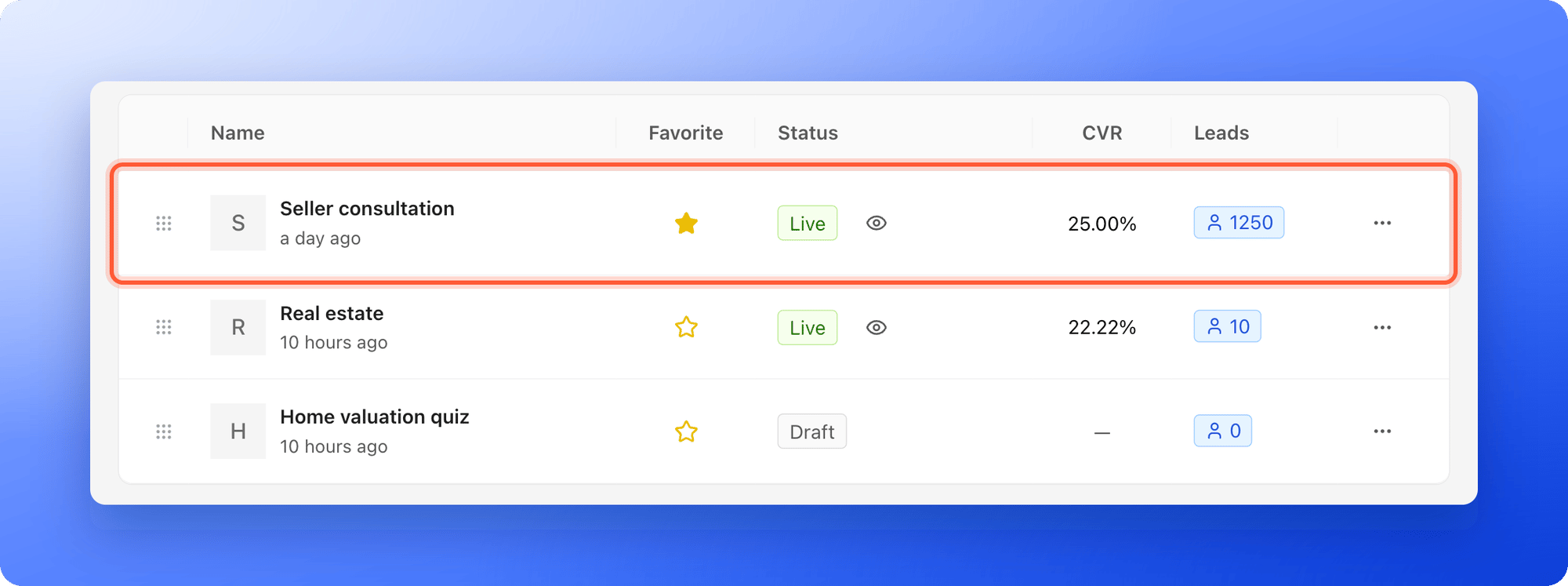
| **Name** | The funnel's name, with its picture or first letter, and when you last changed it, for example **10 hours ago** or a date. |
| **Favorite** | A star. Click it to mark the funnel as a favorite, and click again to remove the mark. Favorites are shared, so everyone in the workspace sees the same stars. |
| **Status** | **Live** (green) or **Draft** (gray). While a publish is running you see **Publishing...**. An eye icon next to **Live** opens the live funnel. |
| **CVR** | The conversion rate: the share of visitors who sent the form, since the funnel started. For example **25.00%**. A dash means there is not enough data yet. |
| **Leads** | The number of form submissions the funnel has recorded since it started, in a blue tag. |
| Three dots (**...**) | The menu of the funnel. See below. |
The list shows favorite funnels first. The other funnels follow, with the one that changed most recently at the top. Clicking a star counts as a change. The list shows 10 funnels per page, and the page buttons at the bottom right show where you are, for example **1 of 3**.
### What the Status column tells you
* **Live:** the funnel is public. Click the eye icon to open it in a new tab.
* **Draft:** the funnel is not public. It has never been published, or you took it offline.
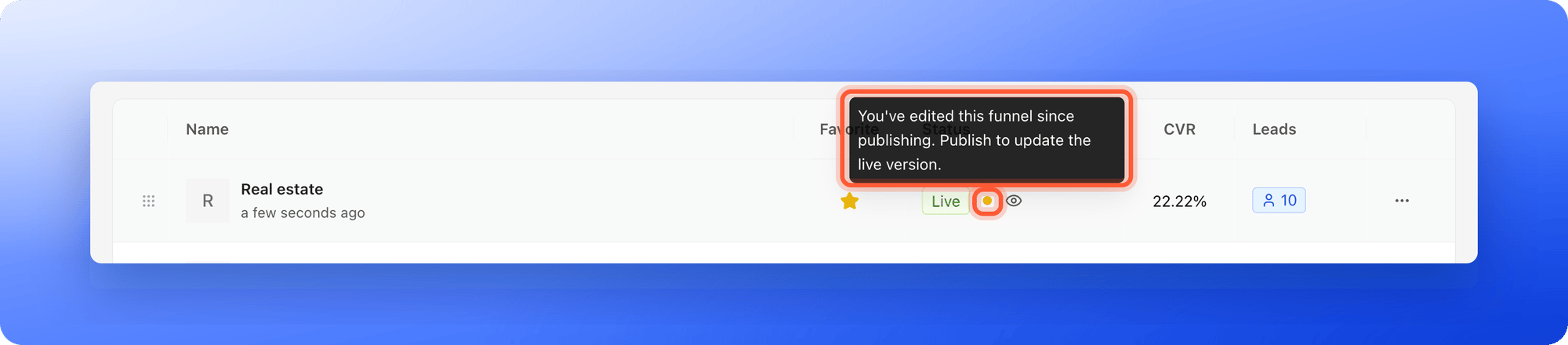
* **An orange dot next to Live:** you have edited the funnel since you last published it. Point at the dot to read the reminder. Open the funnel in the builder and click **"Publish Funnel"** to update the live version.
| Column | What it shows |
| - | - |
| **Name** | The funnel's name, with its picture or first letter, and when you last changed it, for example **10 hours ago** or a date. |
| **Favorite** | A star. Click it to mark the funnel as a favorite, and click again to remove the mark. Favorites are shared, so everyone in the workspace sees the same stars. |
| **Status** | **Live** (green) or **Draft** (gray). While a publish is running you see **Publishing...**. An eye icon next to **Live** opens the live funnel. |
| **CVR** | The conversion rate: the share of visitors who sent the form, since the funnel started. For example **25.00%**. A dash means there is not enough data yet. |
| **Leads** | The number of form submissions the funnel has recorded since it started, in a blue tag. |
| Three dots (**...**) | The menu of the funnel. See below. |
The list shows favorite funnels first. The other funnels follow, with the one that changed most recently at the top. Clicking a star counts as a change. The list shows 10 funnels per page, and the page buttons at the bottom right show where you are, for example **1 of 3**.
### What the Status column tells you
* **Live:** the funnel is public. Click the eye icon to open it in a new tab.
* **Draft:** the funnel is not public. It has never been published, or you took it offline.
* **An orange dot next to Live:** you have edited the funnel since you last published it. Point at the dot to read the reminder. Open the funnel in the builder and click **"Publish Funnel"** to update the live version.
 ## The three dots menu
Click the three dots (**...**) at the end of a row.
## The three dots menu
Click the three dots (**...**) at the end of a row.
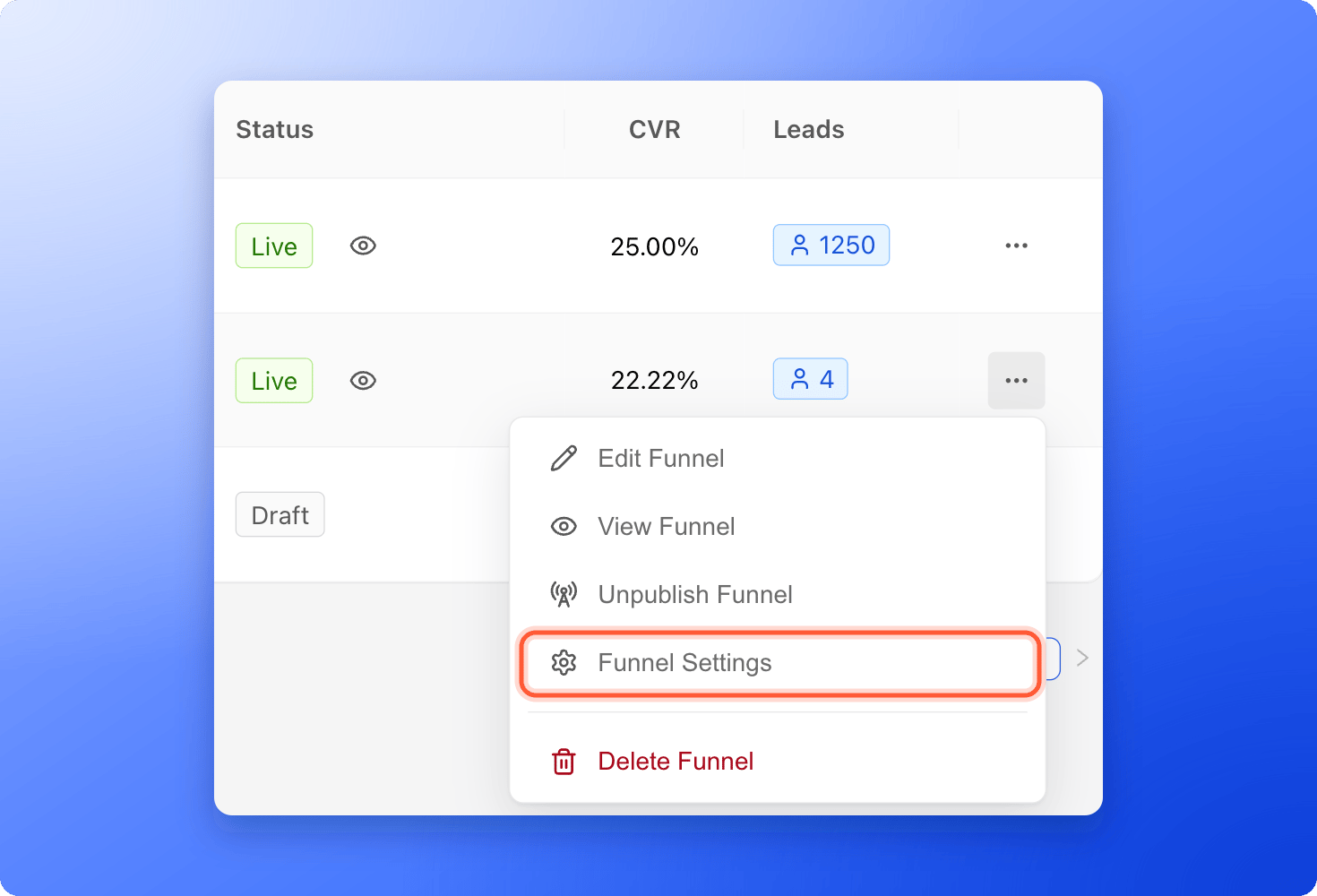 * **Edit Funnel:** opens the funnel in the builder.
* **View Funnel:** opens the live funnel in a new tab. It only shows for a live funnel.
* **Publish Funnel** or **Unpublish Funnel:** puts the funnel live, or takes it offline. **Publish Funnel** is grayed out until your email address is verified. See [Publish, unpublish and restore an earlier version](/funnels/publish-and-restore).
* **Funnel Settings:** opens the settings of the funnel. See [Funnel settings overview and deleting a funnel](/funnel-settings/funnel-settings-overview).
* **Delete Funnel:** the red item at the bottom. Only Global Admins and Workspace Admins see it.
## What happens when you click a row
* **Global Admins, Workspace Admins and Contacts Managers:** the funnel's **Leads** tab opens. See [View and manage your leads](/leads/view-and-manage-leads).
* **Content Editors:** the builder opens, because they do not have access to lead data.
## What each role sees
| Role | Create Funnel | Three dots menu | CVR and Leads |
| - | - | - | - |
| **Global Admin** and **Workspace Admin** | Yes | All items | Yes |
| **Content Editor** | Yes | All items except **Delete Funnel** | No |
| **Contacts Manager** | No | No menu. The eye icon opens a live funnel. | Yes |
## How do I know it is working?
* Your funnel shows **Live** after you publish, and the eye icon opens it.
* **Leads** goes up when a new lead arrives. Reload the page if you do not see it right away.
* The star of a favorite funnel is filled, and the funnel moves to the top.
## Troubleshooting
Your role in this workspace cannot edit funnels. Contacts Managers have a read only list. Ask a Workspace Admin or Global Admin to change your role. See [What a Contacts Manager can see and do](/workspaces/contacts-manager).
A funnel that you took offline shows **Draft** in this list. Click **"Publish Funnel"** in its three dots menu to put it live again. You do not need to change anything first.
The live version is older than your latest edits. Open the funnel in the builder and click **"Publish Funnel"**.
There are no visitors or conversions to compare yet, or the funnel only has imported leads. Point at the dash to read the reason. The rate appears once the live funnel has had visitors and form submissions.
The list counts every form submission since the funnel started, including leads you imported. The **Leads** tab shows the leads you can see now, so locked and deleted leads, filters and searches change it. See [Why your lead and analytics numbers differ](/analytics/why-numbers-differ).
If you are a Content Editor, lead numbers are hidden from you and show as 0. Otherwise, wait a moment, because the numbers load after the list. If they stay at 0, reload the page.
Each row has a grip icon on the left, and you can drag a row. The new order only lasts until you leave or reload the page, because AskFunnel does not save it. To keep a funnel at the top, click its star to make it a favorite.
Publishing needs a verified email address. Point at the item to read **Verify your email to publish this funnel**, then open the verification email we sent you.
Click **"Try again"**. If it keeps happening, check your internet connection and email support.
While the build runs, and after it, a card for it shows above the list. The funnel itself joins the list when the build has saved your draft. See [Create a funnel with AI](/funnels/create-funnel-with-ai).
## What to do next
See what each settings tab does and how to delete a funnel.
Put changes live and go back to an earlier version.
Open a funnel's Leads tab and work with its leads.
Copy your link and send people to it.
Need help? Email [support@askfunnel.com](mailto:support@askfunnel.com).
* **Edit Funnel:** opens the funnel in the builder.
* **View Funnel:** opens the live funnel in a new tab. It only shows for a live funnel.
* **Publish Funnel** or **Unpublish Funnel:** puts the funnel live, or takes it offline. **Publish Funnel** is grayed out until your email address is verified. See [Publish, unpublish and restore an earlier version](/funnels/publish-and-restore).
* **Funnel Settings:** opens the settings of the funnel. See [Funnel settings overview and deleting a funnel](/funnel-settings/funnel-settings-overview).
* **Delete Funnel:** the red item at the bottom. Only Global Admins and Workspace Admins see it.
## What happens when you click a row
* **Global Admins, Workspace Admins and Contacts Managers:** the funnel's **Leads** tab opens. See [View and manage your leads](/leads/view-and-manage-leads).
* **Content Editors:** the builder opens, because they do not have access to lead data.
## What each role sees
| Role | Create Funnel | Three dots menu | CVR and Leads |
| - | - | - | - |
| **Global Admin** and **Workspace Admin** | Yes | All items | Yes |
| **Content Editor** | Yes | All items except **Delete Funnel** | No |
| **Contacts Manager** | No | No menu. The eye icon opens a live funnel. | Yes |
## How do I know it is working?
* Your funnel shows **Live** after you publish, and the eye icon opens it.
* **Leads** goes up when a new lead arrives. Reload the page if you do not see it right away.
* The star of a favorite funnel is filled, and the funnel moves to the top.
## Troubleshooting
Your role in this workspace cannot edit funnels. Contacts Managers have a read only list. Ask a Workspace Admin or Global Admin to change your role. See [What a Contacts Manager can see and do](/workspaces/contacts-manager).
A funnel that you took offline shows **Draft** in this list. Click **"Publish Funnel"** in its three dots menu to put it live again. You do not need to change anything first.
The live version is older than your latest edits. Open the funnel in the builder and click **"Publish Funnel"**.
There are no visitors or conversions to compare yet, or the funnel only has imported leads. Point at the dash to read the reason. The rate appears once the live funnel has had visitors and form submissions.
The list counts every form submission since the funnel started, including leads you imported. The **Leads** tab shows the leads you can see now, so locked and deleted leads, filters and searches change it. See [Why your lead and analytics numbers differ](/analytics/why-numbers-differ).
If you are a Content Editor, lead numbers are hidden from you and show as 0. Otherwise, wait a moment, because the numbers load after the list. If they stay at 0, reload the page.
Each row has a grip icon on the left, and you can drag a row. The new order only lasts until you leave or reload the page, because AskFunnel does not save it. To keep a funnel at the top, click its star to make it a favorite.
Publishing needs a verified email address. Point at the item to read **Verify your email to publish this funnel**, then open the verification email we sent you.
Click **"Try again"**. If it keeps happening, check your internet connection and email support.
While the build runs, and after it, a card for it shows above the list. The funnel itself joins the list when the build has saved your draft. See [Create a funnel with AI](/funnels/create-funnel-with-ai).
## What to do next
See what each settings tab does and how to delete a funnel.
Put changes live and go back to an earlier version.
Open a funnel's Leads tab and work with its leads.
Copy your link and send people to it.
Need help? Email [support@askfunnel.com](mailto:support@askfunnel.com).