> ## Documentation Index
> Fetch the complete documentation index at: https://help.askfunnel.com/llms.txt
> Use this file to discover all available pages before exploring further.
# Choose form fields and validation rules
> See every field type for your lead form, what each one checks before a visitor can send it, and which settings it has.
Your lead form can ask for 15 kinds of details, from a name and an email to a date, a dropdown list and a consent checkbox. Each kind of field checks the answer in its own way before the visitor can send the form. For example, an email field refuses text that is not shaped like an email address. This page lists every field type, the checks it runs and the settings you can change.
To add a form and set where visitors go after they send it, see [Set up your lead capture form](/funnels/lead-capture-forms). This page is the reference for the fields themselves.
With the right field types, you can:
* **Catch typing mistakes.** Visitors see a short message under the field and fix it before they submit.
* **Collect cleaner details.** Phone numbers get a country code, and dates and numbers stay in the range you choose.
* **Keep out the wrong leads.** Switch on **Company emails only** to refuse common free email providers.
* **Offer choices.** A dropdown lets visitors pick one option, or several.
**Before you start**, you need:
* A funnel open in the builder with a form on a page. See [Set up your lead capture form](/funnels/lead-capture-forms).
* A role that can edit funnels: Global Admin, Workspace Admin or Content Editor.
## Important to note
* The checks look at the format only. AskFunnel does not check that an email inbox exists, and it does not call or text a phone number to confirm it. There is no verification code step.
* A form holds 1 to 8 fields. A lead is saved only when the visitor fills in an **Email** or a **Phone** field, so keep at least one of them.
* The checks run when the visitor clicks the submit button, and the form does not send until every field passes.
* **Company emails only** blocks a list of common free providers, for example Gmail, Yahoo, Outlook, iCloud and Proton. A free provider that is not on the list is not blocked.
## All field types
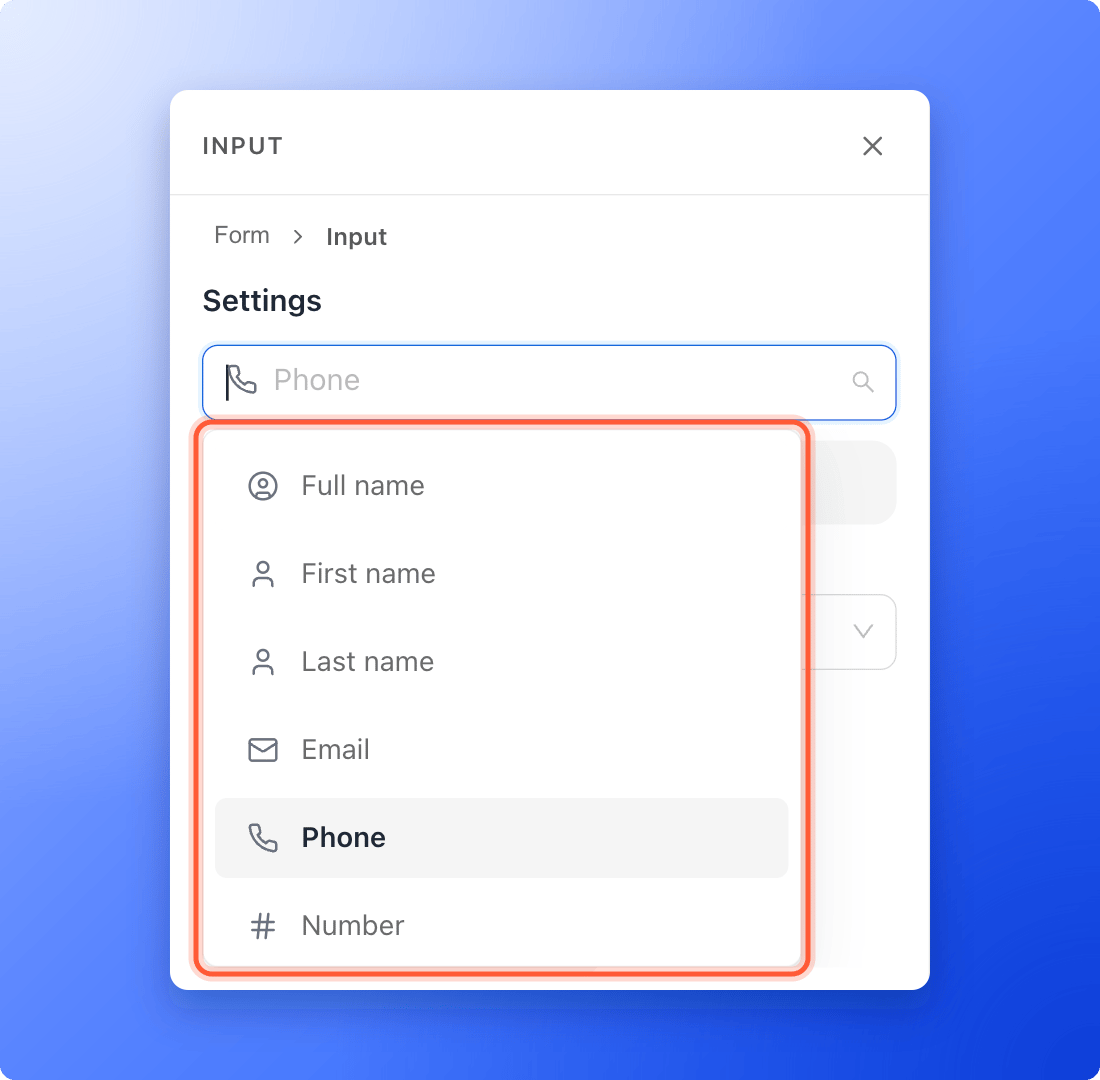
Pick the type for a field in the dropdown at the top of the left panel when the field is selected. Every field is **Required** unless you turn that switch off.
| Field type | What the visitor sees | What is checked | Settings |
| - | - | - | - |
| **Full name** | A text box. | Nothing, apart from **Required**. | None. |
| **First name** | A text box. | Nothing, apart from **Required**. | None. |
| **Last name** | A text box. | Nothing, apart from **Required**. | None. |
| **Email** | A text box for an email address. | The answer must look like an email address. | **Company emails only**. |
| **Phone** | A country picker with a flag and dial code, and a number box. | The number must be a valid phone number for the chosen country. | **Country code selector** and **Default country**. |
| **Number** | A box that takes numbers. | The answer must be a number, inside your range if you set one. | **Minimum** and **Maximum**. |
| **Custom** | A one line text box. | Nothing, apart from **Required**. | None. |
| **Message** | A larger text box for longer answers. | Nothing, apart from **Required**. | None. |
| **Website** | A text box for a web address. | The answer must look like a website. A bare address such as example.com is fine. | None. |
| **Date** | A calendar pop-up. | Days that your rules turn off cannot be picked. | **Allow past dates** and **Disable weekends**. |
| **Time** | A list of times to pick from. | The visitor must pick one if the field is required. | **Choices**. |
| **Birthday** | The date box of the visitor's browser. | The date must be a real date. | None. |
| **Dropdown** | A list of your options. | The visitor must pick one if the field is required. | **Choices** and **Allow multiple selections**. |
| **Country** | A list of countries that can be searched. | The visitor must pick one if the field is required. | None. |
| **Consent** | A checkbox with your own text. | If required, the box must be ticked. | Edit the text next to the box. |
 ## Set up a field and its checks
1. In the builder, click your form, then click the field you want to change. A small toolbar appears at its right and the left panel shows its settings.
2. In the dropdown at the top of the left panel, choose the field type.
3. Click the gray text inside the field and type the words visitors see, for example "Your work email". AskFunnel also uses this text to name the field in your leads table, so choose a clear name.
Turn the **Required** switch on or off. A required field shows **This is a required field** when it is empty. A required **Consent** checkbox shows **Please accept to continue.** until it is ticked.
The left panel shows the settings for the type you picked. The next section explains each one.
## Set up a field and its checks
1. In the builder, click your form, then click the field you want to change. A small toolbar appears at its right and the left panel shows its settings.
2. In the dropdown at the top of the left panel, choose the field type.
3. Click the gray text inside the field and type the words visitors see, for example "Your work email". AskFunnel also uses this text to name the field in your leads table, so choose a clear name.
Turn the **Required** switch on or off. A required field shows **This is a required field** when it is empty. A required **Consent** checkbox shows **Please accept to continue.** until it is ticked.
The left panel shows the settings for the type you picked. The next section explains each one.
 Click **"Publish Funnel"**. Open your live funnel, type a wrong value on purpose and click the submit button. The message appears under the field and the form does not send. See [Publish, unpublish and restore an earlier version](/funnels/publish-and-restore).
## What each setting does
* **Email, Company emails only.** Refuses addresses from common free providers. The visitor sees **Please use your company email address.** An address that is not shaped like an email shows **Enter a valid email address.**
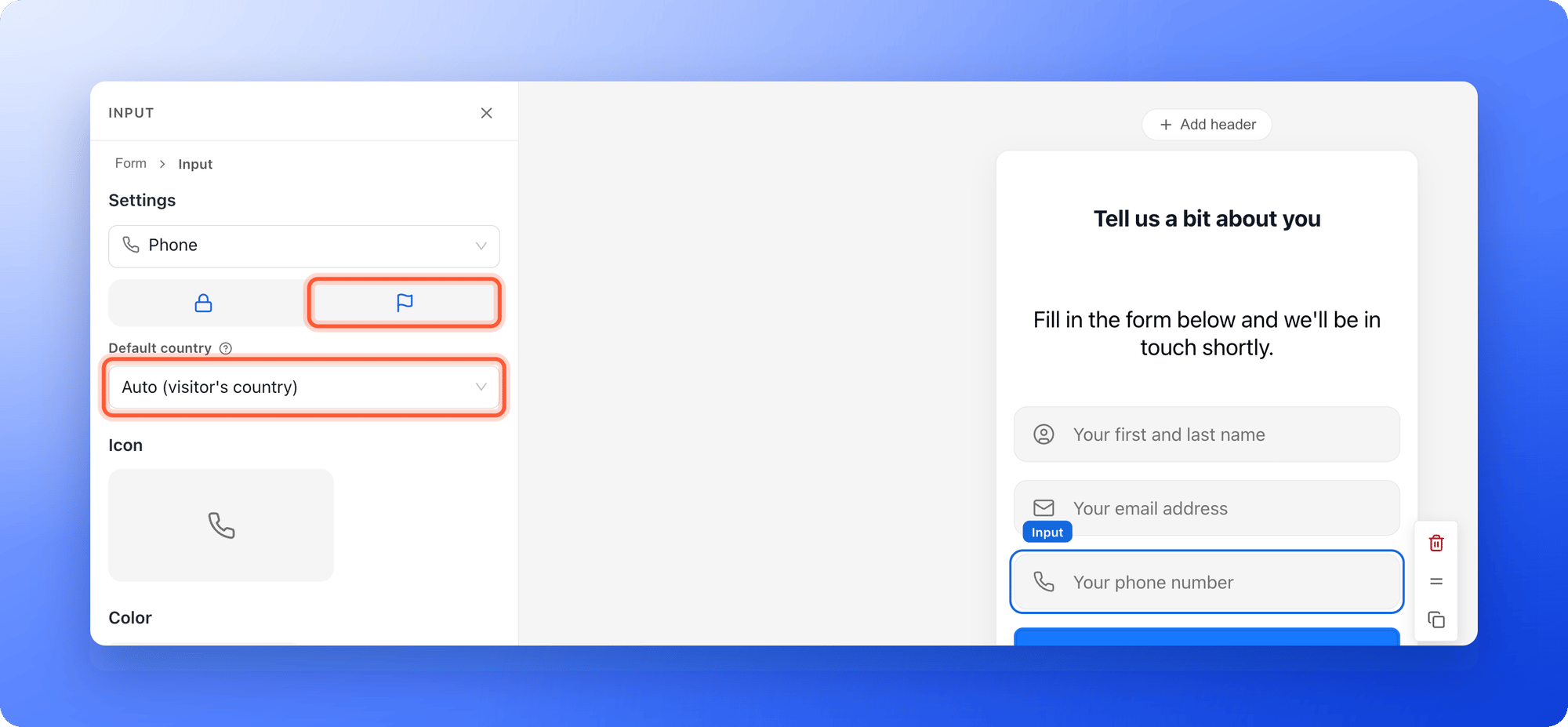
* **Phone, Country code selector.** On by default. Visitors pick their country, type the number the way they know it and AskFunnel saves it with the country code. The number must be valid for that country, or the visitor sees **Enter a valid phone number.** A visitor can also type a full number that starts with a plus sign and the country flag changes by itself. When you turn it off, there is no picker and visitors type the whole number themselves. A number that starts with a plus sign is checked as a full international number, and any other answer with 6 to 15 digits is accepted.
* **Phone, Default country.** Chooses which country shows first. The default is **Auto (visitor's country)**. Visitors can still change it.
* **Number, Minimum and Maximum.** Leave them empty for no limit. Visitors see **Must be at least** or **Must be at most** followed by your number, or **Enter a valid number.** if they type something that is not a number.
* **Website.** The answer must look like a web address, such as example.com or [https://example.com](https://example.com). Otherwise the visitor sees **Enter a valid website URL.**
* **Date, Allow past dates.** On by default. Turn it off for bookings. Earlier days are then grayed out in the calendar and cannot be picked.
* **Date, Disable weekends.** Saturdays and Sundays are grayed out in the calendar and cannot be picked.
* **Time, Choices.** Type one time per line, for example 09:30. If you leave **Choices** empty, visitors see hourly times from 09:00 to 17:00. The chosen time is saved in the **Preferred time** field of the lead.
* **Dropdown, Choices.** Type one option per line. A dropdown with no choices has nothing to pick, so always add some.
* **Dropdown, Allow multiple selections.** The options show as a list of tick boxes instead of a pop-up list. The lead gets the chosen options separated by commas.
* **Consent.** Click the text next to the checkbox and write what visitors agree to. When ticked, the answer is saved with the lead as **Yes**. See [Set up your privacy policy, terms links and consent](/funnel-settings/privacy-policy-and-terms).
Birthday uses the date box of the visitor's browser and has no past date or weekend settings. Use **Date** if you need those rules.
## How do I know it is working?
* On your live funnel, a wrong answer shows a short message under the field with a red icon, and the form stays on the page.
* A correct form moves on to the page you chose after the form.
* In your funnel's **Leads** tab, a test lead shows each answer in its own column, named after the text in the field. See [View and manage your leads](/leads/view-and-manage-leads).
## Troubleshooting
With **Country code selector** on, the number must match the country shown by the flag. Check the flag and change it if needed, or type the full number with a plus sign and the country code. If you want to accept any number, turn **Country code selector** off in the field's settings.
**Company emails only** is on for the email field. Turn it off if you also want addresses from providers such as Gmail.
The setting blocks a fixed list of common providers. It cannot tell every company address from every free one, so an address from a provider that is not on the list is accepted.
The field has no **Choices**. Select it and type one option per line in **Choices**. A multi select dropdown without choices shows only its placeholder text.
**Allow past dates** is on by default. Select the **Date** field and turn it off. The setting does not exist for **Birthday**.
No. There is no file upload field, and AskFunnel does not send confirmation codes. Fields only check the format of what is typed.
A lead is saved only when the form has an **Email** or a **Phone** answer. A form with only a name still moves visitors on, but no lead is saved. See [Set up your lead capture form](/funnels/lead-capture-forms#troubleshooting).
## What to do next
Add the form and choose where visitors go next.
Choose which answers appear as columns in your leads table.
Tell people what happens after they submit.
Need help? Email [support@askfunnel.com](mailto:support@askfunnel.com).
Click **"Publish Funnel"**. Open your live funnel, type a wrong value on purpose and click the submit button. The message appears under the field and the form does not send. See [Publish, unpublish and restore an earlier version](/funnels/publish-and-restore).
## What each setting does
* **Email, Company emails only.** Refuses addresses from common free providers. The visitor sees **Please use your company email address.** An address that is not shaped like an email shows **Enter a valid email address.**
* **Phone, Country code selector.** On by default. Visitors pick their country, type the number the way they know it and AskFunnel saves it with the country code. The number must be valid for that country, or the visitor sees **Enter a valid phone number.** A visitor can also type a full number that starts with a plus sign and the country flag changes by itself. When you turn it off, there is no picker and visitors type the whole number themselves. A number that starts with a plus sign is checked as a full international number, and any other answer with 6 to 15 digits is accepted.
* **Phone, Default country.** Chooses which country shows first. The default is **Auto (visitor's country)**. Visitors can still change it.
* **Number, Minimum and Maximum.** Leave them empty for no limit. Visitors see **Must be at least** or **Must be at most** followed by your number, or **Enter a valid number.** if they type something that is not a number.
* **Website.** The answer must look like a web address, such as example.com or [https://example.com](https://example.com). Otherwise the visitor sees **Enter a valid website URL.**
* **Date, Allow past dates.** On by default. Turn it off for bookings. Earlier days are then grayed out in the calendar and cannot be picked.
* **Date, Disable weekends.** Saturdays and Sundays are grayed out in the calendar and cannot be picked.
* **Time, Choices.** Type one time per line, for example 09:30. If you leave **Choices** empty, visitors see hourly times from 09:00 to 17:00. The chosen time is saved in the **Preferred time** field of the lead.
* **Dropdown, Choices.** Type one option per line. A dropdown with no choices has nothing to pick, so always add some.
* **Dropdown, Allow multiple selections.** The options show as a list of tick boxes instead of a pop-up list. The lead gets the chosen options separated by commas.
* **Consent.** Click the text next to the checkbox and write what visitors agree to. When ticked, the answer is saved with the lead as **Yes**. See [Set up your privacy policy, terms links and consent](/funnel-settings/privacy-policy-and-terms).
Birthday uses the date box of the visitor's browser and has no past date or weekend settings. Use **Date** if you need those rules.
## How do I know it is working?
* On your live funnel, a wrong answer shows a short message under the field with a red icon, and the form stays on the page.
* A correct form moves on to the page you chose after the form.
* In your funnel's **Leads** tab, a test lead shows each answer in its own column, named after the text in the field. See [View and manage your leads](/leads/view-and-manage-leads).
## Troubleshooting
With **Country code selector** on, the number must match the country shown by the flag. Check the flag and change it if needed, or type the full number with a plus sign and the country code. If you want to accept any number, turn **Country code selector** off in the field's settings.
**Company emails only** is on for the email field. Turn it off if you also want addresses from providers such as Gmail.
The setting blocks a fixed list of common providers. It cannot tell every company address from every free one, so an address from a provider that is not on the list is accepted.
The field has no **Choices**. Select it and type one option per line in **Choices**. A multi select dropdown without choices shows only its placeholder text.
**Allow past dates** is on by default. Select the **Date** field and turn it off. The setting does not exist for **Birthday**.
No. There is no file upload field, and AskFunnel does not send confirmation codes. Fields only check the format of what is typed.
A lead is saved only when the form has an **Email** or a **Phone** answer. A form with only a name still moves visitors on, but no lead is saved. See [Set up your lead capture form](/funnels/lead-capture-forms#troubleshooting).
## What to do next
Add the form and choose where visitors go next.
Choose which answers appear as columns in your leads table.
Tell people what happens after they submit.
Need help? Email [support@askfunnel.com](mailto:support@askfunnel.com).