> ## Documentation Index
> Fetch the complete documentation index at: https://help.askfunnel.com/llms.txt
> Use this file to discover all available pages before exploring further.
# Add FAQ, testimonial, review, logo bar and slider blocks
> Answer common questions and show proof that people trust you, with the FAQ, Reviews, Testimonial, Logo Bar, Slider and Slideshow blocks.
Visitors decide fast. Two things help them say yes: clear answers to the questions on their mind, and proof that other people trust you. Six blocks do this. **FAQ** answers questions. **Reviews**, **Testimonial** and **Logo Bar** show proof. **Slider** and **Slideshow** show pictures of your work.
This page covers what each block shows, where its settings are and what to replace before you publish. To add any block and move it around, see [Add and arrange blocks](/funnels/layout-blocks).
| Block | What visitors see | What you edit |
| - | - | - |
| **FAQ** | Question cards that open to show the answer | Each question and answer. Up to 12 cards. |
| **Reviews** | Overlapping photos, a star rating and a line such as the number of reviews | Photos, rating and the line of text |
| **Testimonial** | A customer photo, name and review that change by themselves | Photos, names, reviews and speed |
| **Logo Bar** | A strip of logos that scrolls sideways | Logos, size, speed and color |
| **Slider** | A row of photos with the current one large in the center | Photos and shape |
| **Slideshow** | One wide photo at a time, with a row of progress bars | Photos, shape and speed |
**Before you start**, you need:
* A funnel open in the builder, on the page you want to edit. See [Launch your first funnel](/getting-started/launch-your-first-funnel).
* A role that can edit funnels: Global Admin, Workspace Admin or Content Editor.
* Your real content: customer quotes you have permission to show, logos of businesses you really work with, and your own photos as JPG, PNG or GIF files of up to 4 MB each.
## Important to note
* Every block starts with sample content that is not about your business. The **FAQ** has sample answers about refunds, shipping and support. **Reviews** has sample faces and the line **5.0 from 200+ reviews**. **Testimonial** has five sample people with sample reviews. **Logo Bar** has logos of well known companies. **Slider** and **Slideshow** have sample travel and landscape photos. Replace all of it before you publish.
* AskFunnel shows what you type. It does not check a rating, a number of reviews or a quote. Show only real reviews, and logos of businesses you really work with.
* The **Testimonial** and **Social Proof** sections in the **Sections** list also start with sample content. Replace it the same way.
## Add a block
1. In the builder, open the page you want to edit.
2. Click the **"Content"** tab on the left side menu, then click **"Blocks"**.
3. Under **Core Components**, click **"FAQ"**, **"Reviews"** or **"Testimonial"**. Scroll down to **Media Elements** for **"Logo Bar"**, **"Slider"** and **"Slideshow"**.
The block appears on your page with its sample content.
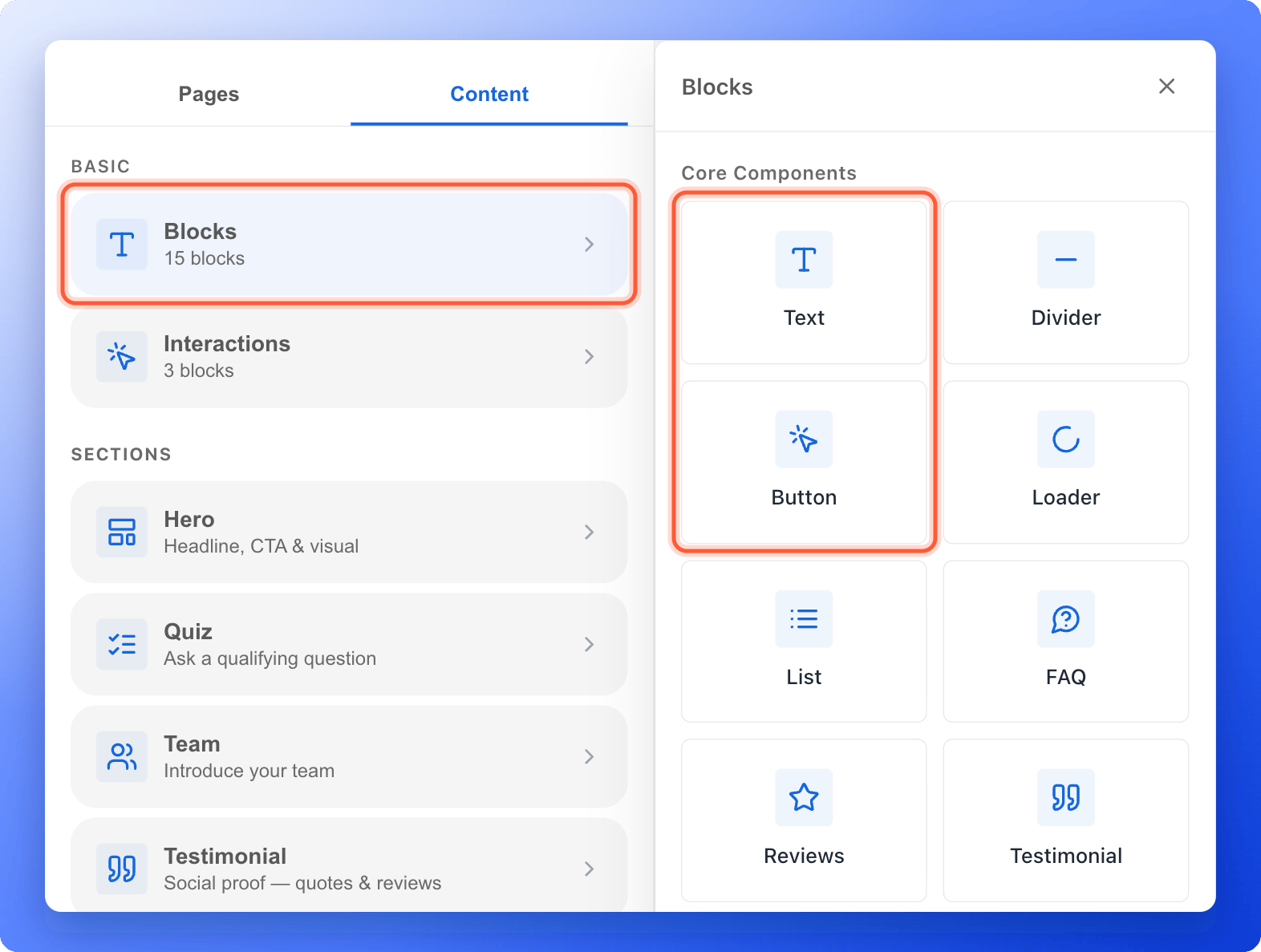 Follow the section for your block below. Select the block on the canvas to see its settings in the left panel.
Use the device button at the right side of the canvas to switch between **Desktop**, **Tablet** and **Mobile**. Then click **"Publish Funnel"**. See [Test your funnel before you send traffic](/funnels/test-your-funnel).
## Set up each block
### FAQ
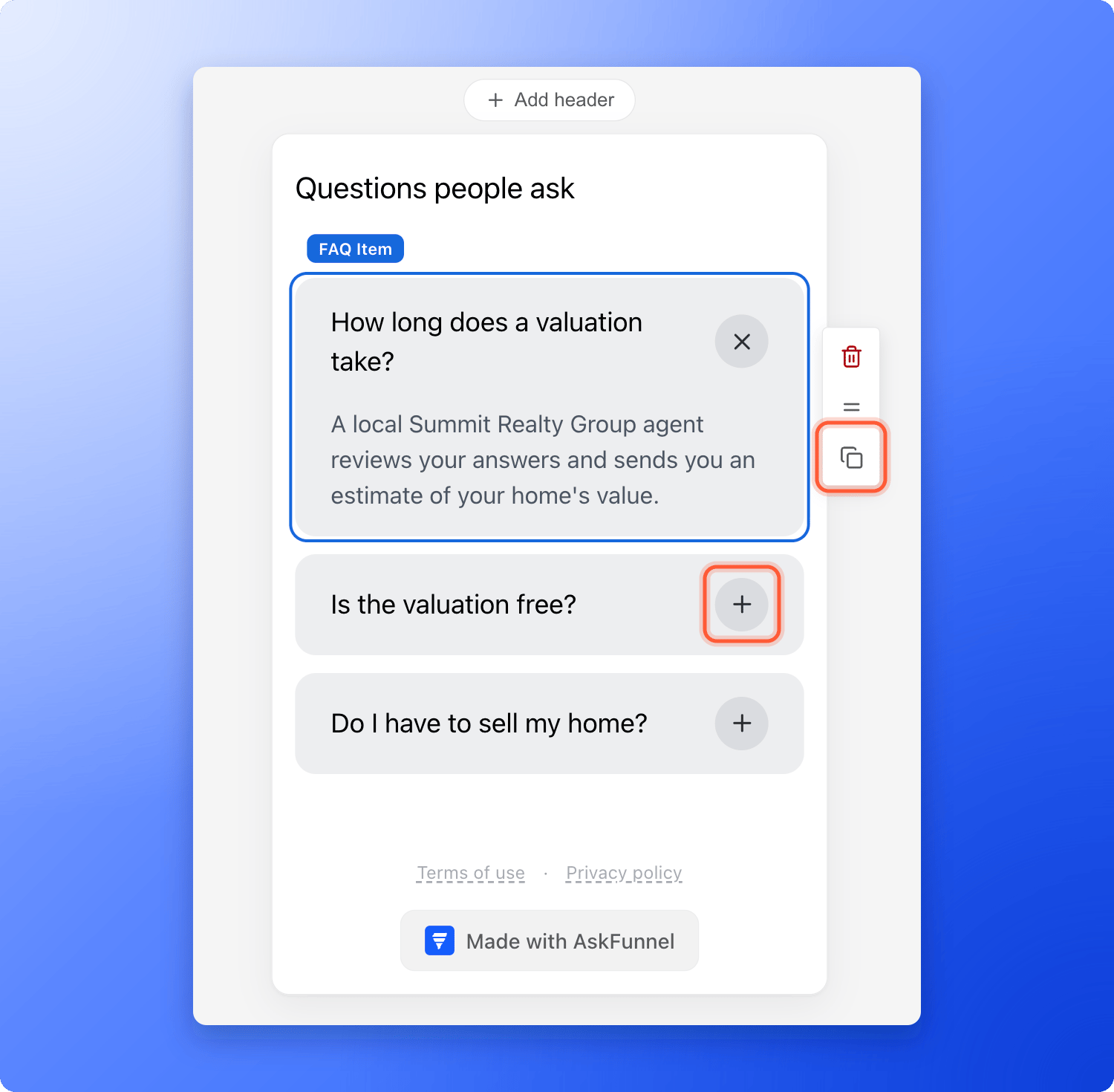
* **Add a heading.** The FAQ has no title of its own. Add a **Text** block above it, for example "Questions people ask".
* **Write your questions.** Click a question and type. Click the round plus button on the card to open the answer, then click the answer and type. Visitors see every card closed, and each card opens and closes on its own.
* **Add, remove and reorder.** Select a card and click the **Duplicate** icon in the small toolbar at its right to add a copy. Use the trash icon to delete a card, and drag its **=** icon to move it. A FAQ holds 1 to 12 questions.
* **Change the colors.** Select a card and use **B** under **Color** to change its background. To color the space behind all the cards, select the whole FAQ instead and use **B**.
Follow the section for your block below. Select the block on the canvas to see its settings in the left panel.
Use the device button at the right side of the canvas to switch between **Desktop**, **Tablet** and **Mobile**. Then click **"Publish Funnel"**. See [Test your funnel before you send traffic](/funnels/test-your-funnel).
## Set up each block
### FAQ
* **Add a heading.** The FAQ has no title of its own. Add a **Text** block above it, for example "Questions people ask".
* **Write your questions.** Click a question and type. Click the round plus button on the card to open the answer, then click the answer and type. Visitors see every card closed, and each card opens and closes on its own.
* **Add, remove and reorder.** Select a card and click the **Duplicate** icon in the small toolbar at its right to add a copy. Use the trash icon to delete a card, and drag its **=** icon to move it. A FAQ holds 1 to 12 questions.
* **Change the colors.** Select a card and use **B** under **Color** to change its background. To color the space behind all the cards, select the whole FAQ instead and use **B**.
 ### Reviews
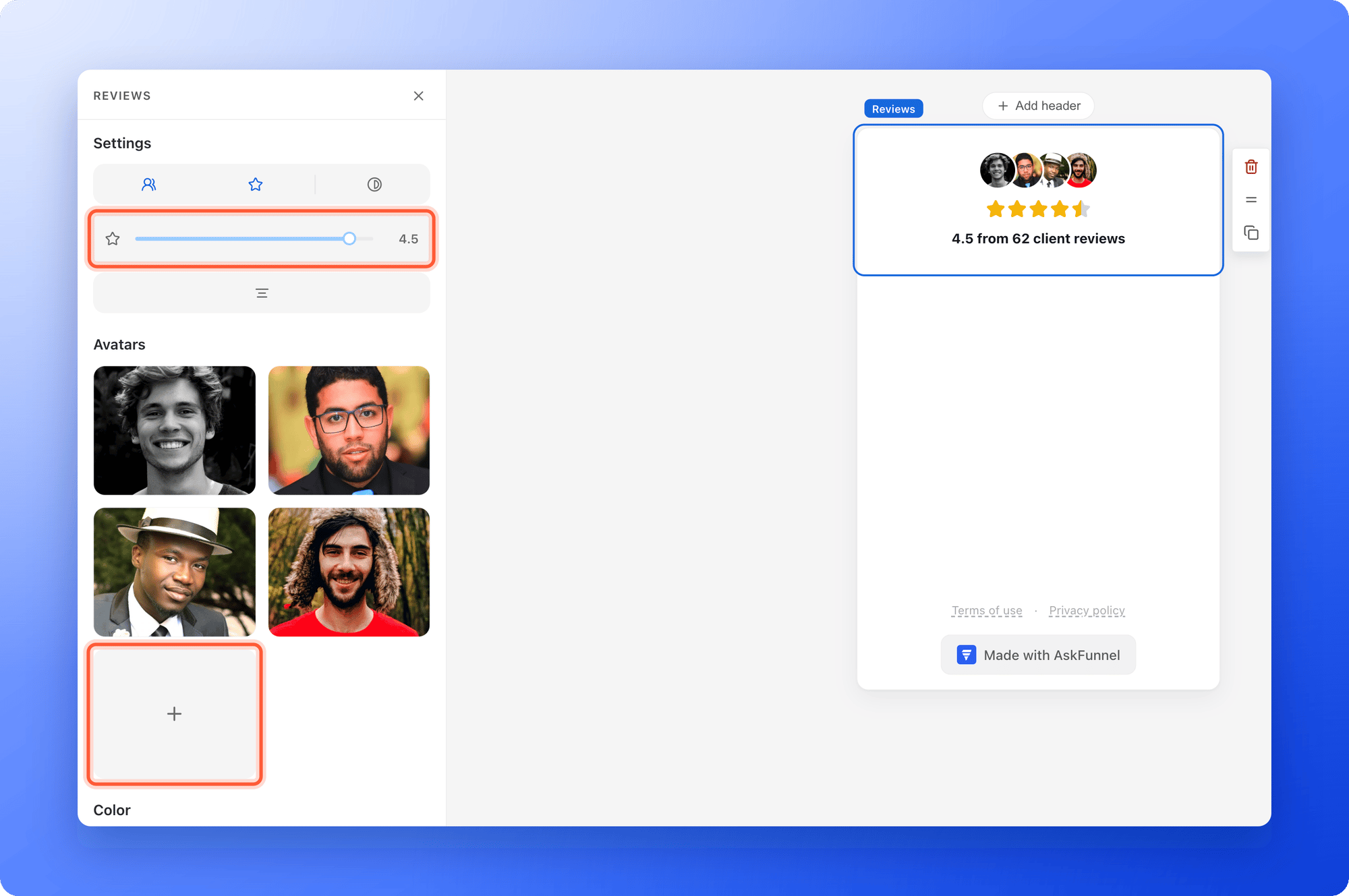
* **Set the rating.** In the left panel, under **Settings**, move the **Rating** slider from 0 to 5 in half steps. The icons next to it switch **Show avatars**, **Show stars** and **Grayscale avatars** on and off, and set the alignment.
* **Choose the photos.** Under **Avatars**, click the **+** card to add a photo. Click a photo to change it, drag a photo to reorder it and click the cross on it to remove it. The window has the tabs **Upload**, **Image** and **My gallery**.
* **Write the line of text.** Click the line on the canvas and type your own, using your real rating and number of reviews. The sample line is not yours.
* **Change the star color.** Use the star swatch under **Color**. It is hidden while the stars are switched off.
### Reviews
* **Set the rating.** In the left panel, under **Settings**, move the **Rating** slider from 0 to 5 in half steps. The icons next to it switch **Show avatars**, **Show stars** and **Grayscale avatars** on and off, and set the alignment.
* **Choose the photos.** Under **Avatars**, click the **+** card to add a photo. Click a photo to change it, drag a photo to reorder it and click the cross on it to remove it. The window has the tabs **Upload**, **Image** and **My gallery**.
* **Write the line of text.** Click the line on the canvas and type your own, using your real rating and number of reviews. The sample line is not yours.
* **Change the star color.** Use the star swatch under **Color**. It is hidden while the stars are switched off.
 ### Testimonial
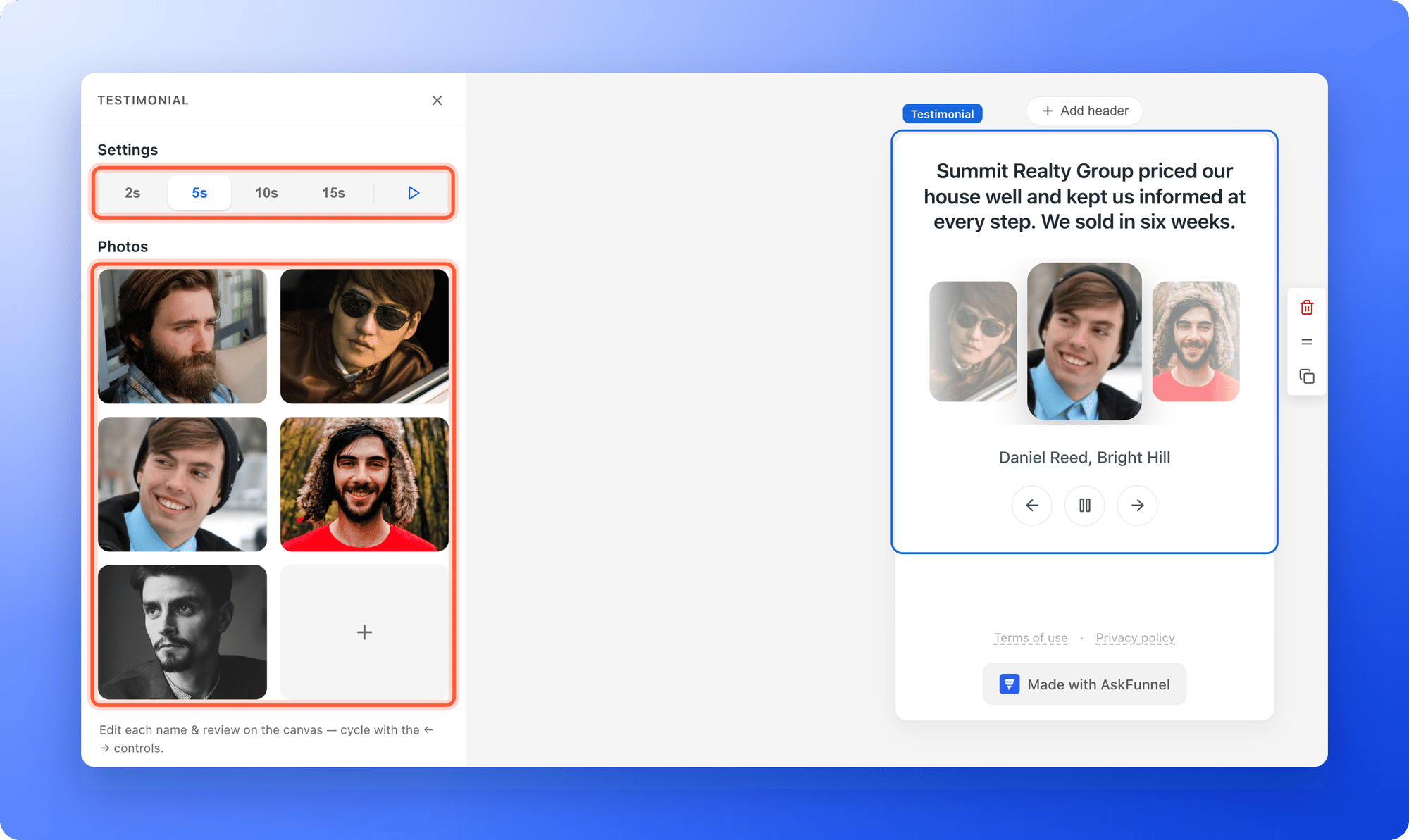
* **Choose the speed.** Under **Settings**, pick **2s**, **5s**, **10s** or **15s** for how often the review changes, and use the **Autoplay** icon to stop it from changing by itself. Visitors also get **Previous** and **Next** buttons and a pause button.
* **Add the customer photos.** Under **Photos**, click the **+** card and upload the photo. Drag a photo to reorder it, and click the cross on it to remove it. Only show a person's photo and words with their permission.
* **Write the name and the review.** On the canvas, click the name and the review text and type. A new testimonial starts with a sample review and name, so replace both. Use the arrows on the canvas to move to the next one.
### Testimonial
* **Choose the speed.** Under **Settings**, pick **2s**, **5s**, **10s** or **15s** for how often the review changes, and use the **Autoplay** icon to stop it from changing by itself. Visitors also get **Previous** and **Next** buttons and a pause button.
* **Add the customer photos.** Under **Photos**, click the **+** card and upload the photo. Drag a photo to reorder it, and click the cross on it to remove it. Only show a person's photo and words with their permission.
* **Write the name and the review.** On the canvas, click the name and the review text and type. A new testimonial starts with a sample review and name, so replace both. Use the arrows on the canvas to move to the next one.
 ### Logo Bar
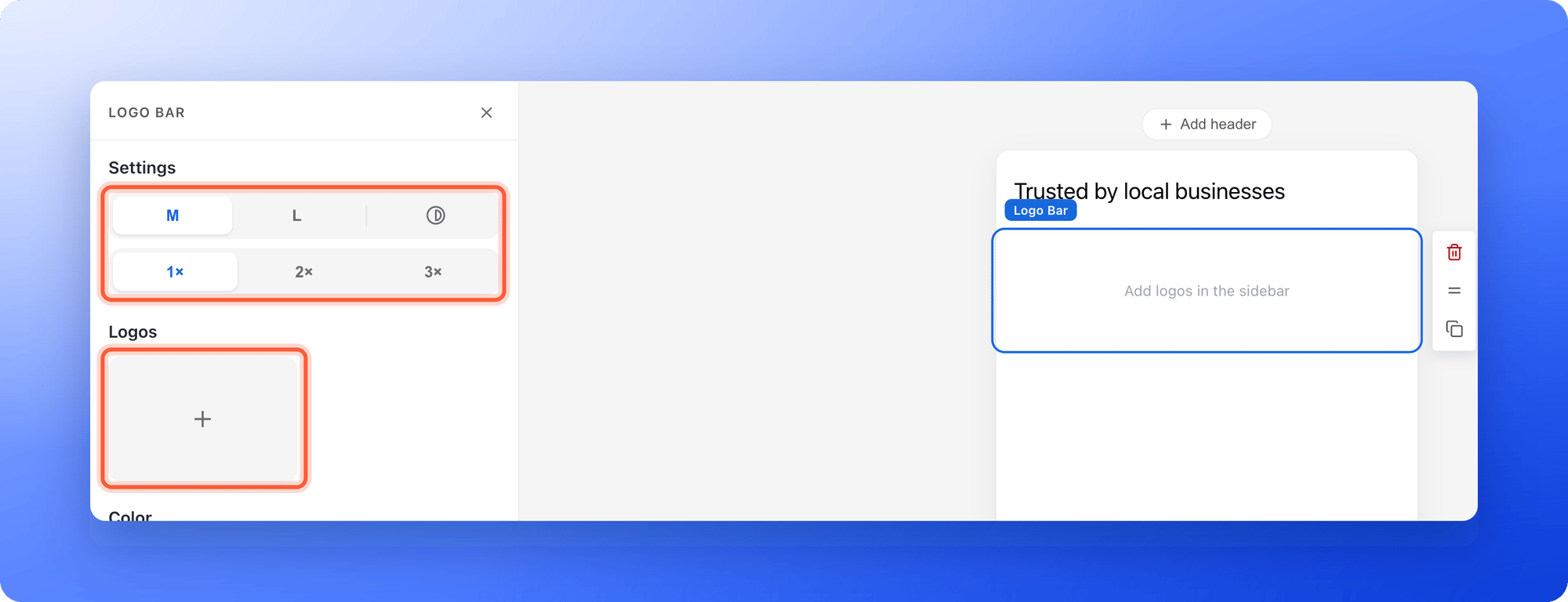
* **Choose the size and speed.** Under **Settings**, pick **M** or **L** for the logo size, and **1×**, **2×** or **3×** for the scrolling speed. The **Grayscale** icon turns every logo gray.
* **Add your logos.** Under **Logos**, click the **+** card. In the **Logos** tab, search for a brand name or paste its website, for example stripe.com. In the **Upload** tab, add your own file. Drag a logo to reorder it, and click the cross on it to remove it.
* **Know how it moves.** The logos scroll sideways by themselves. A visitor whose device is set to reduce motion sees a still row instead.
### Logo Bar
* **Choose the size and speed.** Under **Settings**, pick **M** or **L** for the logo size, and **1×**, **2×** or **3×** for the scrolling speed. The **Grayscale** icon turns every logo gray.
* **Add your logos.** Under **Logos**, click the **+** card. In the **Logos** tab, search for a brand name or paste its website, for example stripe.com. In the **Upload** tab, add your own file. Drag a logo to reorder it, and click the cross on it to remove it.
* **Know how it moves.** The logos scroll sideways by themselves. A visitor whose device is set to reduce motion sees a still row instead.
 ### Slider and Slideshow
* **Pick the one you want.** **Slider** shows the current photo large in the center, with the next and previous photos smaller on each side. Visitors drag or swipe, click a neighbor, an arrow or a dot, and it loops. **Slideshow** shows one wide photo at a time with a row of bars at the bottom, one for each photo. Visitors swipe or click a bar, and can pause it.
* **Set the shape.** Under **Settings**, choose **S**, **M**, **L** or **XL** for a photo shape of 16:9, 4:3, 5:4 or 1:1.
* **Set the speed.** On **Slideshow**, pick **2s**, **5s**, **10s** or **15s** and use the **Autoplay** icon. A visitor whose device is set to reduce motion does not get autoplay, and can still swipe or click.
* **Add your photos.** Under **Photos**, click the **+** card. The window has the tabs **Upload**, **Image** for free photos and **My gallery**. Drag a photo to reorder it, and click the cross on it to remove it.
## How do I know it is working?
* The canvas shows your own text, photos and logos, with no sample content left.
* On **Desktop**, **Tablet** and **Mobile**, nothing is cut off and the text is easy to read.
* After you publish, your live funnel shows the block. The FAQ opens, and the testimonials, the slider and the slideshow move. See [Find and share your funnel link](/funnels/share-your-funnel).
## Troubleshooting
Click **"Content"**, then **"Blocks"**. **FAQ**, **Reviews** and **Testimonial** are under **Core Components**. **Logo Bar**, **Slider** and **Slideshow** are under **Media Elements**, further down. Contacts Managers cannot edit funnels, so they do not see the builder.
A FAQ keeps at least 1 question and holds at most 12. Add a question before you delete the last one, or delete one before you add a thirteenth.
Every FAQ card starts closed. Click the round plus button on the card to open the answer, then click the answer to edit it.
A new testimonial only has the photo you added. Click the name and the review on the canvas and type them. Use the arrows to find the new one.
The **Logos** tab searches a library of brands, and a small business may not be in it. Click the **Upload** tab and add your own logo file.
The **Upload** tab accepts JPG, PNG and GIF files of up to 4 MB. You see **Only JPG, PNG, or GIF files are supported.** or **File is larger than 4MB.** if your file does not fit. Export it again at a smaller size and try again.
Check that the **Autoplay** icon is on. A visitor whose device is set to reduce motion does not get autoplay. They can still swipe, or click a bar, to move on.
Your changes only go live when you publish. Click **"Publish Funnel"**, wait a minute and refresh the live page.
## What to do next
Add, move, copy and delete any block.
Set your colors, text, logo and images.
Place blocks side by side, such as a photo next to a review.
Check every screen before your ads go live.
Need help? Email [support@askfunnel.com](mailto:support@askfunnel.com).
### Slider and Slideshow
* **Pick the one you want.** **Slider** shows the current photo large in the center, with the next and previous photos smaller on each side. Visitors drag or swipe, click a neighbor, an arrow or a dot, and it loops. **Slideshow** shows one wide photo at a time with a row of bars at the bottom, one for each photo. Visitors swipe or click a bar, and can pause it.
* **Set the shape.** Under **Settings**, choose **S**, **M**, **L** or **XL** for a photo shape of 16:9, 4:3, 5:4 or 1:1.
* **Set the speed.** On **Slideshow**, pick **2s**, **5s**, **10s** or **15s** and use the **Autoplay** icon. A visitor whose device is set to reduce motion does not get autoplay, and can still swipe or click.
* **Add your photos.** Under **Photos**, click the **+** card. The window has the tabs **Upload**, **Image** for free photos and **My gallery**. Drag a photo to reorder it, and click the cross on it to remove it.
## How do I know it is working?
* The canvas shows your own text, photos and logos, with no sample content left.
* On **Desktop**, **Tablet** and **Mobile**, nothing is cut off and the text is easy to read.
* After you publish, your live funnel shows the block. The FAQ opens, and the testimonials, the slider and the slideshow move. See [Find and share your funnel link](/funnels/share-your-funnel).
## Troubleshooting
Click **"Content"**, then **"Blocks"**. **FAQ**, **Reviews** and **Testimonial** are under **Core Components**. **Logo Bar**, **Slider** and **Slideshow** are under **Media Elements**, further down. Contacts Managers cannot edit funnels, so they do not see the builder.
A FAQ keeps at least 1 question and holds at most 12. Add a question before you delete the last one, or delete one before you add a thirteenth.
Every FAQ card starts closed. Click the round plus button on the card to open the answer, then click the answer to edit it.
A new testimonial only has the photo you added. Click the name and the review on the canvas and type them. Use the arrows to find the new one.
The **Logos** tab searches a library of brands, and a small business may not be in it. Click the **Upload** tab and add your own logo file.
The **Upload** tab accepts JPG, PNG and GIF files of up to 4 MB. You see **Only JPG, PNG, or GIF files are supported.** or **File is larger than 4MB.** if your file does not fit. Export it again at a smaller size and try again.
Check that the **Autoplay** icon is on. A visitor whose device is set to reduce motion does not get autoplay. They can still swipe, or click a bar, to move on.
Your changes only go live when you publish. Click **"Publish Funnel"**, wait a minute and refresh the live page.
## What to do next
Add, move, copy and delete any block.
Set your colors, text, logo and images.
Place blocks side by side, such as a photo next to a review.
Check every screen before your ads go live.
Need help? Email [support@askfunnel.com](mailto:support@askfunnel.com).