> ## Documentation Index
> Fetch the complete documentation index at: https://help.askfunnel.com/llms.txt
> Use this file to discover all available pages before exploring further.
# Build a funnel from a blank page
> Start with an empty page, add ready-made sections, your questions and a lead form, then publish it.
Build a funnel and publish it, even if you have never built one. A funnel is a short series of pages that asks people questions one at a time and ends with a form that collects their details. You do not need design or coding skills.
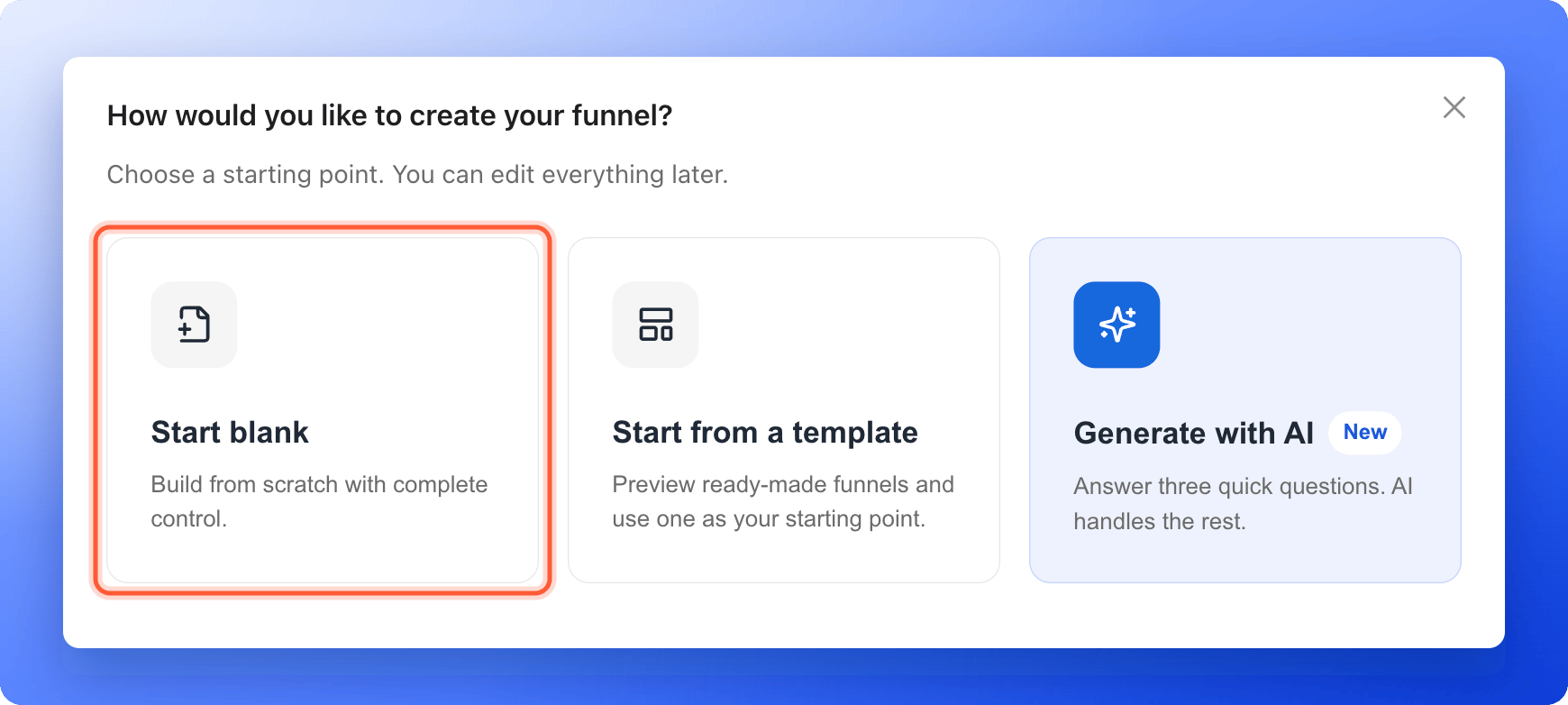
You can start a funnel in three ways:
* **Start blank.** Build from scratch with complete control. This page shows you how.
* **Start from a template.** Preview ready-made funnels and use one as your starting point. See [Launch your first funnel](/getting-started/launch-your-first-funnel).
* **Generate with AI.** Answer three quick questions and AI builds the funnel for you. A build uses 50 AI credits.
**Before you start**, you need:
* An AskFunnel account and a workspace. See [Create your account](/getting-started/create-account).
* A role that can create funnels: Global Admin, Workspace Admin or Content Editor. If you do not see **"Create Funnel"**, ask a Workspace Admin or Global Admin.
* A verified email address. You need it to publish, not to build.
## Important to note
* AskFunnel saves your changes as you work, but people cannot see your funnel until you publish it.
* Your plan sets how many funnels can be live at once. See [Choose a plan](/billing/choose-a-plan).
## Create and build your funnel
1. On the **Funnels** page of your workspace, click **"Create Funnel"** at the top right.
2. Click **"Start blank"**.
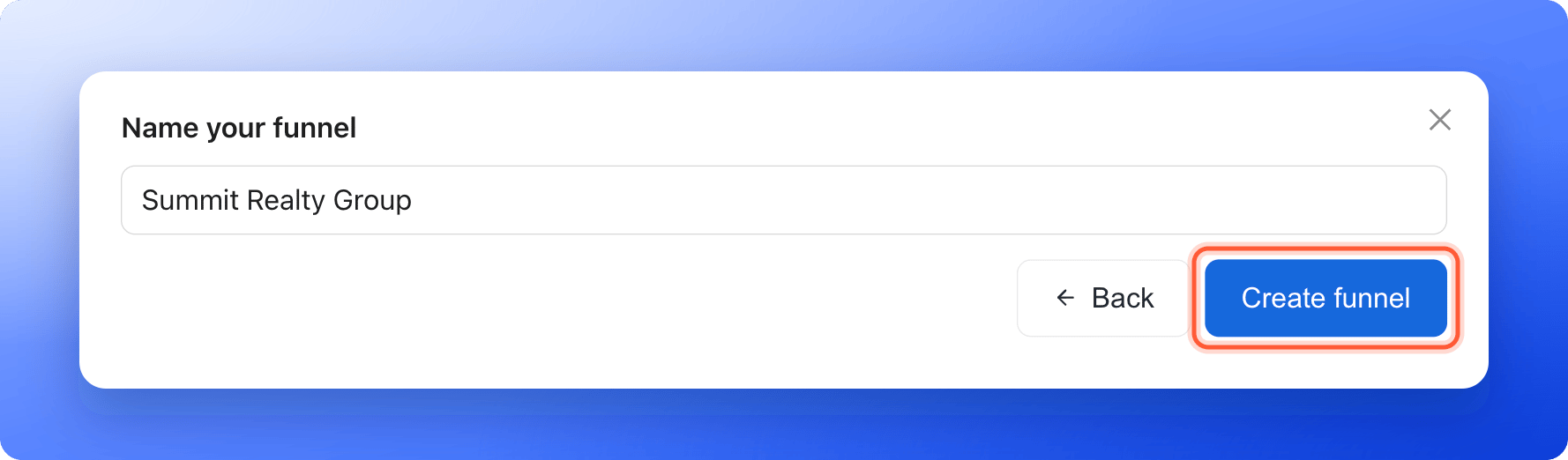
 3. Type a name, for example "Summit Realty Group". Use 2 to 60 characters. The name shows in your funnel list and in the browser tab, unless you set a different title in [Social preview and favicon](/funnel-settings/social-preview-and-favicon).
4. Click **"Create funnel"**. The funnel builder opens.
3. Type a name, for example "Summit Realty Group". Use 2 to 60 characters. The name shows in your funnel list and in the browser tab, unless you set a different title in [Social preview and favicon](/funnel-settings/social-preview-and-favicon).
4. Click **"Create funnel"**. The funnel builder opens.
 A new funnel starts with one page called **Start** and one result called **Thank you**. See [Manage your funnel pages](/funnels/manage-pages) to add more.
Sections are ready-made groups of blocks that you drop onto your page and then edit. They are the fastest way to fill a blank page.
1. On the left side menu, click the **"Content"** tab.
2. Under **Sections**, click the section you want:
* **Hero** adds a headline, a call to action and a visual.
* **Quiz** asks a qualifying question.
* **Team** introduces your team.
* **Testimonial** shows quotes and reviews from your customers.
* **Call to Action** drives the next step with an offer and a button.
* **Social Proof** shows logos and trust signals.
3. A panel opens with several designs. Click the design you like. It is added to your page right away.
4. Click any text to type your own words, or click an image to replace it.
AskFunnel adds the section right after the first section you can see at the top of your screen. On an empty page, it goes to the top. Add as many sections as you like.
A new funnel starts with one page called **Start** and one result called **Thank you**. See [Manage your funnel pages](/funnels/manage-pages) to add more.
Sections are ready-made groups of blocks that you drop onto your page and then edit. They are the fastest way to fill a blank page.
1. On the left side menu, click the **"Content"** tab.
2. Under **Sections**, click the section you want:
* **Hero** adds a headline, a call to action and a visual.
* **Quiz** asks a qualifying question.
* **Team** introduces your team.
* **Testimonial** shows quotes and reviews from your customers.
* **Call to Action** drives the next step with an offer and a button.
* **Social Proof** shows logos and trust signals.
3. A panel opens with several designs. Click the design you like. It is added to your page right away.
4. Click any text to type your own words, or click an image to replace it.
AskFunnel adds the section right after the first section you can see at the top of your screen. On an empty page, it goes to the top. Add as many sections as you like.
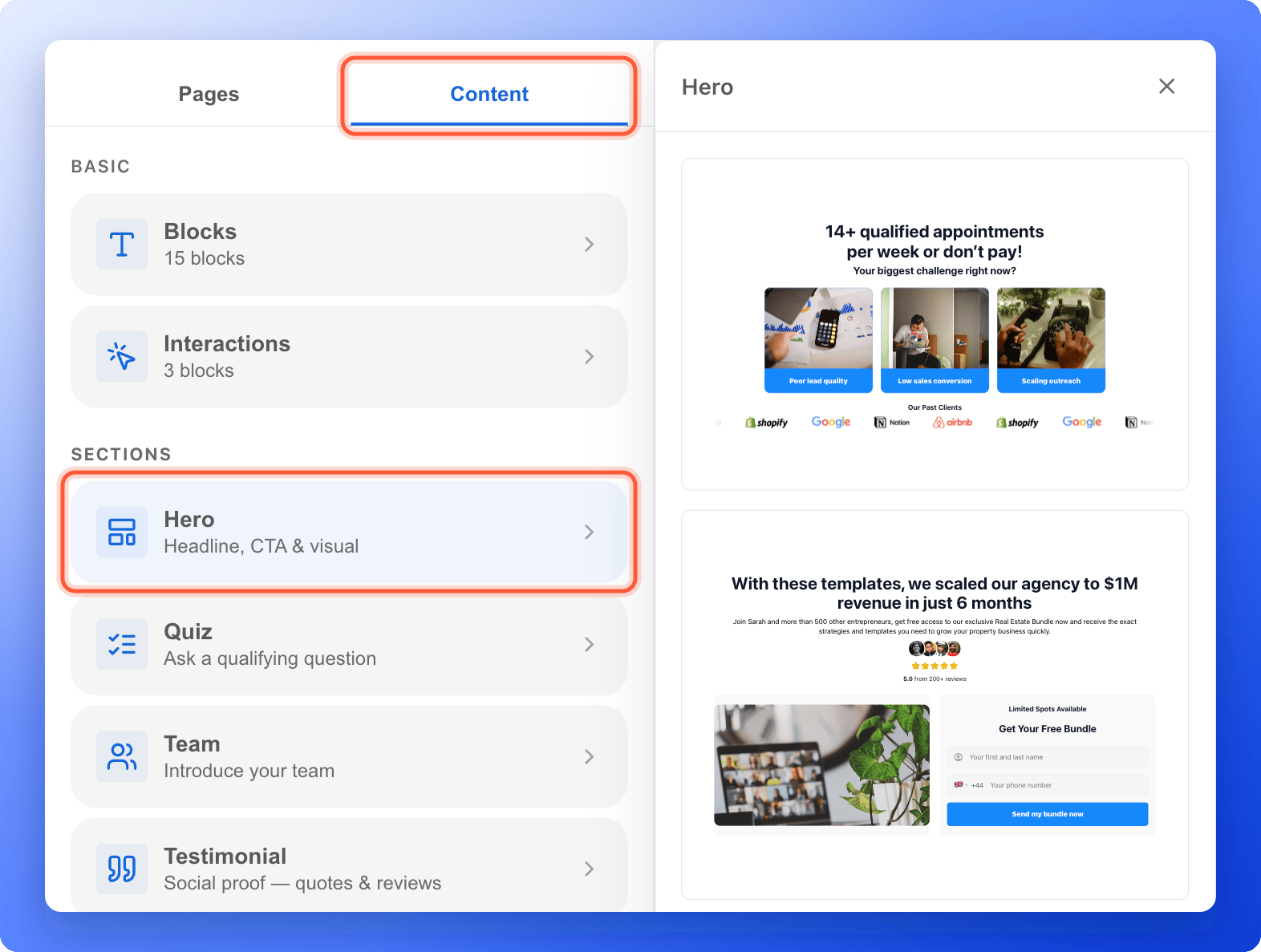 Under **Content**, the **Interactions** group holds the blocks that collect answers: **Quiz**, **Media Quiz** and **Form**. Add a question with [Build quiz questions](/funnels/quiz-questions) and collect contact details with [Set up your lead capture form](/funnels/lead-capture-forms).
Click **"Publish Funnel"** at the top right of the builder. When it is done, you see **Your funnel is live.** and the funnel shows **Live** in the **Status** column of your funnel list.
## Troubleshooting
Your role in this workspace does not allow creating funnels. Contacts Managers cannot create or edit funnels. Ask a Workspace Admin or Global Admin to change your role, or switch to a workspace where you can edit funnels.
Building with AI needs an active plan and enough AI credits. A build costs 50 credits. See [Plan and usage](/billing/plan-and-usage).
Open the funnel in the builder, click its name at the top left, type a new name and press Enter. The link you share does not change when you rename the funnel.
## What to do next
Ask one question per page and choose where each answer leads.
Collect the contact details you need to follow up.
Add, rename, reorder and delete pages and results.
Get your funnel link and start sending people to it.
Need help? Email [support@askfunnel.com](mailto:support@askfunnel.com).
Under **Content**, the **Interactions** group holds the blocks that collect answers: **Quiz**, **Media Quiz** and **Form**. Add a question with [Build quiz questions](/funnels/quiz-questions) and collect contact details with [Set up your lead capture form](/funnels/lead-capture-forms).
Click **"Publish Funnel"** at the top right of the builder. When it is done, you see **Your funnel is live.** and the funnel shows **Live** in the **Status** column of your funnel list.
## Troubleshooting
Your role in this workspace does not allow creating funnels. Contacts Managers cannot create or edit funnels. Ask a Workspace Admin or Global Admin to change your role, or switch to a workspace where you can edit funnels.
Building with AI needs an active plan and enough AI credits. A build costs 50 credits. See [Plan and usage](/billing/plan-and-usage).
Open the funnel in the builder, click its name at the top left, type a new name and press Enter. The link you share does not change when you rename the funnel.
## What to do next
Ask one question per page and choose where each answer leads.
Collect the contact details you need to follow up.
Add, rename, reorder and delete pages and results.
Get your funnel link and start sending people to it.
Need help? Email [support@askfunnel.com](mailto:support@askfunnel.com).