> ## Documentation Index
> Fetch the complete documentation index at: https://help.askfunnel.com/llms.txt
> Use this file to discover all available pages before exploring further.
# Create a funnel with AI
> Answer three questions and AI builds a first draft of your funnel for you to review, edit and publish.
Available on: **all plans** (Starter, Growth, Scale and Enterprise). A build uses **25 AI credits**.
Answer three quick questions and AI writes a first draft of your funnel: a landing page, quiz questions, a contact form and a thank you screen, depending on the format you choose. You review the draft, change what you like and publish it when you are happy. It is the fastest way to get from an idea to a funnel you can edit.
With AI, you can:
* **Start from your website.** Type your website address and AI researches your business and market for you.
* **Start without a website.** Give a business name and an industry instead.
* **Pick the shape of your funnel.** Choose a full funnel, a landing page with a form, or a quiz with a form.
* **Edit everything afterward.** The result is a normal funnel in the builder, not a locked design. Polish the words with the [AI text tools](/funnels/ai-text-tools).
**Before you start**, you need:
* A role that can create funnels: Global Admin, Workspace Admin or Content Editor.
* A verified email address.
* An active plan or free trial with at least 25 AI credits left. See [How AI credits work](/billing/ai-credits).
## Important to note
* A build costs 25 AI credits. AskFunnel holds them while the build runs and only charges them when your draft is ready. If the build fails or you cancel it, the credits are released.
* You can have up to 2 builds running at once. AskFunnel does not start a third one until one of them finishes.
* AI writes a first draft, and it can get details wrong. Read every page before you publish, and replace anything that is not true for your business, such as claims, prices, reviews and names.
* The funnel is not live until you publish it. See [Publish, unpublish and restore an earlier version](/funnels/publish-and-restore).
## Build your funnel
1. On the **Funnels** page of your workspace, click **"Create Funnel"** at the top right.
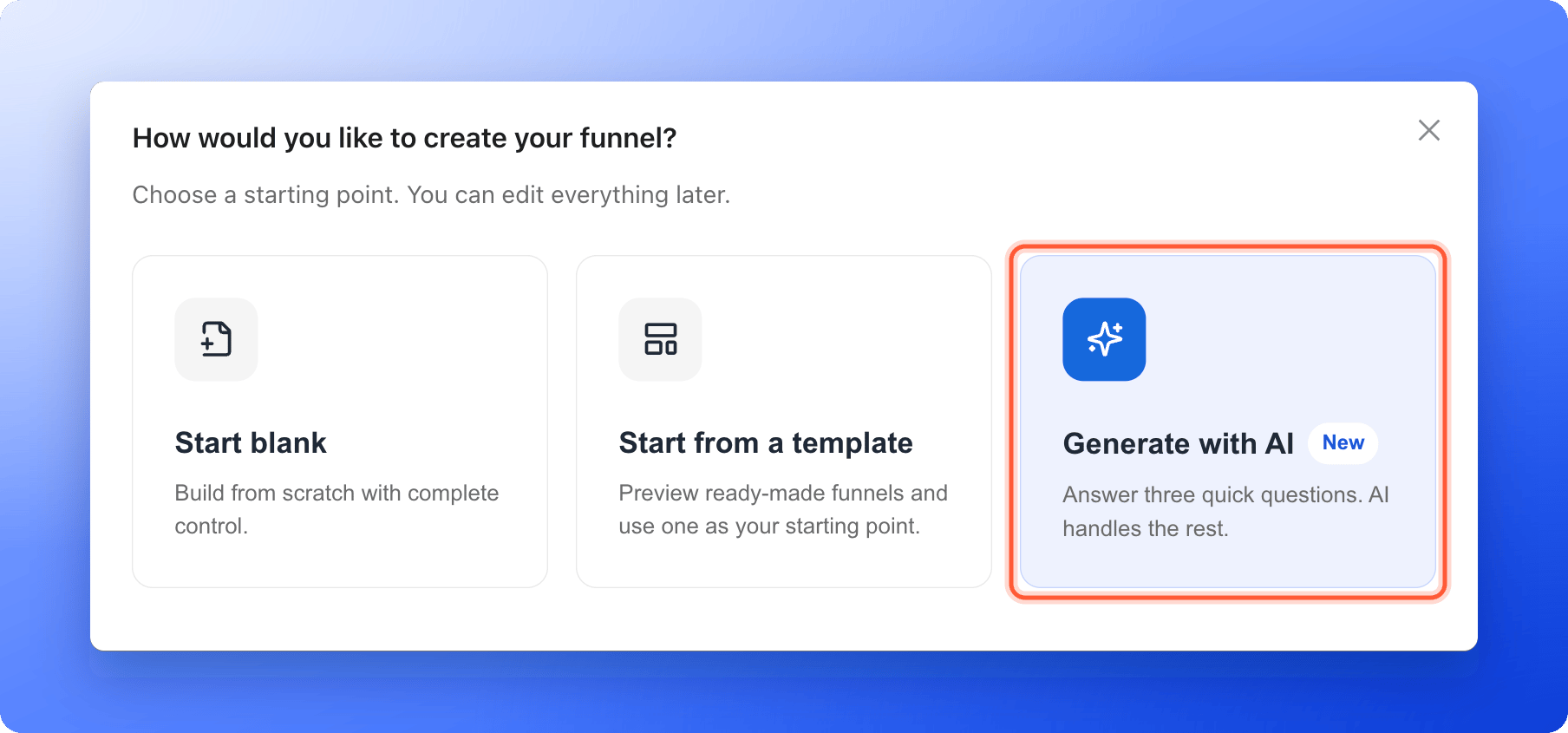
2. Click **"Generate with AI"**. The window **Build with AI** opens and shows **Step 1 of 3**.
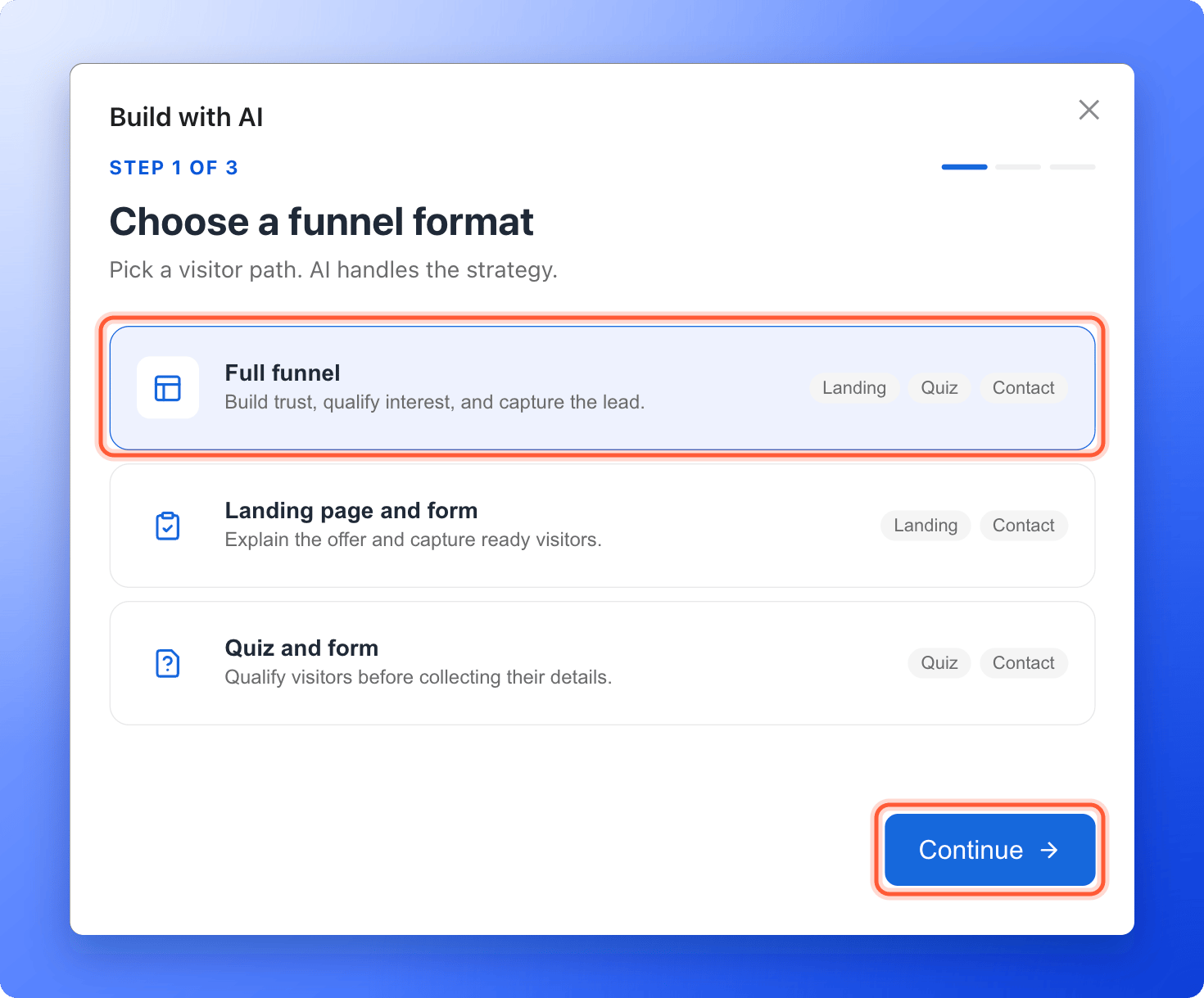
 Under **Choose a funnel format**, click one card and then **"Continue"**:
* **Full funnel:** builds trust, qualifies interest and captures the lead. It has a landing page, a quiz and a contact form.
* **Landing page and form:** explains your offer and captures visitors who are ready. It has a landing page and a contact form.
* **Quiz and form:** qualifies visitors before collecting their details. It has a quiz and a contact form.
Not sure which one fits? See [Choose the right funnel format and goal](/funnels/choose-format-and-goal).
Under **Choose a funnel format**, click one card and then **"Continue"**:
* **Full funnel:** builds trust, qualifies interest and captures the lead. It has a landing page, a quiz and a contact form.
* **Landing page and form:** explains your offer and captures visitors who are ready. It has a landing page and a contact form.
* **Quiz and form:** qualifies visitors before collecting their details. It has a quiz and a contact form.
Not sure which one fits? See [Choose the right funnel format and goal](/funnels/choose-format-and-goal).
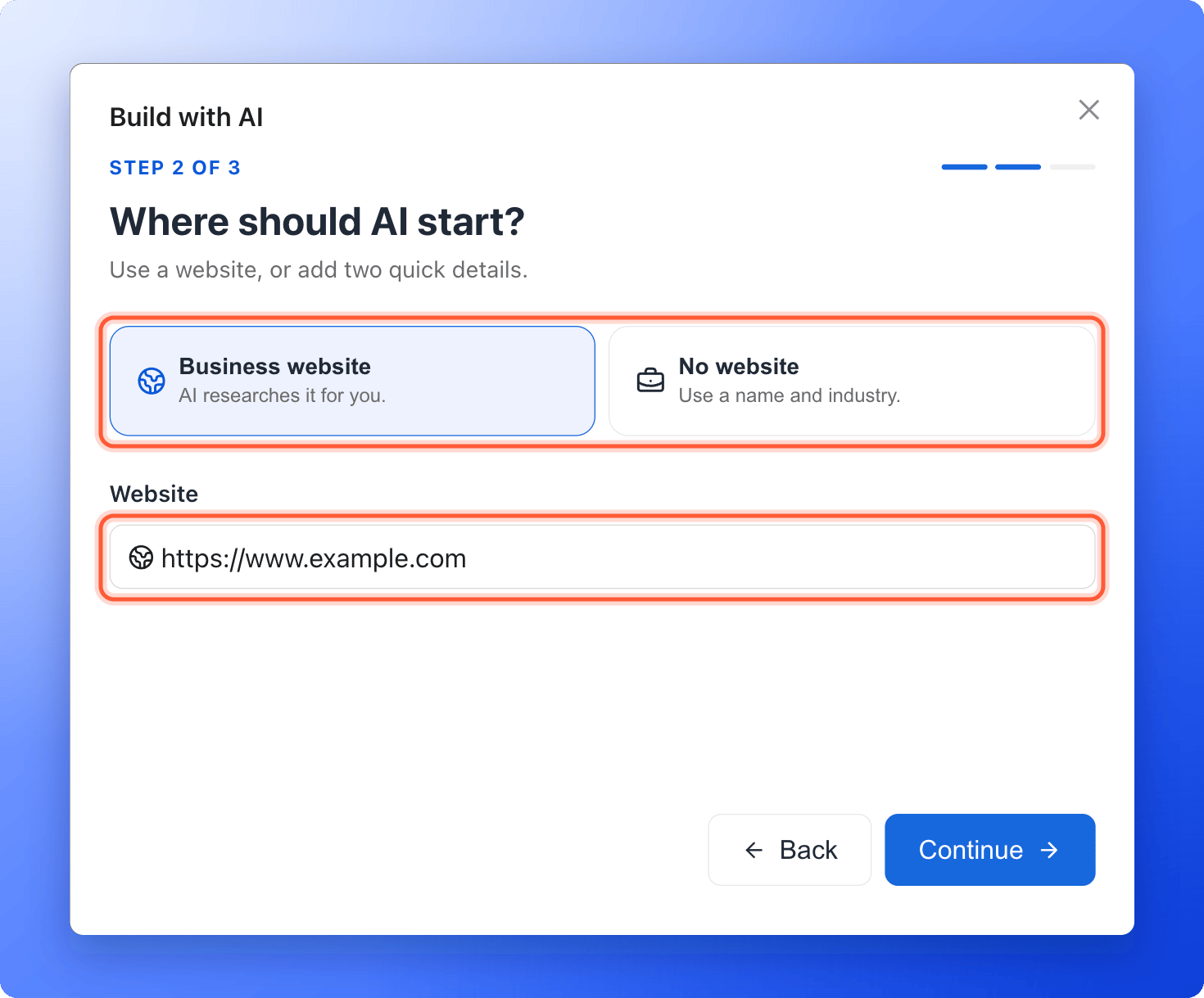
 Under **Where should AI start?**, choose one:
* **Business website:** type your website in **Website**, for example `https://www.example.com`. AI researches it for you.
* **No website:** type your **Business name** and choose an **Industry** from the list. If you pick **Other**, type the name of your industry under **Industry name**.
Click **"Continue"**.
Under **Where should AI start?**, choose one:
* **Business website:** type your website in **Website**, for example `https://www.example.com`. AI researches it for you.
* **No website:** type your **Business name** and choose an **Industry** from the list. If you pick **Other**, type the name of your industry under **Industry name**.
Click **"Continue"**.
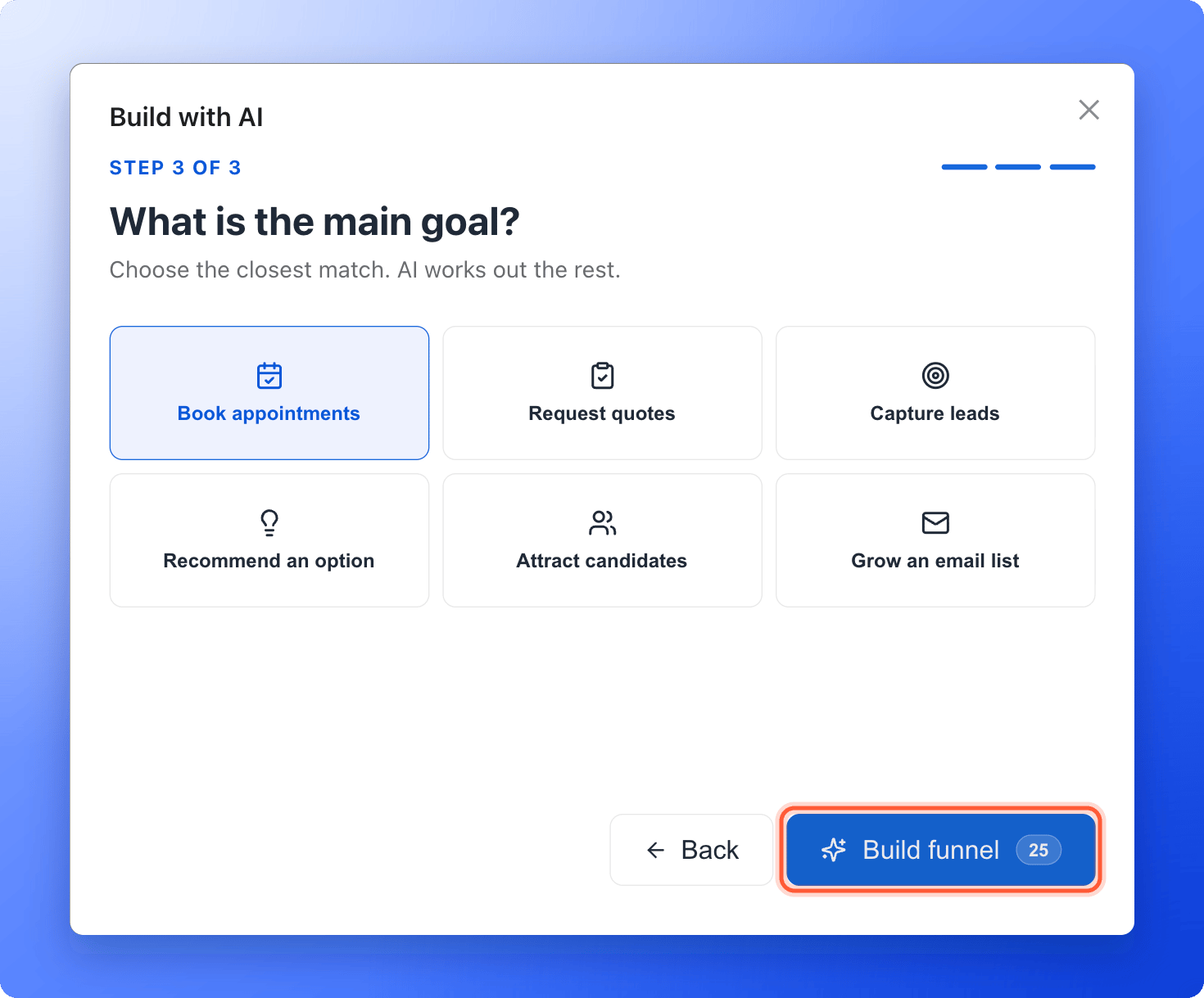
 Under **What is the main goal?**, click the closest match:
* **Book appointments**
* **Request quotes**
* **Capture leads**
* **Recommend an option**
* **Attract candidates**
* **Grow an email list**
Then click **"Build funnel"**. The number on the button is the cost in AI credits.
Under **What is the main goal?**, click the closest match:
* **Book appointments**
* **Request quotes**
* **Capture leads**
* **Recommend an option**
* **Attract candidates**
* **Grow an email list**
Then click **"Build funnel"**. The number on the button is the cost in AI credits.
 AskFunnel opens the **Building your funnel** page. A progress bar and a list show each stage, from **Researching the business and market** and **Writing the funnel** to **Saving the editable draft**.
You can leave the page. The build continues, and the progress comes back when you return. A card for the build also shows on your **Funnels** page. To stop a build, click **"Cancel build"**. You see **Generation cancelled. Your credits were not charged.**
When the build is done, the page says **Your editable draft is ready to review.** and shows a **Strategy summary** with the **Ideal audience**, **Primary need**, **Core message** and **Conversion approach**, and **What the research found**. Click **"Open editor"**.
In the builder, open each page and read it as a visitor would. Edit the text, swap images, check your questions and your contact form, then publish. See [Build quiz questions](/funnels/quiz-questions) and [Set up your lead capture form](/funnels/lead-capture-forms).
## How do I know it is working?
* The progress reaches 100% and the page says **Your editable draft is ready to review.**
* The new funnel is in your **Funnels** list with the status **Draft**.
* **Open editor** opens the builder with your pages, questions and form already filled in.
## Troubleshooting
Look under the goals. **Choose a plan to continue** means you need an active plan or free trial. **Not enough AI credits** means fewer than 25 credits are left this month. The message shows how many you have left. See [How AI credits work](/billing/ai-credits).
Open the verification email we sent you and click its link, then try again.
The website box needs an address such as `example.com` or `https://www.example.com`. If you have no website, click **"Back"**, choose **No website** and use your business name and industry.
The page shows the reason. Click **"Try again"** to start the build again. The credits from the failed build are released, and the new attempt holds 25 credits again.
You can have up to 2 builds running at the same time. Wait for one to finish, or cancel one with **"Cancel build"**, then start again.
Builds you started recently show as a card at the top of your **Funnels** page. Click **"Open editor"**, **"View"** or **"Review"** on it. Click the cross to remove the card. The funnel itself stays in your list. A build's progress page is kept for 30 days.
There is no box to describe your offer, so AI works from your website, or from your business name and industry, plus the format and goal you chose. Edit the draft in the builder. You can also build again with a different format or goal, which uses another 25 credits.
Your role in this workspace does not allow creating funnels. Contacts Managers cannot create or edit funnels. Ask a Workspace Admin or Global Admin to change your role.
## What to do next
Edit the questions AI wrote, or add your own.
Check what your form asks for.
Put it live and go back to an earlier version if you need to.
See what uses credits and how to add more.
Need help? Email [support@askfunnel.com](mailto:support@askfunnel.com).
AskFunnel opens the **Building your funnel** page. A progress bar and a list show each stage, from **Researching the business and market** and **Writing the funnel** to **Saving the editable draft**.
You can leave the page. The build continues, and the progress comes back when you return. A card for the build also shows on your **Funnels** page. To stop a build, click **"Cancel build"**. You see **Generation cancelled. Your credits were not charged.**
When the build is done, the page says **Your editable draft is ready to review.** and shows a **Strategy summary** with the **Ideal audience**, **Primary need**, **Core message** and **Conversion approach**, and **What the research found**. Click **"Open editor"**.
In the builder, open each page and read it as a visitor would. Edit the text, swap images, check your questions and your contact form, then publish. See [Build quiz questions](/funnels/quiz-questions) and [Set up your lead capture form](/funnels/lead-capture-forms).
## How do I know it is working?
* The progress reaches 100% and the page says **Your editable draft is ready to review.**
* The new funnel is in your **Funnels** list with the status **Draft**.
* **Open editor** opens the builder with your pages, questions and form already filled in.
## Troubleshooting
Look under the goals. **Choose a plan to continue** means you need an active plan or free trial. **Not enough AI credits** means fewer than 25 credits are left this month. The message shows how many you have left. See [How AI credits work](/billing/ai-credits).
Open the verification email we sent you and click its link, then try again.
The website box needs an address such as `example.com` or `https://www.example.com`. If you have no website, click **"Back"**, choose **No website** and use your business name and industry.
The page shows the reason. Click **"Try again"** to start the build again. The credits from the failed build are released, and the new attempt holds 25 credits again.
You can have up to 2 builds running at the same time. Wait for one to finish, or cancel one with **"Cancel build"**, then start again.
Builds you started recently show as a card at the top of your **Funnels** page. Click **"Open editor"**, **"View"** or **"Review"** on it. Click the cross to remove the card. The funnel itself stays in your list. A build's progress page is kept for 30 days.
There is no box to describe your offer, so AI works from your website, or from your business name and industry, plus the format and goal you chose. Edit the draft in the builder. You can also build again with a different format or goal, which uses another 25 credits.
Your role in this workspace does not allow creating funnels. Contacts Managers cannot create or edit funnels. Ask a Workspace Admin or Global Admin to change your role.
## What to do next
Edit the questions AI wrote, or add your own.
Check what your form asks for.
Put it live and go back to an earlier version if you need to.
See what uses credits and how to add more.
Need help? Email [support@askfunnel.com](mailto:support@askfunnel.com).