> ## Documentation Index
> Fetch the complete documentation index at: https://help.askfunnel.com/llms.txt
> Use this file to discover all available pages before exploring further.
# Send visitors to different pages based on their answers
> Use Advanced Branching to send people to a different page or result depending on what they pick.
By default, everyone who answers a quiz question goes to the next page. With **Advanced Branching**, the answer decides where they go. You can send people who are not a good fit to a polite result screen, send buyers and sellers down different paths, or send your best prospects straight to a booking page. This is how a funnel qualifies people, and it keeps your questions short because each person only sees what fits them.
With branching, you can:
* **Route by one answer.** For example, "Buy" goes to one page and "Sell" goes to another.
* **Combine answers.** A rule can check this question and questions from earlier pages, joined by **and** or **or**.
* **Choose what everyone else sees.** The **Otherwise** route catches everyone no rule matches.
* **End on different results.** Rules can send people to any page or any result of your funnel.
**Before you start**, you need:
* A funnel open in the builder, with a quiz question on a page. See [Build quiz questions](/funnels/quiz-questions).
* The pages or results you want to send people to. See [Manage your funnel pages](/funnels/manage-pages).
* A role that can edit funnels: Global Admin, Workspace Admin or Content Editor.
## Important to note
* Branching only works on a quiz set to **Single**, where the visitor picks one answer. In **Multiple** mode, **Advanced Branching** is turned off.
* AskFunnel checks your rules from top to bottom. The first rule that matches and has a **Go to** page decides where the visitor goes. Put your most specific rule first.
* If no rule matches, the visitor follows **Otherwise**. A rule that only adds a score does not decide the route.
* A lead is saved when the visitor submits your form. If a rule sends someone to a result before they reach your form, they are not saved as a lead.
* One question can have up to 20 rules, and one rule can have up to 20 conditions.
## Set up branching
1. In the builder, open the page with your quiz and click the quiz to select it.
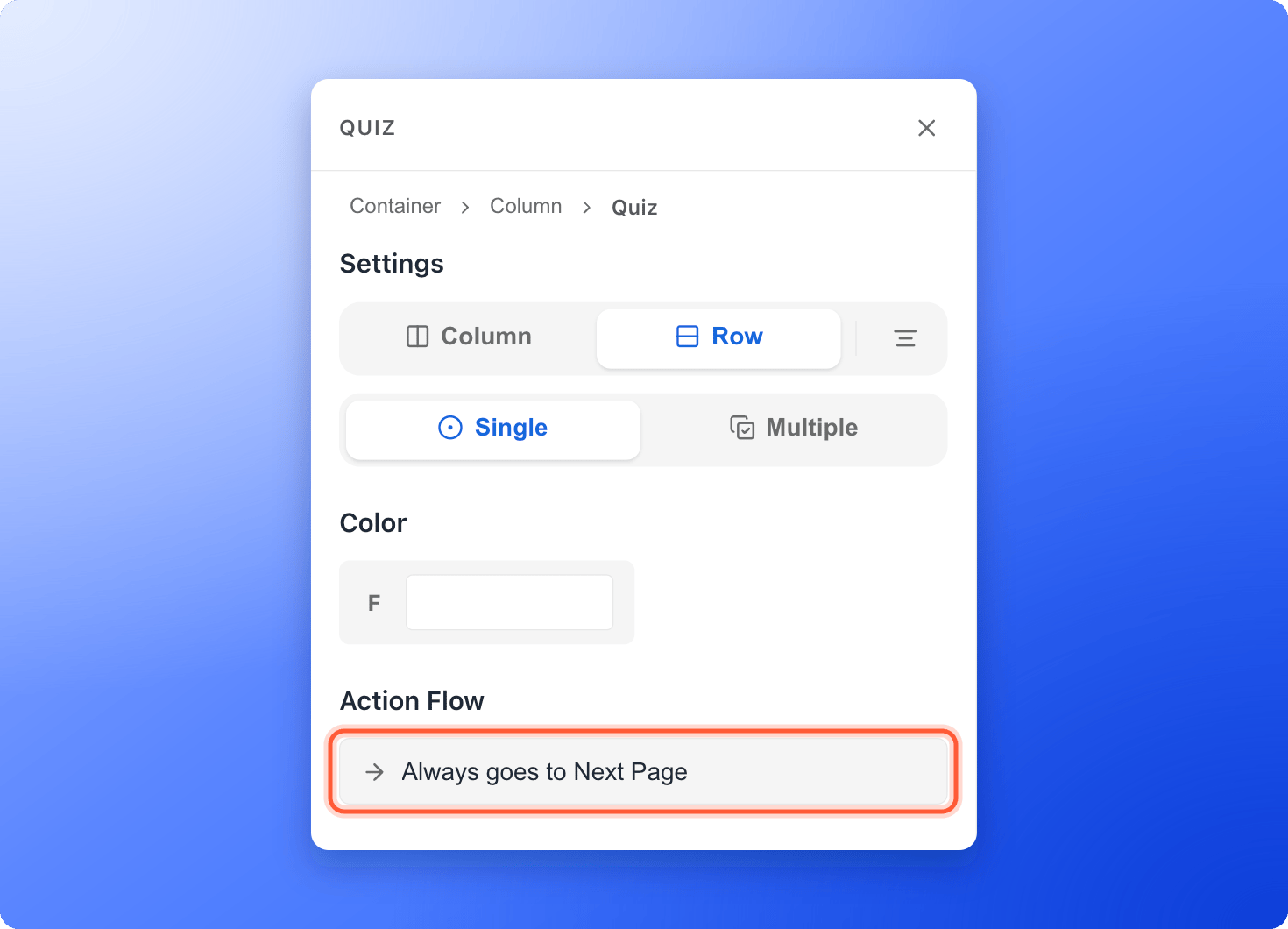
2. In the left panel, find **Action Flow**. It says **Always goes to Next Page**.
3. Click that line. The **Action Flow** window opens.
 Turn on the **Advanced Branching** switch. The hint says **Route to different pages based on the visitor's answer.** The window now shows **No rules yet** and an **"Add a rule"** button.
If the switch is grayed out, your quiz is set to **Multiple**. Close the window, select the quiz and click **"Single"** under **Settings**.
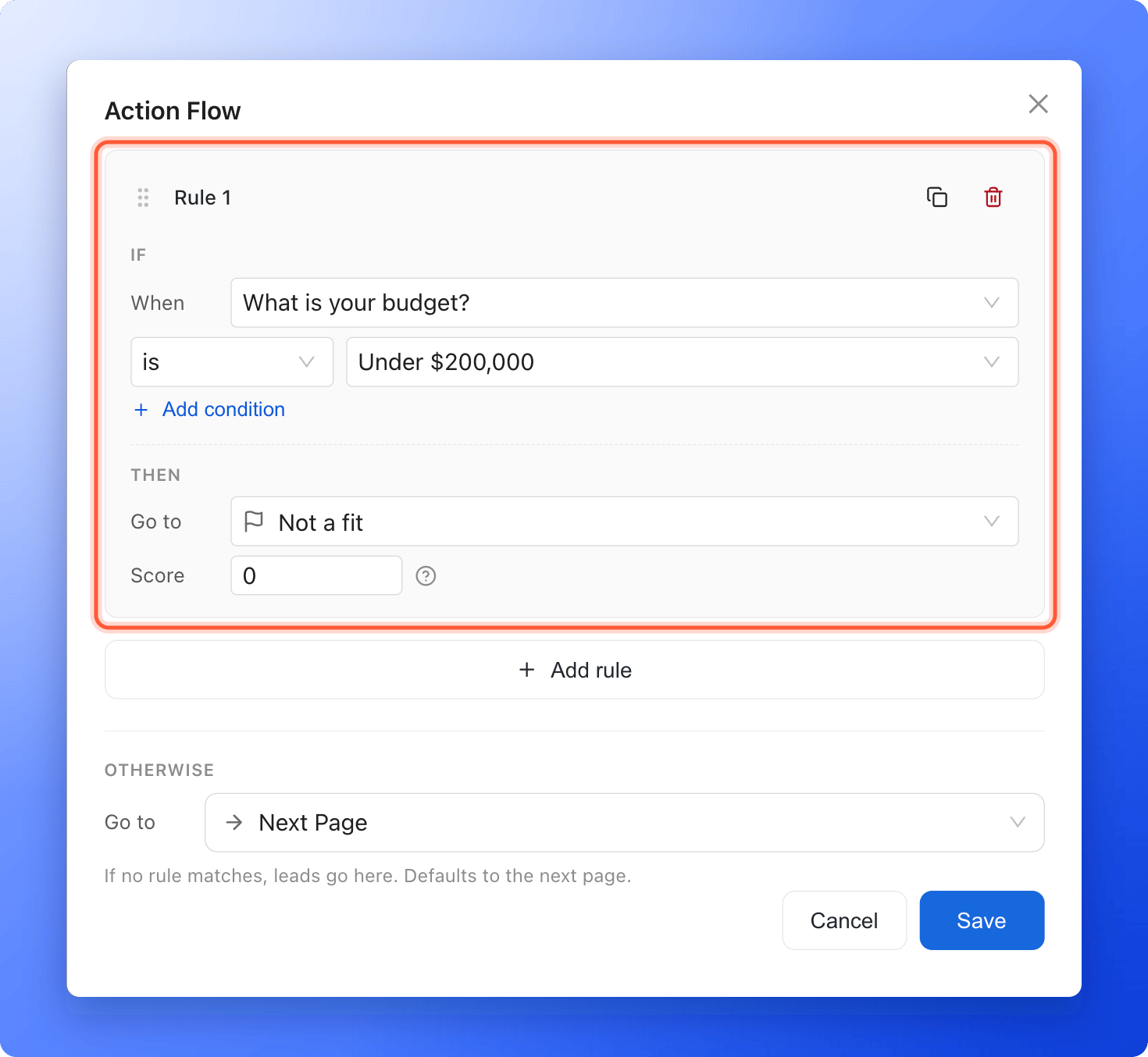
Click **"Add a rule"**. A card called **Rule 1** appears.
1. Under **If**, the **When** box shows this question. Keep it. When you open the list, this question has a **Current** tag, followed by the quizzes on earlier pages.
2. Next to it, choose **is** or **is not**, then click **Pick an option** and choose the answer, for example "Under \$200,000".
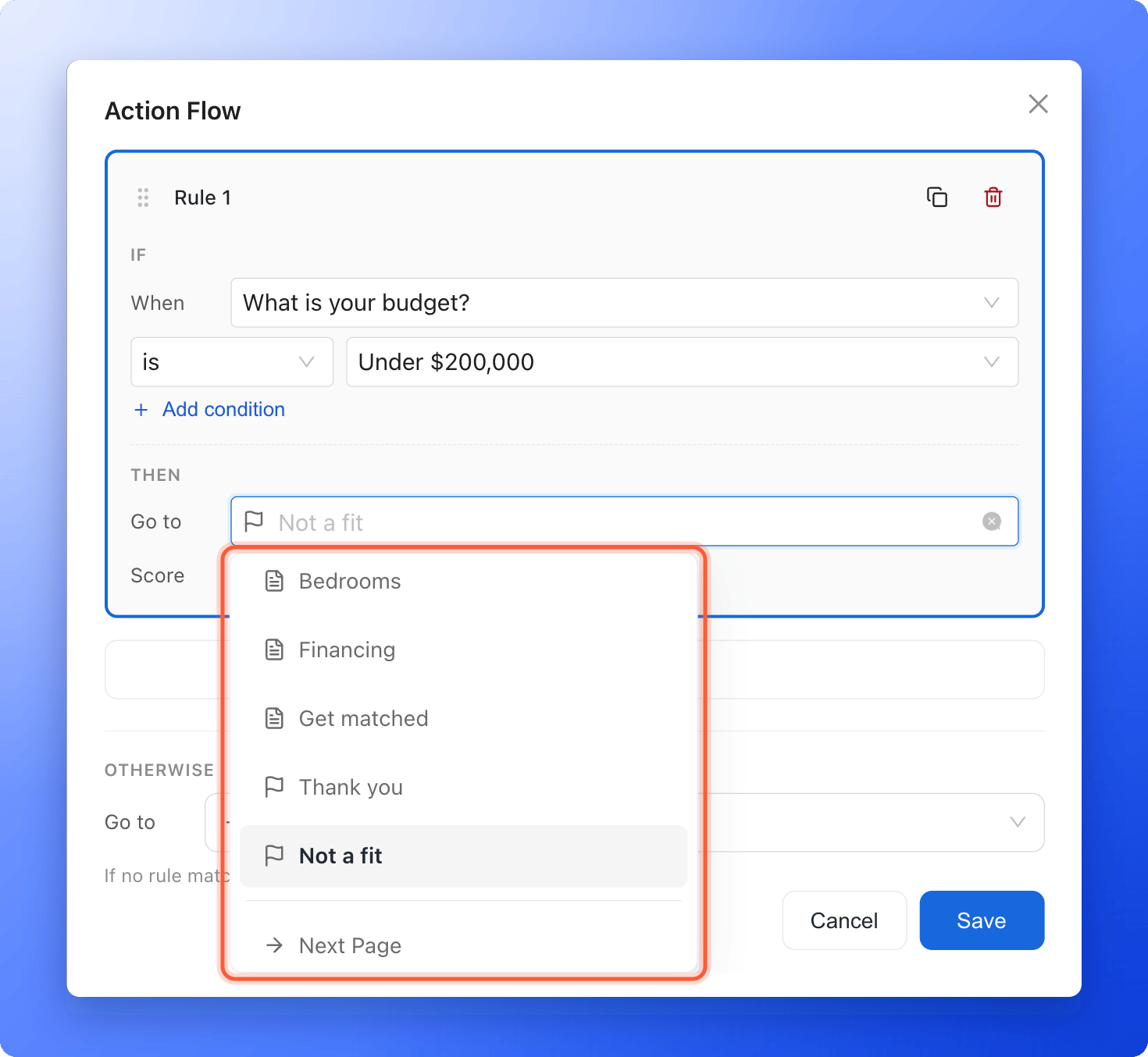
3. Under **Then**, next to **Go to**, choose where people with that answer go. The list shows your pages and results (results have a flag icon), then **Next Page**, which means whichever page comes next in your page list.
For example: **When** "What is your budget?" **is** "Under \$200,000", **Go to** your "Not a fit" result.
Turn on the **Advanced Branching** switch. The hint says **Route to different pages based on the visitor's answer.** The window now shows **No rules yet** and an **"Add a rule"** button.
If the switch is grayed out, your quiz is set to **Multiple**. Close the window, select the quiz and click **"Single"** under **Settings**.
Click **"Add a rule"**. A card called **Rule 1** appears.
1. Under **If**, the **When** box shows this question. Keep it. When you open the list, this question has a **Current** tag, followed by the quizzes on earlier pages.
2. Next to it, choose **is** or **is not**, then click **Pick an option** and choose the answer, for example "Under \$200,000".
3. Under **Then**, next to **Go to**, choose where people with that answer go. The list shows your pages and results (results have a flag icon), then **Next Page**, which means whichever page comes next in your page list.
For example: **When** "What is your budget?" **is** "Under \$200,000", **Go to** your "Not a fit" result.
 * To add another rule, click **"Add rule"**. Drag the grip icon at the left of a rule to change the order.
* To check more than one answer in a rule, click **"Add condition"**. Choose the question under **When**, which can be this question or a quiz on an earlier page. Join the conditions with **and** (all must match) or **or** (any can match).
* To copy or remove a rule, use the copy and trash icons on the rule.
Under **Otherwise**, next to **Go to**, choose where people go when no rule matches. The hint says **If no rule matches, leads go here. Defaults to the next page.** Most funnels keep **Next Page**.
Click **"Save"**.
Click **"Publish Funnel"**, then open the arrow next to it and click **"View live"**. There is no private preview, so test on the live page. Go through the funnel once for each answer that has a rule, and once with an answer that has none, and check where you land each time. See [Publish, unpublish and restore an earlier version](/funnels/publish-and-restore).
## Ways to use it
* **Filter out poor fits.** **When** "Budget" **is** "Under \$200,000", **Go to** a "Not a fit" result. **Otherwise** goes to the next page.
* **Split by need.** **When** "What do you want to do?" **is** "Sell", **Go to** your seller page. Add a second rule for "Buy". **Otherwise** goes to a general page.
* **Find your best prospects.** **When** "Timeline" **is** "Within one month" **and** "Budget" **is** "Above \$500,000", **Go to** a page that books a call.
* **Score without routing.** Leave **Go to** empty and set a **Score** instead. See [Set up lead scoring](/funnel-settings/lead-scoring).
## How do I know it is working?
* Under **Action Flow**, the summary shows how many rules you have and where **Otherwise** leads, for example **2 rules · Otherwise Next Page**.
* On your live funnel, each answer takes you to the page you chose.
* No rule card shows a red dot or a **Can't match** tag.
## Troubleshooting
It is only available when the quiz is set to **Single**. Select the quiz, click **"Single"** under **Settings**, then open **Action Flow** again.
Open **Action Flow** and check each rule. A rule only decides the route if it has a **Go to** page. Also check **Otherwise**, which is where everyone else goes, and the order of your rules. If an earlier rule matches first, later rules never run.
* **Can't match:** a person picks only one answer, so two **is** conditions joined by **and** are never both true. Use **or**, or use **is not**.
* **Always matches:** **is not** one answer **or** **is not** another is true for everyone. Use **and** if you mean any answer except those two.
* **Unavailable question:** the rule points to a question that was deleted or moved to a later page. Pick this question or an earlier one.
Each rule needs at least one condition with an answer picked, and either a **Go to** page or a **Score** other than 0. The rule shows what is missing, for example **Pick an option for every condition** or **Pick a destination or set a non-zero score**.
A rule or **Otherwise** sends them past it, for example straight to a result. Open **Action Flow** and choose the page with your form, or place your form on a page that every path passes through. See [Set up your lead capture form](/funnels/lead-capture-forms).
Your changes only go live when you publish. Click **"Publish Funnel"** again, wait a minute and test on the live page.
A question can have up to 20 rules. Delete one you do not need, or combine answers into one rule with **or**.
## What to do next
Give points to answers to rank your leads.
Add results for the different outcomes.
Plan the order of your pages.
Need help? Email [support@askfunnel.com](mailto:support@askfunnel.com).
* To add another rule, click **"Add rule"**. Drag the grip icon at the left of a rule to change the order.
* To check more than one answer in a rule, click **"Add condition"**. Choose the question under **When**, which can be this question or a quiz on an earlier page. Join the conditions with **and** (all must match) or **or** (any can match).
* To copy or remove a rule, use the copy and trash icons on the rule.
Under **Otherwise**, next to **Go to**, choose where people go when no rule matches. The hint says **If no rule matches, leads go here. Defaults to the next page.** Most funnels keep **Next Page**.
Click **"Save"**.
Click **"Publish Funnel"**, then open the arrow next to it and click **"View live"**. There is no private preview, so test on the live page. Go through the funnel once for each answer that has a rule, and once with an answer that has none, and check where you land each time. See [Publish, unpublish and restore an earlier version](/funnels/publish-and-restore).
## Ways to use it
* **Filter out poor fits.** **When** "Budget" **is** "Under \$200,000", **Go to** a "Not a fit" result. **Otherwise** goes to the next page.
* **Split by need.** **When** "What do you want to do?" **is** "Sell", **Go to** your seller page. Add a second rule for "Buy". **Otherwise** goes to a general page.
* **Find your best prospects.** **When** "Timeline" **is** "Within one month" **and** "Budget" **is** "Above \$500,000", **Go to** a page that books a call.
* **Score without routing.** Leave **Go to** empty and set a **Score** instead. See [Set up lead scoring](/funnel-settings/lead-scoring).
## How do I know it is working?
* Under **Action Flow**, the summary shows how many rules you have and where **Otherwise** leads, for example **2 rules · Otherwise Next Page**.
* On your live funnel, each answer takes you to the page you chose.
* No rule card shows a red dot or a **Can't match** tag.
## Troubleshooting
It is only available when the quiz is set to **Single**. Select the quiz, click **"Single"** under **Settings**, then open **Action Flow** again.
Open **Action Flow** and check each rule. A rule only decides the route if it has a **Go to** page. Also check **Otherwise**, which is where everyone else goes, and the order of your rules. If an earlier rule matches first, later rules never run.
* **Can't match:** a person picks only one answer, so two **is** conditions joined by **and** are never both true. Use **or**, or use **is not**.
* **Always matches:** **is not** one answer **or** **is not** another is true for everyone. Use **and** if you mean any answer except those two.
* **Unavailable question:** the rule points to a question that was deleted or moved to a later page. Pick this question or an earlier one.
Each rule needs at least one condition with an answer picked, and either a **Go to** page or a **Score** other than 0. The rule shows what is missing, for example **Pick an option for every condition** or **Pick a destination or set a non-zero score**.
A rule or **Otherwise** sends them past it, for example straight to a result. Open **Action Flow** and choose the page with your form, or place your form on a page that every path passes through. See [Set up your lead capture form](/funnels/lead-capture-forms).
Your changes only go live when you publish. Click **"Publish Funnel"** again, wait a minute and test on the live page.
A question can have up to 20 rules. Delete one you do not need, or combine answers into one rule with **or**.
## What to do next
Give points to answers to rank your leads.
Add results for the different outcomes.
Plan the order of your pages.
Need help? Email [support@askfunnel.com](mailto:support@askfunnel.com).