> ## Documentation Index
> Fetch the complete documentation index at: https://help.askfunnel.com/llms.txt
> Use this file to discover all available pages before exploring further.
# Set up your privacy policy, terms links and consent for GDPR
> Link your privacy policy and terms in the funnel footer, add a consent checkbox to your form and know where to get a signed data processing agreement.
If you advertise to people in the EU or the UK, you often need to show a link to your privacy policy, to ask for consent in some cases, and to have an agreement with the companies that process personal data for you. This page shows where each of those lives in AskFunnel: the **footer** of your funnel, a **Consent** checkbox on your form, and a signed data processing agreement from us.
This page explains what AskFunnel offers. It is not legal advice. The rules depend on where your visitors live and what you do with their data. If you are not sure what you need, ask a legal professional.
With these settings, you can:
* **Show your legal links.** Every page of your funnel ends with a footer that can link to your **Terms of use** and **Privacy policy**.
* **Ask for permission on the form.** A **Consent** checkbox records that the visitor accepted your text, for example your privacy policy.
* **Control cookies.** The footer also holds the **Manage Cookies** link of your cookie banner.
* **Get a signed data processing agreement.** Email [support@askfunnel.com](mailto:support@askfunnel.com) and ask for it.
**Before you start**, you need:
* A privacy policy and, if you want one, terms, published on your own website. AskFunnel does not write them for you. You only add their links.
* A funnel open in the builder, and a role that can edit funnels: Global Admin, Workspace Admin or Content Editor.
## Important to note
* The footer is part of every funnel and cannot be deleted. Its links only appear to visitors after you publish your funnel.
* A link that is turned on but has no web address shows as plain text and opens nothing. Add the address, or turn the link off.
* The **Consent** checkbox is a question on your form. It does not start or stop cookies. Cookies follow your cookie banner. See [Cookies and consent](/funnel-settings/cookies-and-consent).
* AskFunnel cannot make your funnel compliant by itself. Your funnel, your texts and what you do with your leads also count.
## Add your privacy policy and terms links
In the builder, scroll to the bottom of a page and click the footer, the bar with the links. The left panel shows a row for **Terms of use**, **Privacy policy**, **Branding** and **Cookie banner**.
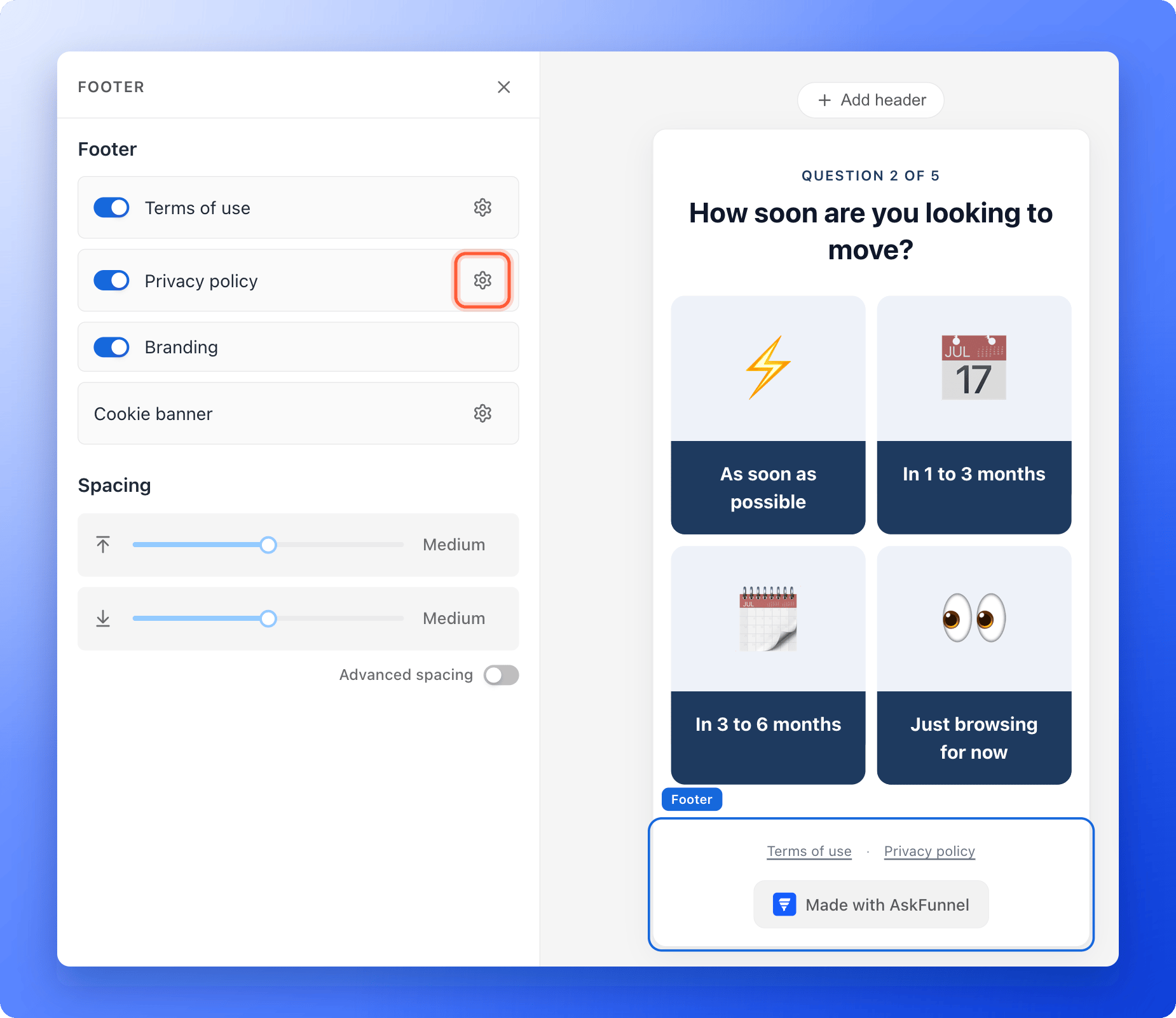 1. Click the gear icon next to **Privacy policy**. A window titled **Privacy policy** opens.
2. In **Label**, type the words visitors see, or keep **Privacy policy**.
3. In **Link**, paste the address of your policy, for example `https://summitrealtygroup.com/privacy`.
4. Click **"Save"**.
If you type an address without https\://, AskFunnel adds it for you. If you see **Enter a valid http\:// or https\:// URL.**, check the address.
1. Click the gear icon next to **Privacy policy**. A window titled **Privacy policy** opens.
2. In **Label**, type the words visitors see, or keep **Privacy policy**.
3. In **Link**, paste the address of your policy, for example `https://summitrealtygroup.com/privacy`.
4. Click **"Save"**.
If you type an address without https\://, AskFunnel adds it for you. If you see **Enter a valid http\:// or https\:// URL.**, check the address.
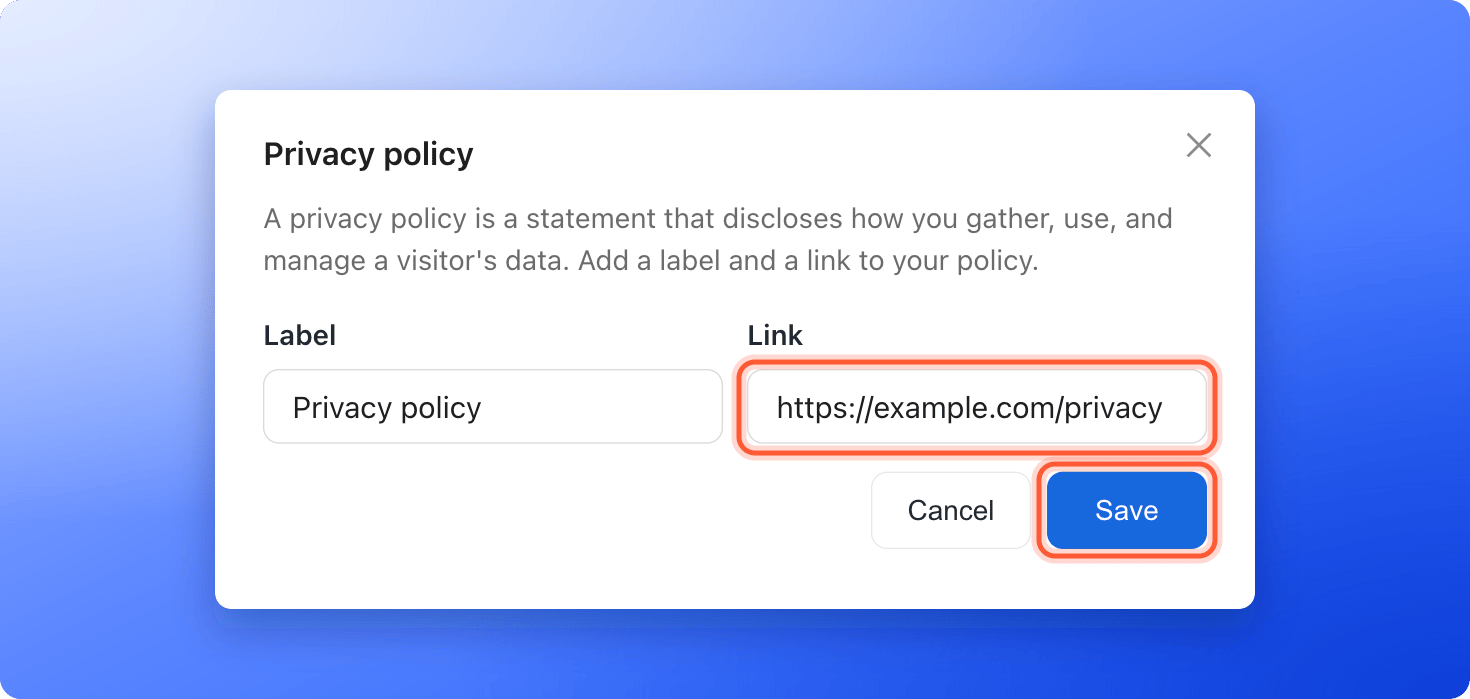 Do the same with the gear next to **Terms of use**. If you do not want a link, turn off the switch next to it. A link that is switched off is not shown.
Click **"Publish Funnel"** at the top right. The footer is part of your funnel, so your links only go live when you publish. See [Publish, unpublish and restore an earlier version](/funnels/publish-and-restore).
Visitors see the links at the bottom of every page, in a row such as **Terms of use · Privacy policy · Manage Cookies**. They open in a new tab. **Manage Cookies** only shows when your cookie banner is on.
A link that is switched on but has no address yet is hidden from visitors. In the builder you still see it, faded and with a dashed underline. Point at it to read **Hidden until you add a link**.
## Add a consent checkbox to your form
1. Click your form to open it. To add a field, click a field, then the **Duplicate** icon on its toolbar.
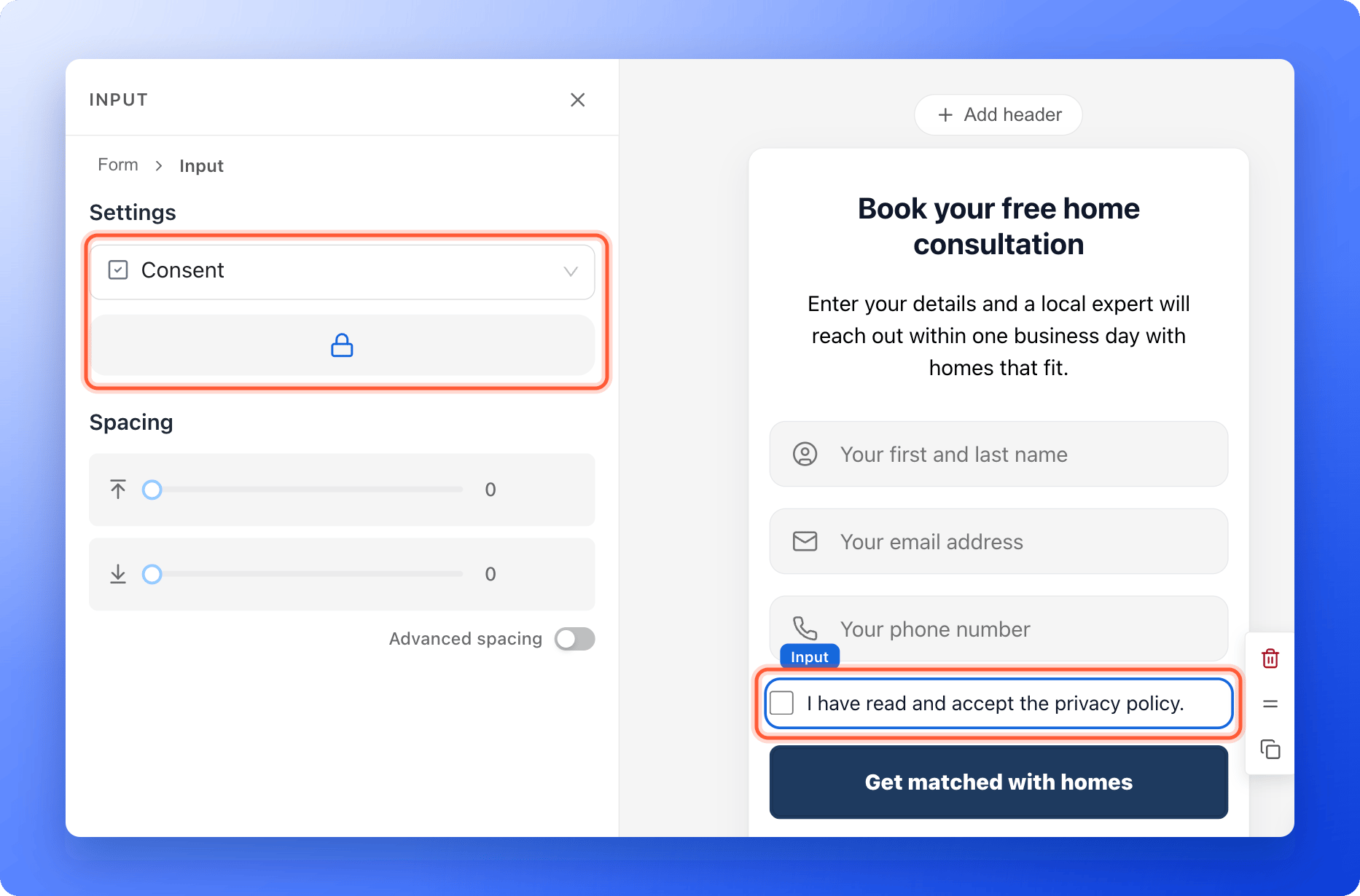
2. Select the new field. In the dropdown under **Settings** at the top of the left panel, choose **Consent**. A form holds up to 8 fields.
Click the text next to the checkbox and replace it with your own. It starts as **I have read and accept the privacy policy.** For example: "I agree to be contacted about my enquiry and I accept the privacy policy."
Below the field type list, the button with a lock icon sets whether the field is required. Point at it to see **Required**. It is blue when it is on, and it starts on. When it is on, visitors cannot send the form until they tick the box, and they see **Please accept to continue.** if they do not. Click the lock to turn it off if ticking should be their choice.
Do the same with the gear next to **Terms of use**. If you do not want a link, turn off the switch next to it. A link that is switched off is not shown.
Click **"Publish Funnel"** at the top right. The footer is part of your funnel, so your links only go live when you publish. See [Publish, unpublish and restore an earlier version](/funnels/publish-and-restore).
Visitors see the links at the bottom of every page, in a row such as **Terms of use · Privacy policy · Manage Cookies**. They open in a new tab. **Manage Cookies** only shows when your cookie banner is on.
A link that is switched on but has no address yet is hidden from visitors. In the builder you still see it, faded and with a dashed underline. Point at it to read **Hidden until you add a link**.
## Add a consent checkbox to your form
1. Click your form to open it. To add a field, click a field, then the **Duplicate** icon on its toolbar.
2. Select the new field. In the dropdown under **Settings** at the top of the left panel, choose **Consent**. A form holds up to 8 fields.
Click the text next to the checkbox and replace it with your own. It starts as **I have read and accept the privacy policy.** For example: "I agree to be contacted about my enquiry and I accept the privacy policy."
Below the field type list, the button with a lock icon sets whether the field is required. Point at it to see **Required**. It is blue when it is on, and it starts on. When it is on, visitors cannot send the form until they tick the box, and they see **Please accept to continue.** if they do not. Click the lock to turn it off if ticking should be their choice.
 Click **"Publish Funnel"**. Test the form on your live funnel, with the box ticked and unticked.
When a visitor ticks the box, the answer is saved with their lead, and connected tools receive it as **Yes**. See [Set up your lead capture form](/funnels/lead-capture-forms).
## Cookies and Global Privacy Control
Your footer and your cookie banner work together. Click the gear next to **Cookie banner** in the footer panel to open the same cookie settings as **Cookies & Consent** in **Funnel Settings**.
If a visitor's browser sends the Global Privacy Control signal, which is a browser setting that tells websites not to track, AskFunnel keeps analytics and marketing scripts off for that visitor. This applies even when your cookie banner is off. See [Set up cookies and visitor consent](/funnel-settings/cookies-and-consent).
## Data processing agreement and sub-processors
* **Who owns the lead data.** AskFunnel's Terms of Use say that the leads you collect belong to you, and that you are responsible for giving the notice and getting the consent your local laws require.
* **A signed data processing agreement.** If you need one, for example for the GDPR or the UK GDPR, email [support@askfunnel.com](mailto:support@askfunnel.com) and ask for it.
* **Who helps us process data.** The [list of sub-processors](https://askfunnel.com/legal/sub-processors) groups the companies we rely on by purpose, such as hosting, email, payments and AI providers.
## How do I know it is working?
1. Open your live funnel in a private browser window.
2. Scroll to the bottom. Your links show in the footer. Click **Privacy policy**. Your policy opens in a new tab.
3. Go to your form. If **Required** is on, click **Submit** without ticking the box. You see **Please accept to continue.**
4. Submit a test lead with the box ticked. Open the lead in your **Leads** tab and check that the consent answer is saved.
## Troubleshooting
The link has no web address, or the address is not valid. Click the gear next to **Privacy policy**, add the address under **Link**, click **"Save"** and publish again.
Check that its switch is on, and publish your funnel again. **Manage Cookies** only shows when **Cookie banner** is set to **Show banner**.
It is the last item at the bottom of every page in the builder. Scroll to the bottom of the canvas and click it.
The **Branding** switch is only available on the Growth plan and above. Point at it to see **Available on Growth plans and above**. See [Remove the Made with AskFunnel branding](/funnel-settings/remove-branding).
Open the **Consent** field and click the lock icon so **Required** is on (blue), then publish your funnel.
No. It records the visitor's answer to your form. Pixels and analytics follow your cookie banner. See [Cookies and consent](/funnel-settings/cookies-and-consent).
## What to do next
Choose whether visitors see a cookie banner.
Choose the fields and what visitors see next.
Put your funnel on your own web address.
Need help? Email [support@askfunnel.com](mailto:support@askfunnel.com).
Click **"Publish Funnel"**. Test the form on your live funnel, with the box ticked and unticked.
When a visitor ticks the box, the answer is saved with their lead, and connected tools receive it as **Yes**. See [Set up your lead capture form](/funnels/lead-capture-forms).
## Cookies and Global Privacy Control
Your footer and your cookie banner work together. Click the gear next to **Cookie banner** in the footer panel to open the same cookie settings as **Cookies & Consent** in **Funnel Settings**.
If a visitor's browser sends the Global Privacy Control signal, which is a browser setting that tells websites not to track, AskFunnel keeps analytics and marketing scripts off for that visitor. This applies even when your cookie banner is off. See [Set up cookies and visitor consent](/funnel-settings/cookies-and-consent).
## Data processing agreement and sub-processors
* **Who owns the lead data.** AskFunnel's Terms of Use say that the leads you collect belong to you, and that you are responsible for giving the notice and getting the consent your local laws require.
* **A signed data processing agreement.** If you need one, for example for the GDPR or the UK GDPR, email [support@askfunnel.com](mailto:support@askfunnel.com) and ask for it.
* **Who helps us process data.** The [list of sub-processors](https://askfunnel.com/legal/sub-processors) groups the companies we rely on by purpose, such as hosting, email, payments and AI providers.
## How do I know it is working?
1. Open your live funnel in a private browser window.
2. Scroll to the bottom. Your links show in the footer. Click **Privacy policy**. Your policy opens in a new tab.
3. Go to your form. If **Required** is on, click **Submit** without ticking the box. You see **Please accept to continue.**
4. Submit a test lead with the box ticked. Open the lead in your **Leads** tab and check that the consent answer is saved.
## Troubleshooting
The link has no web address, or the address is not valid. Click the gear next to **Privacy policy**, add the address under **Link**, click **"Save"** and publish again.
Check that its switch is on, and publish your funnel again. **Manage Cookies** only shows when **Cookie banner** is set to **Show banner**.
It is the last item at the bottom of every page in the builder. Scroll to the bottom of the canvas and click it.
The **Branding** switch is only available on the Growth plan and above. Point at it to see **Available on Growth plans and above**. See [Remove the Made with AskFunnel branding](/funnel-settings/remove-branding).
Open the **Consent** field and click the lock icon so **Required** is on (blue), then publish your funnel.
No. It records the visitor's answer to your form. Pixels and analytics follow your cookie banner. See [Cookies and consent](/funnel-settings/cookies-and-consent).
## What to do next
Choose whether visitors see a cookie banner.
Choose the fields and what visitors see next.
Put your funnel on your own web address.
Need help? Email [support@askfunnel.com](mailto:support@askfunnel.com).