> ## Documentation Index
> Fetch the complete documentation index at: https://help.askfunnel.com/llms.txt
> Use this file to discover all available pages before exploring further.
# Fix a custom domain that stays Pending or shows an Issue
> Find out what Pending and Issue mean, read what Check status tells you and correct your DNS record.
Your domain is connected, but it has not turned green. This page helps you find out why and fix it. Most problems come from the DNS record (the entry at your domain provider that points your web address to AskFunnel), and most fixes take a minute. After you fix it, DNS changes need a few minutes to spread, and sometimes up to 24 hours.
If you have not connected a domain yet, start with [Connect your custom domain](/funnel-settings/custom-domain).
**Before you start**, you need:
* A Workspace Admin or Global Admin role. Only they can open **Workspace Settings**, where your domains are listed.
* Access to the DNS settings at the company that manages your domain, for example Namecheap, GoDaddy or Cloudflare.
## What the statuses mean
Each domain in **Workspace Settings**, under **Domains**, shows one of three labels.
| Status | What it means | What to do |
| - | - | - |
| **Pending** | AskFunnel is waiting for your DNS record, or for the security certificate after it found the record. | Follow the steps below. |
| **Active** | The domain is live. | Turn it on for your funnels in **Funnel Settings**. |
| **Issue** | Something blocks the domain and waiting will not fix it. The reason is written under the domain name. | See [Fix a domain that shows Issue](#fix-a-domain-that-shows-issue). |
## Important to note
* A domain that never gets a working DNS record is removed after about 14 days. Add it again and finish the DNS step.
* You cannot choose a domain for a funnel until it is **Active**. In **Funnel Settings**, under **Domains**, the switch stays off and the domain says **Setup is not finished. Complete it in Workspace Settings.**
* Your AskFunnel address, such as `summit-realty.askfunnel.com`, keeps working while you fix your domain.
## Fix a Pending domain
1. From your funnel list, click the three dots (**...**) on any funnel's row, then click **"Funnel Settings"**.
2. On the left side menu, click **"Domains"**, then click **"Manage domains"**. This opens **Workspace Settings** on its **Domains** section.
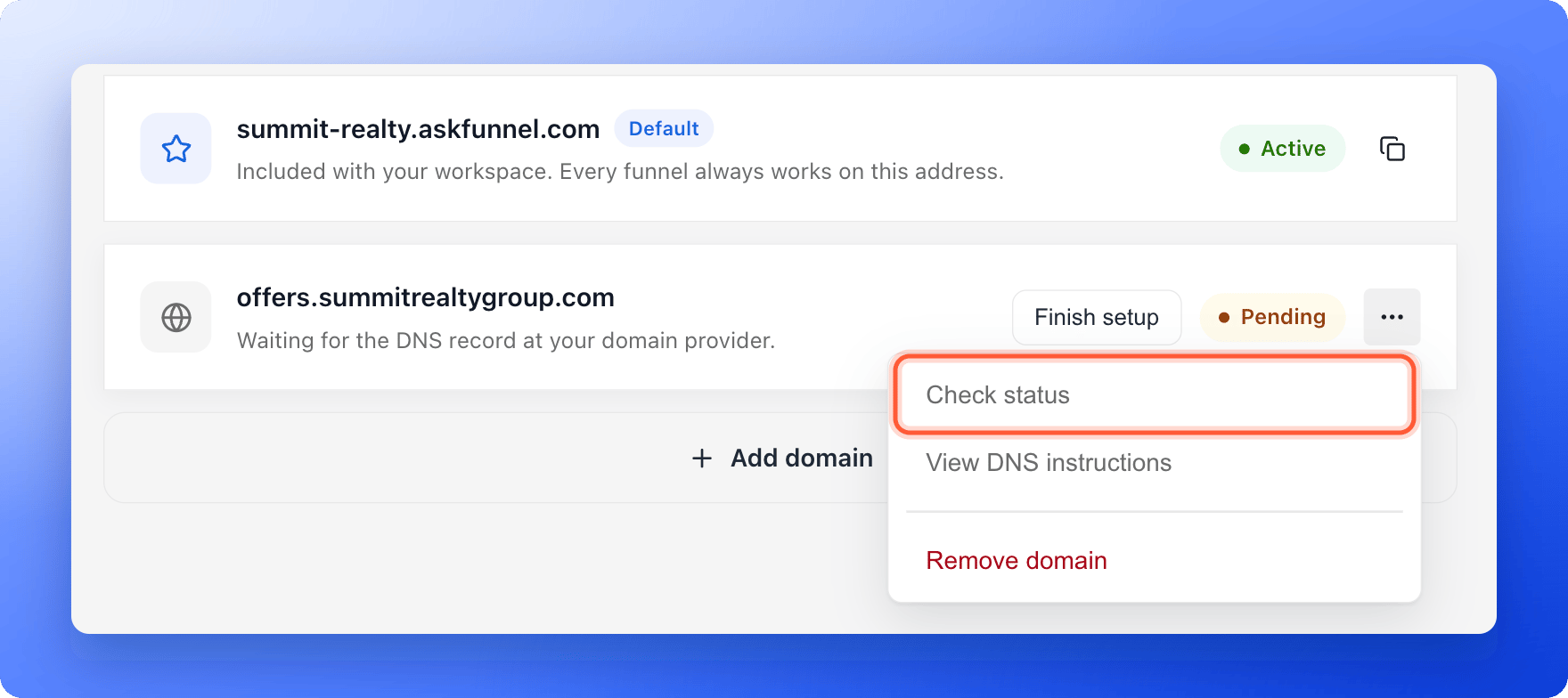
3. Open the menu (**...**) next to your domain and click **"Check status"**. The label briefly shows **Checking**, then a short notice appears with a message about your DNS record.
 The message tells you what to change.
* **DNS record not found yet.** AskFunnel cannot see a record for your domain. The record is missing, it is in the wrong place, or it has not spread yet. Go to step 3.
* **The record points to another address instead of funnels.askfunnel.com.** The record exists but has the wrong **Target**. Change the **Target** to `funnels.askfunnel.com`. Go to step 3.
* **Your DNS record points at Cloudflare.** Your domain uses Cloudflare and the record is **Proxied** (the orange cloud). Set it to **DNS only** (the gray cloud). Go to step 3.
* **DNS record found. Issuing the certificate now.** Your record is correct. The security certificate is being created, which takes a few minutes. Wait, then check again. Your link may show a security warning until it is done.
* **Waiting for DNS. Check again in a few minutes.** AskFunnel could not look up your domain this time. Check again in a few minutes.
You can see the same messages in the setup window. Click **"Finish setup"** next to the domain, or open the menu and click **"View DNS instructions"**.
The message tells you what to change.
* **DNS record not found yet.** AskFunnel cannot see a record for your domain. The record is missing, it is in the wrong place, or it has not spread yet. Go to step 3.
* **The record points to another address instead of funnels.askfunnel.com.** The record exists but has the wrong **Target**. Change the **Target** to `funnels.askfunnel.com`. Go to step 3.
* **Your DNS record points at Cloudflare.** Your domain uses Cloudflare and the record is **Proxied** (the orange cloud). Set it to **DNS only** (the gray cloud). Go to step 3.
* **DNS record found. Issuing the certificate now.** Your record is correct. The security certificate is being created, which takes a few minutes. Wait, then check again. Your link may show a security warning until it is done.
* **Waiting for DNS. Check again in a few minutes.** AskFunnel could not look up your domain this time. Check again in a few minutes.
You can see the same messages in the setup window. Click **"Finish setup"** next to the domain, or open the menu and click **"View DNS instructions"**.
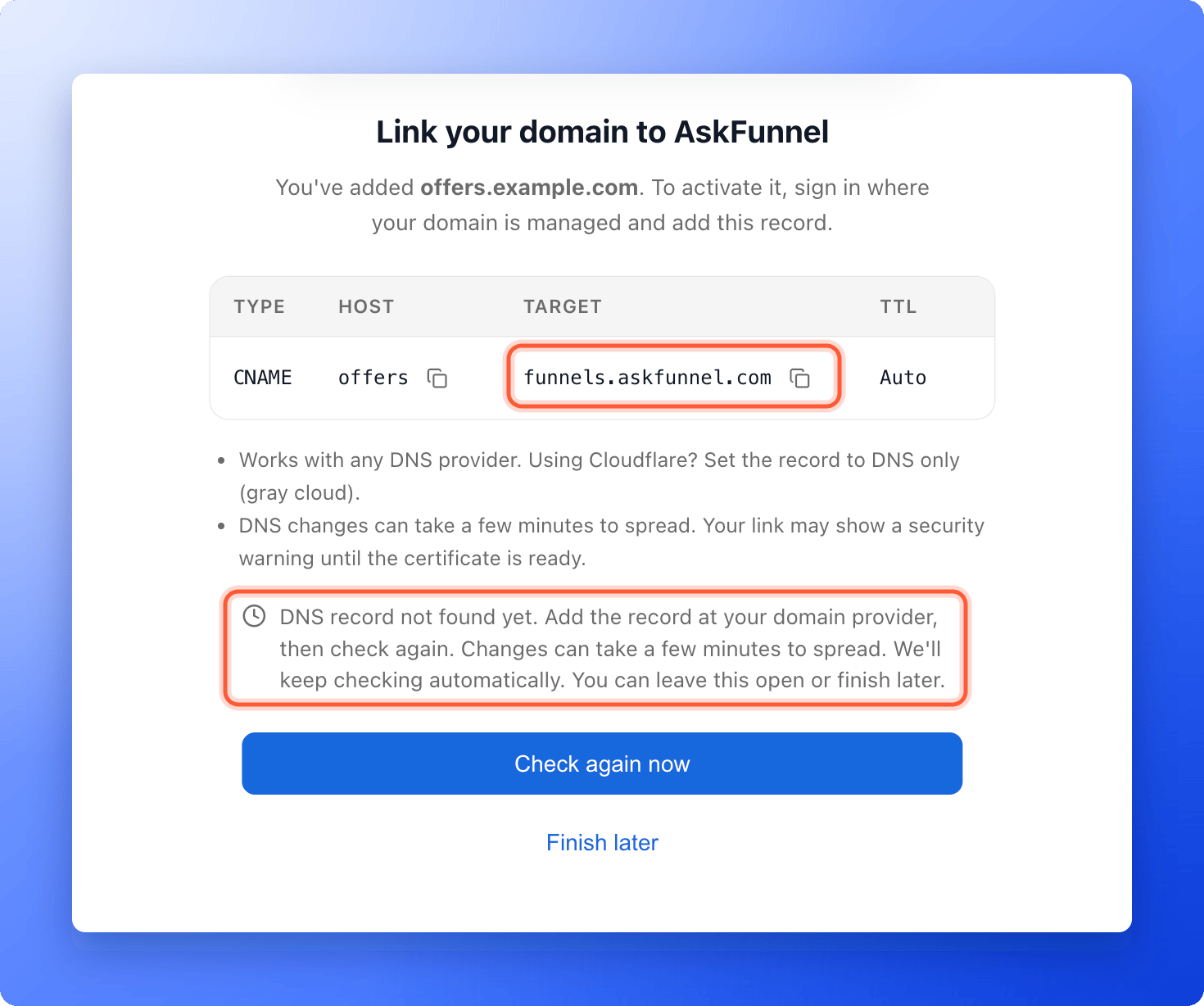 Open a new tab and sign in where your domain's DNS is managed. Find the record for your domain and make it look like this:
* **Type:** **CNAME**
* **Host:** everything before your main domain name. For `funnel.yourbrand.com`, enter **funnel**. Do not type the whole address, or some providers add your domain twice and the record never works.
* **Target** (or **Value**): `funnels.askfunnel.com`
* **TTL:** **Auto**, or leave the default.
Then save the record.
* A name can have only one CNAME. If the same **Host** already has another record, such as an A record, your provider may refuse the new record or keep using the old one. Delete the old record first.
* Copy the **Host** and **Target** with the copy icons in the setup window, so nothing is mistyped.
Go back to AskFunnel and click **"Check status"** again, or open the setup window and click **"Check again now"**. While the window is open, AskFunnel keeps checking about every 15 seconds for about 10 minutes.
When it works, you see **Your domain is live** and the domain shows a green **Active** label. Then [choose the domain for your funnel](/funnel-settings/custom-domain#setup).
## Fix a domain that shows Issue
The reason is written under the domain name. The two you are most likely to see:
* **A CAA record blocks the certificate.** A CAA record is a DNS entry that lists which companies may create security certificates for your domain. If yours does not allow AskFunnel's certificate, the domain shows **Issue**. Ask your domain provider to remove the CAA record or to allow certificates for your domain, then click **"Check status"**.
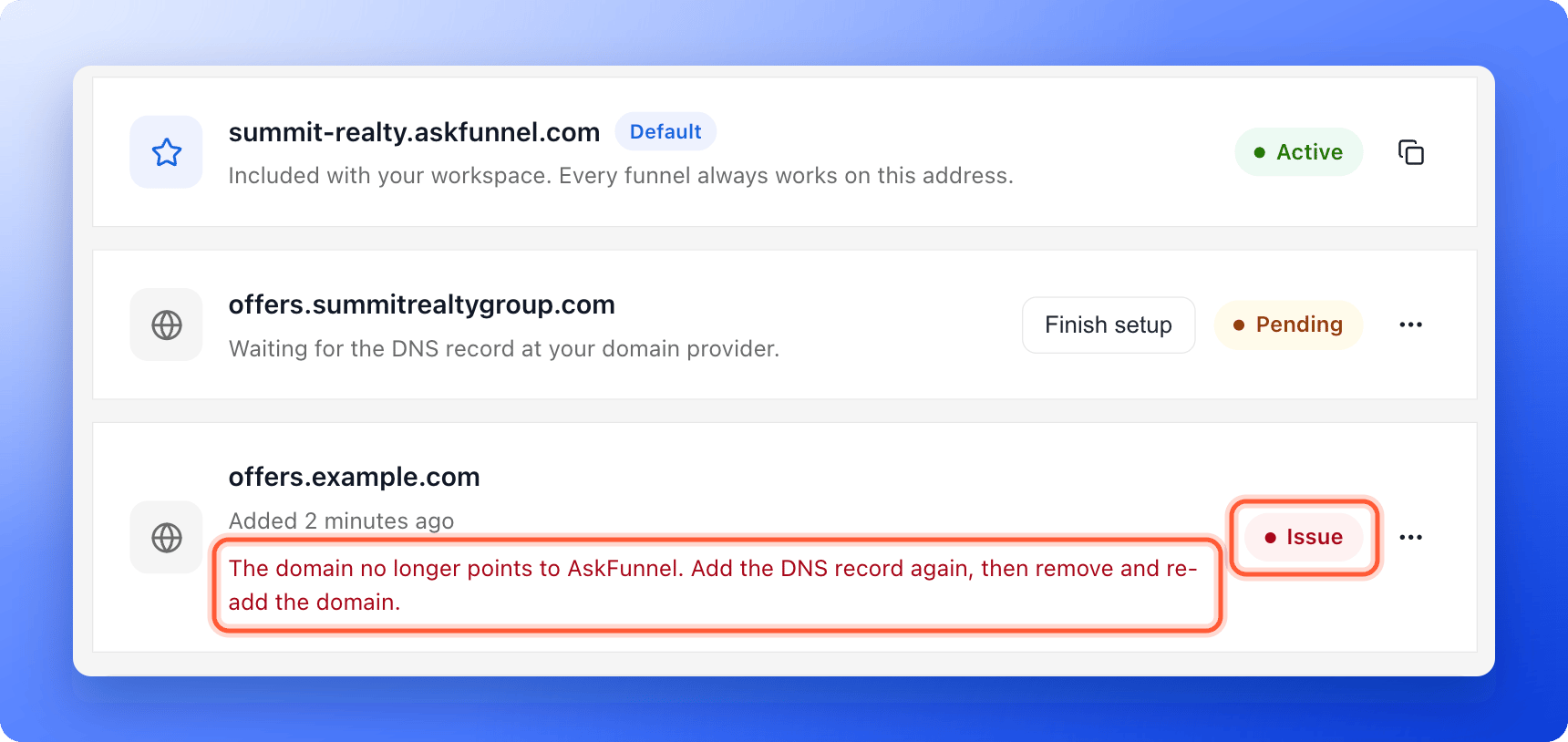
* **The domain no longer points to AskFunnel.** AskFunnel checks connected domains about once a day. If your record was deleted or changed, the domain shows **Issue** and your funnels stop opening on it. Add the DNS record again, then remove the domain and add it again. To remove it, open the menu (**...**) next to it and click **"Remove domain"**.
An **Issue** card shows when the domain was added under its name (**Added** and a time or date), with the reason written below it. There is no **Finish setup** button, but the menu (**...**) still has **"Check status"**, **"View DNS instructions"** and **"Remove domain"**. **"Check status"** looks at the domain again and shows a short notice. It says **Your domain's settings block certificate issuance. See the details below.** when a setting such as a CAA record blocks the certificate, **The domain no longer points to AskFunnel.** when the record is gone, and **Your domain is live.** when the domain works again.
Open a new tab and sign in where your domain's DNS is managed. Find the record for your domain and make it look like this:
* **Type:** **CNAME**
* **Host:** everything before your main domain name. For `funnel.yourbrand.com`, enter **funnel**. Do not type the whole address, or some providers add your domain twice and the record never works.
* **Target** (or **Value**): `funnels.askfunnel.com`
* **TTL:** **Auto**, or leave the default.
Then save the record.
* A name can have only one CNAME. If the same **Host** already has another record, such as an A record, your provider may refuse the new record or keep using the old one. Delete the old record first.
* Copy the **Host** and **Target** with the copy icons in the setup window, so nothing is mistyped.
Go back to AskFunnel and click **"Check status"** again, or open the setup window and click **"Check again now"**. While the window is open, AskFunnel keeps checking about every 15 seconds for about 10 minutes.
When it works, you see **Your domain is live** and the domain shows a green **Active** label. Then [choose the domain for your funnel](/funnel-settings/custom-domain#setup).
## Fix a domain that shows Issue
The reason is written under the domain name. The two you are most likely to see:
* **A CAA record blocks the certificate.** A CAA record is a DNS entry that lists which companies may create security certificates for your domain. If yours does not allow AskFunnel's certificate, the domain shows **Issue**. Ask your domain provider to remove the CAA record or to allow certificates for your domain, then click **"Check status"**.
* **The domain no longer points to AskFunnel.** AskFunnel checks connected domains about once a day. If your record was deleted or changed, the domain shows **Issue** and your funnels stop opening on it. Add the DNS record again, then remove the domain and add it again. To remove it, open the menu (**...**) next to it and click **"Remove domain"**.
An **Issue** card shows when the domain was added under its name (**Added** and a time or date), with the reason written below it. There is no **Finish setup** button, but the menu (**...**) still has **"Check status"**, **"View DNS instructions"** and **"Remove domain"**. **"Check status"** looks at the domain again and shows a short notice. It says **Your domain's settings block certificate issuance. See the details below.** when a setting such as a CAA record blocks the certificate, **The domain no longer points to AskFunnel.** when the record is gone, and **Your domain is live.** when the domain works again.
 ## Root domains and provider notes
We recommend a subdomain such as `funnel.yourbrand.com`, because a root domain like `yourbrand.com` can conflict with your existing website or email. If you still connect a root domain, the **Host** is **@**, and the provider must support a CNAME at the root:
* **Cloudflare:** does this automatically.
* **Namecheap and Hostinger:** call it an ALIAS record.
* **GoDaddy:** connect `www.yourbrand.com` instead and forward the root domain to it.
Menu names change from time to time, but these are the places to look:
* **Namecheap:** open your domain list, click **Manage** next to the domain, open the **Advanced DNS** tab and add a **CNAME Record**.
* **GoDaddy:** open your domain, go to **DNS** and click **Add** to create a **CNAME** record.
* **Cloudflare:** open **DNS**, then **Records**. In the **Proxy status** column, make sure the record says **DNS only**.
If your domain's name servers (the servers that answer for your domain) are at a different company than the one you bought it from, add the record there. A record added at the wrong company is never seen.
## How do I know it is working?
* In **Workspace Settings**, under **Domains**, your domain shows a green **Active** label.
* In **Funnel Settings**, under **Domains**, you can turn the switch on next to your domain. It says **People can open this funnel on this address.**
* Your funnel opens on your own domain in a private browser window.
## Troubleshooting
Check the message with **"Check status"**. If it says your record was not found, compare your record with step 3 letter by letter. Also check that you added it at the company that manages your DNS, and that the **Host** holds only the part before your main domain name. If the message says the certificate is being issued, wait a little longer. If you never fix it, AskFunnel removes the domain after about 14 days.
Being **Active** only means the domain is connected. Open **Funnel Settings** for the funnel, click **"Domains"** and turn on the switch next to your domain. The funnel must also be published, so check that it shows **Live** in your funnel list. The change goes live within about a minute. See [Publish, unpublish and restore an earlier version](/funnels/publish-and-restore).
The security certificate is not ready yet. Wait a few minutes and reload. If the domain still says **Pending** after a long time, use **"Check status"**.
That domain is already connected to a workspace, maybe yours. Open **Workspace Settings**, then **Domains** to check. If it belongs to another workspace, remove it there first.
You cannot connect askfunnel.com or any address that ends in it. Use a domain you own.
Connecting a domain needs an active plan. A Global Admin can subscribe or resubscribe. See [Upgrade your plan](/billing/upgrade).
Only Workspace Admins and Global Admins can open **Workspace Settings**. Ask an admin to fix the domain.
## What to do next
The full setup, from adding the domain to choosing it for a funnel.
Use your link in ads, messages and social posts.
Choose the title and picture people see when they share your link.
Need help? Email [support@askfunnel.com](mailto:support@askfunnel.com).
## Root domains and provider notes
We recommend a subdomain such as `funnel.yourbrand.com`, because a root domain like `yourbrand.com` can conflict with your existing website or email. If you still connect a root domain, the **Host** is **@**, and the provider must support a CNAME at the root:
* **Cloudflare:** does this automatically.
* **Namecheap and Hostinger:** call it an ALIAS record.
* **GoDaddy:** connect `www.yourbrand.com` instead and forward the root domain to it.
Menu names change from time to time, but these are the places to look:
* **Namecheap:** open your domain list, click **Manage** next to the domain, open the **Advanced DNS** tab and add a **CNAME Record**.
* **GoDaddy:** open your domain, go to **DNS** and click **Add** to create a **CNAME** record.
* **Cloudflare:** open **DNS**, then **Records**. In the **Proxy status** column, make sure the record says **DNS only**.
If your domain's name servers (the servers that answer for your domain) are at a different company than the one you bought it from, add the record there. A record added at the wrong company is never seen.
## How do I know it is working?
* In **Workspace Settings**, under **Domains**, your domain shows a green **Active** label.
* In **Funnel Settings**, under **Domains**, you can turn the switch on next to your domain. It says **People can open this funnel on this address.**
* Your funnel opens on your own domain in a private browser window.
## Troubleshooting
Check the message with **"Check status"**. If it says your record was not found, compare your record with step 3 letter by letter. Also check that you added it at the company that manages your DNS, and that the **Host** holds only the part before your main domain name. If the message says the certificate is being issued, wait a little longer. If you never fix it, AskFunnel removes the domain after about 14 days.
Being **Active** only means the domain is connected. Open **Funnel Settings** for the funnel, click **"Domains"** and turn on the switch next to your domain. The funnel must also be published, so check that it shows **Live** in your funnel list. The change goes live within about a minute. See [Publish, unpublish and restore an earlier version](/funnels/publish-and-restore).
The security certificate is not ready yet. Wait a few minutes and reload. If the domain still says **Pending** after a long time, use **"Check status"**.
That domain is already connected to a workspace, maybe yours. Open **Workspace Settings**, then **Domains** to check. If it belongs to another workspace, remove it there first.
You cannot connect askfunnel.com or any address that ends in it. Use a domain you own.
Connecting a domain needs an active plan. A Global Admin can subscribe or resubscribe. See [Upgrade your plan](/billing/upgrade).
Only Workspace Admins and Global Admins can open **Workspace Settings**. Ask an admin to fix the domain.
## What to do next
The full setup, from adding the domain to choosing it for a funnel.
Use your link in ads, messages and social posts.
Choose the title and picture people see when they share your link.
Need help? Email [support@askfunnel.com](mailto:support@askfunnel.com).