> ## Documentation Index
> Fetch the complete documentation index at: https://help.askfunnel.com/llms.txt
> Use this file to discover all available pages before exploring further.
# Add a discount code or VAT number
> Apply a discount code or your VAT number on the checkout page when you subscribe.
The **Order summary** updates as soon as you apply a code, so you see the new total before you subscribe.
**Before you start**, you need:
* Your discount code or your VAT number.
* A plan you are ready to subscribe to. You add both on the checkout page, before you pay. See [Upgrade your plan](/billing/upgrade).
## Important to note
* You cannot add a discount code to a subscription you already have from the dashboard.
* Some codes only work on certain plans or billing cycles. If a code does not cover the plan you chose, it is not applied.
* A discount lasts as long as the code says. It might cover the first month, a number of months or every payment. After that, the normal price applies.
## Add a discount code
Open your **Plan** page, click **"Change plan"**, pick your plan and click **"Continue to payment"**.
Below **Country**, click **"Add discount code"**.
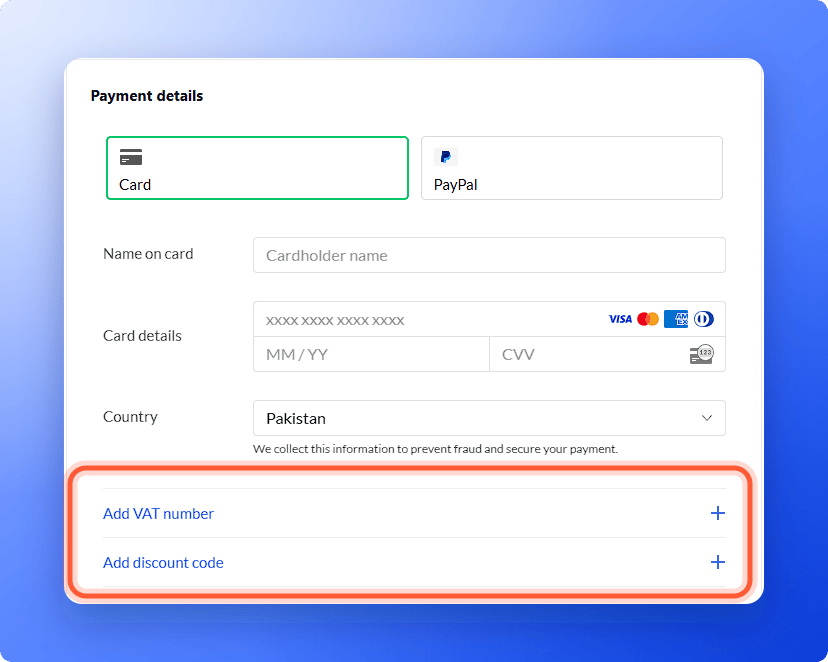 Type or paste your code and apply it. In the **Order summary**, a **Discount** line shows what you save and the total updates.
Choose how you pay and click **"Subscribe now"**. See [Add or update your payment method](/billing/payment-methods).
If you signed up from a link that included a discount code, it is saved with your trial and applied for you at checkout, as long as it covers the plan and billing cycle you choose.
## Add a VAT number
If you are buying for a business, add your VAT number before you pay. VAT is a sales tax that applies in many countries. Prices do not include tax, so the checkout shows the tax for your country as a separate **Tax** line.
1. On the checkout page, below **Country**, click **"Add VAT number"**.
2. Enter your VAT number and any business details the form asks for.
3. Check the **Tax** line in the **Order summary**, then click **"Subscribe now"**.
In some countries the link has a local name. For example, in Australia it reads **Add ABN**.
## Troubleshooting
Check that you typed it exactly as you received it. The code may have expired, been used already, or not cover the plan or billing cycle you picked. Try switching plan or cycle on the **Choose your plan** page, or email support with the code.
They are on the checkout page, below **Country**, in the payment form. If the form has not loaded yet, wait a moment. If it shows **We couldn't start checkout**, click **"Try again"**.
Email support with your account email and the code or VAT number, and we will tell you what we can do.
Our prices do not include tax. Tax is worked out from your country when you pay, and the **Order summary** shows it on its own **Tax** line.
## What to do next
Pay by card or PayPal.
See when you are charged and download invoices.
See your renewal date and limits.
Need help? Email [support@askfunnel.com](mailto:support@askfunnel.com).
Type or paste your code and apply it. In the **Order summary**, a **Discount** line shows what you save and the total updates.
Choose how you pay and click **"Subscribe now"**. See [Add or update your payment method](/billing/payment-methods).
If you signed up from a link that included a discount code, it is saved with your trial and applied for you at checkout, as long as it covers the plan and billing cycle you choose.
## Add a VAT number
If you are buying for a business, add your VAT number before you pay. VAT is a sales tax that applies in many countries. Prices do not include tax, so the checkout shows the tax for your country as a separate **Tax** line.
1. On the checkout page, below **Country**, click **"Add VAT number"**.
2. Enter your VAT number and any business details the form asks for.
3. Check the **Tax** line in the **Order summary**, then click **"Subscribe now"**.
In some countries the link has a local name. For example, in Australia it reads **Add ABN**.
## Troubleshooting
Check that you typed it exactly as you received it. The code may have expired, been used already, or not cover the plan or billing cycle you picked. Try switching plan or cycle on the **Choose your plan** page, or email support with the code.
They are on the checkout page, below **Country**, in the payment form. If the form has not loaded yet, wait a moment. If it shows **We couldn't start checkout**, click **"Try again"**.
Email support with your account email and the code or VAT number, and we will tell you what we can do.
Our prices do not include tax. Tax is worked out from your country when you pay, and the **Order summary** shows it on its own **Tax** line.
## What to do next
Pay by card or PayPal.
See when you are charged and download invoices.
See your renewal date and limits.
Need help? Email [support@askfunnel.com](mailto:support@askfunnel.com).