> ## Documentation Index
> Fetch the complete documentation index at: https://help.askfunnel.com/llms.txt
> Use this file to discover all available pages before exploring further.
# Download your analytics as CSV
> Download the numbers behind any analytics chart to open in Excel or Google Sheets or to share with your team.
Download the numbers behind any chart or card on the **Analytics** tab, to build a report, share results with a client or keep a record of a campaign. Every chart and card has its own download.
**Before you start**, you need:
* A role that can open analytics: Global Admin, Workspace Admin or Contacts Manager.
* A funnel with analytics data. See [Read your funnel analytics](/analytics/funnel-analytics).
## Download a chart's data
Open your funnel, click **Analytics** and pick the dates you want, for example **Last 28 days** or a **Custom range**. The file covers the range you have selected.
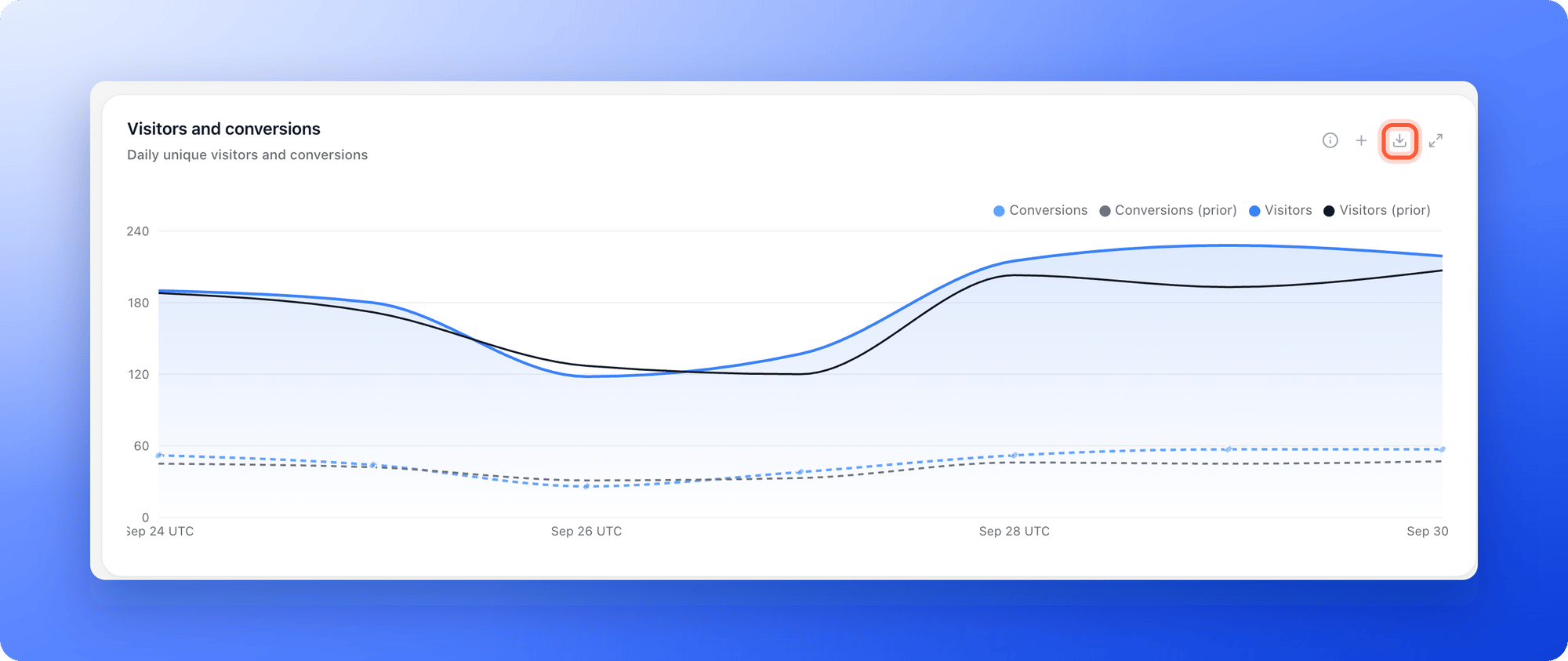
Find the chart you want and click the download icon (**Download as CSV**) in the top right corner of its card. The file downloads to your computer right away. The icon appears once a chart has data. If you do not see it, widen the date range.
 Open the CSV (a simple spreadsheet file) in Excel, Google Sheets or any other tool.
These files hold totals, not individual leads. To download names, emails and answers, see [Export your leads](/leads/export-contacts).
## Which file you get
Each card downloads its own file, and the end of the file name tells you which card it came from.
* **Visitors and conversions** (ends in `_visitors.csv`): one row per day with visitors, conversions, completions and the conversion rate, plus a total row.
* **Step reach** (`_dropoff.csv`): how many times each step was reached.
* **Top traffic sources** (`_sources.csv`): visitors, conversions and conversion rate for the grouping you chose, such as source or campaign.
* **Activity by time of day** (`_hours.csv`): visits for each hour in UTC.
* **Device split** (`_devices.csv`): visits by device type.
* **Top step responses** (`_responses.csv`): how often each answer was picked.
* **Lead pipeline** (`_pipeline.csv`): how many of the leads created in your date range are in each status.
The first few lines of each file say which funnel it is, the date range, that times are in UTC and when the file was created. Delete those lines if a tool you import into needs a clean table.
## What to do next
Download names, emails and answers.
Visitors, conversions and where people drop off.
Need help? Email [support@askfunnel.com](mailto:support@askfunnel.com).
Open the CSV (a simple spreadsheet file) in Excel, Google Sheets or any other tool.
These files hold totals, not individual leads. To download names, emails and answers, see [Export your leads](/leads/export-contacts).
## Which file you get
Each card downloads its own file, and the end of the file name tells you which card it came from.
* **Visitors and conversions** (ends in `_visitors.csv`): one row per day with visitors, conversions, completions and the conversion rate, plus a total row.
* **Step reach** (`_dropoff.csv`): how many times each step was reached.
* **Top traffic sources** (`_sources.csv`): visitors, conversions and conversion rate for the grouping you chose, such as source or campaign.
* **Activity by time of day** (`_hours.csv`): visits for each hour in UTC.
* **Device split** (`_devices.csv`): visits by device type.
* **Top step responses** (`_responses.csv`): how often each answer was picked.
* **Lead pipeline** (`_pipeline.csv`): how many of the leads created in your date range are in each status.
The first few lines of each file say which funnel it is, the date range, that times are in UTC and when the file was created. Delete those lines if a tool you import into needs a clean table.
## What to do next
Download names, emails and answers.
Visitors, conversions and where people drop off.
Need help? Email [support@askfunnel.com](mailto:support@askfunnel.com).