> ## Documentation Index
> Fetch the complete documentation index at: https://help.askfunnel.com/llms.txt
> Use this file to discover all available pages before exploring further.
# Track lead and team activity in the activity log
> See every lead captured, status change, note and funnel update in one timeline, and search it.
See what your team did without asking, and check the history of a lead. The **Activity** tab is a timeline of everything that happens in one funnel: new leads, status changes, tags, assignments, notes and funnel updates.
**Before you start**, you need:
* A role that can open the activity log: Global Admin, Workspace Admin or Contacts Manager. Content Editors do not have access because it contains lead details.
## Important to note
* Deleting a lead removes its earlier entries. Only a short "deleted a lead" line remains. See [Delete leads](/leads/delete-leads).
* The log shows one funnel at a time, the one you opened. Open another funnel to see its log.
## Open the activity log
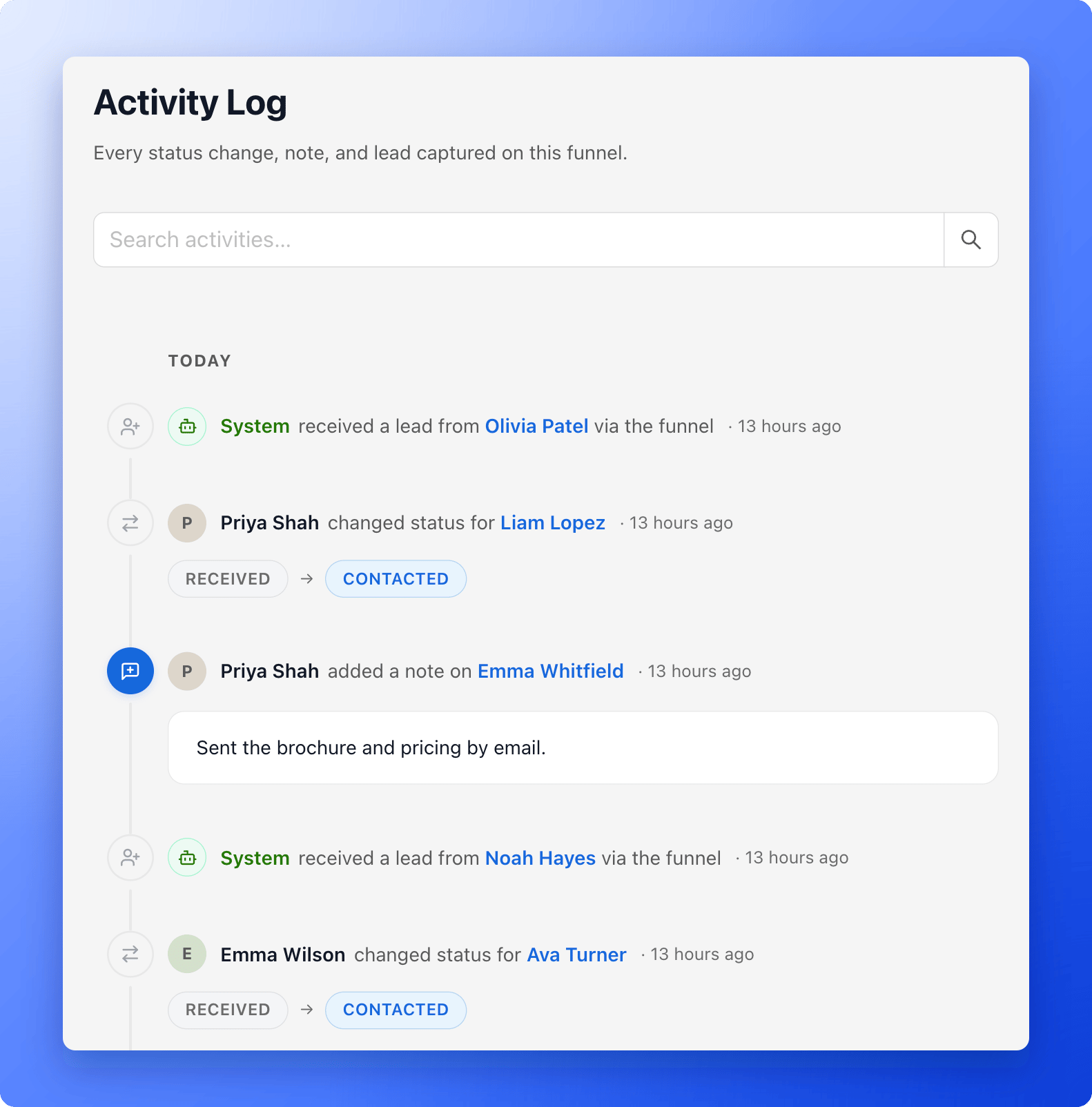
Open your funnel from the **Funnels** page, then click **Activity** in the tabs at the top of the page. The page is titled **Activity Log** and says "Every status change, note, and lead captured on this funnel."
Entries are grouped by day, newest first. Each one shows who did it, what they did and how long ago. Hover over the time to see the exact date and time. Actions done automatically, such as a lead arriving from your funnel, show a robot icon instead of a person.
 ## Search and open a lead
* **Search:** type a word in **Search activities...** and press **Enter** or click the magnifier. For example, type "converted" to find every lead that reached that status, or type a lead's name to see its history. Matches are highlighted. Click the clear icon to go back to the full timeline.
* **Open a lead:** click a lead's name (in blue) to open its side panel.
* **See older activity:** click **Load more** at the bottom. New entries appear at the top on their own while you are not searching.
## What is recorded
* **New leads:** a lead **received** through your funnel, or a lead that was **imported**.
* **Status changes:** the lead's old and new status side by side, for example **RECEIVED** to **MEETING**.
* **Tag changes:** which tags were set on the lead.
* **Assignments:** who was assigned to a lead or removed from it.
* **Notes:** a note added, edited (with the text before and after) or deleted.
* **Deleted leads:** who deleted a lead. The entry does not show the lead's name.
* **Funnel updates:** the funnel was created, published, unpublished or deleted.
## What to do next
Open a lead's Tracking tab and add notes.
Change a lead's status and see it in the log.
Need help? Email [support@askfunnel.com](mailto:support@askfunnel.com).
## Search and open a lead
* **Search:** type a word in **Search activities...** and press **Enter** or click the magnifier. For example, type "converted" to find every lead that reached that status, or type a lead's name to see its history. Matches are highlighted. Click the clear icon to go back to the full timeline.
* **Open a lead:** click a lead's name (in blue) to open its side panel.
* **See older activity:** click **Load more** at the bottom. New entries appear at the top on their own while you are not searching.
## What is recorded
* **New leads:** a lead **received** through your funnel, or a lead that was **imported**.
* **Status changes:** the lead's old and new status side by side, for example **RECEIVED** to **MEETING**.
* **Tag changes:** which tags were set on the lead.
* **Assignments:** who was assigned to a lead or removed from it.
* **Notes:** a note added, edited (with the text before and after) or deleted.
* **Deleted leads:** who deleted a lead. The entry does not show the lead's name.
* **Funnel updates:** the funnel was created, published, unpublished or deleted.
## What to do next
Open a lead's Tracking tab and add notes.
Change a lead's status and see it in the log.
Need help? Email [support@askfunnel.com](mailto:support@askfunnel.com).